Content Archival
Archive Whatfix content or widgets
Archiving content and widgets helps declutter the Dashboard and makes it easier for you to find relevant and up-to-date information. Store old and unused content or widgets in a separate section called the Archived section. You can restore content and widgets from the Archived section to the Draft stage. However, you can't restore content and widgets after deletion.
Archiving a folder archives the content or widgets within the folder and its sub-folders, but not the folders and sub-folders themselves. The Archived section does not contain any folders.
Use the following steps to archive content or widgets:
For content:
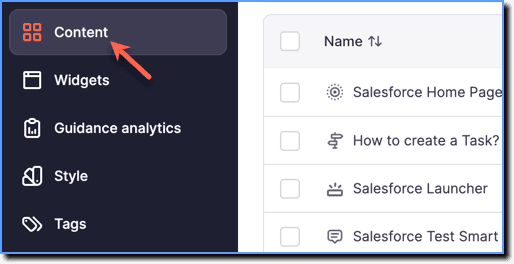
- On the Whatfix Guidance dashboard, click Content.
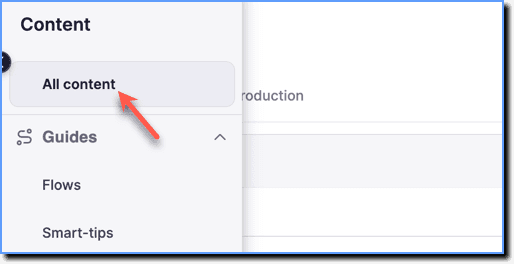
- Click All content.
For widgets:
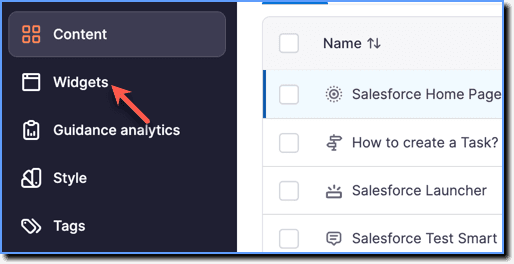
- On the Whatfix Guidance dashboard, click Widgets.
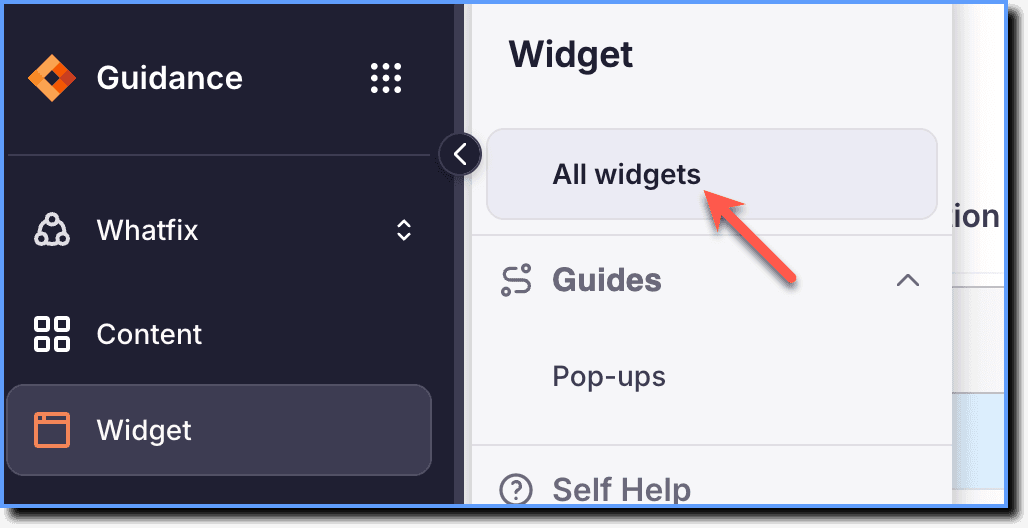
- Click All widgets.
- Select the content or widgets you want to archive.

- Click Archive.

You can also archive individual content or widgets using the More icon on the content or widget:
- Hover your cursor over the content or widget you want to archive and then click the More icon.

- Click Archive.

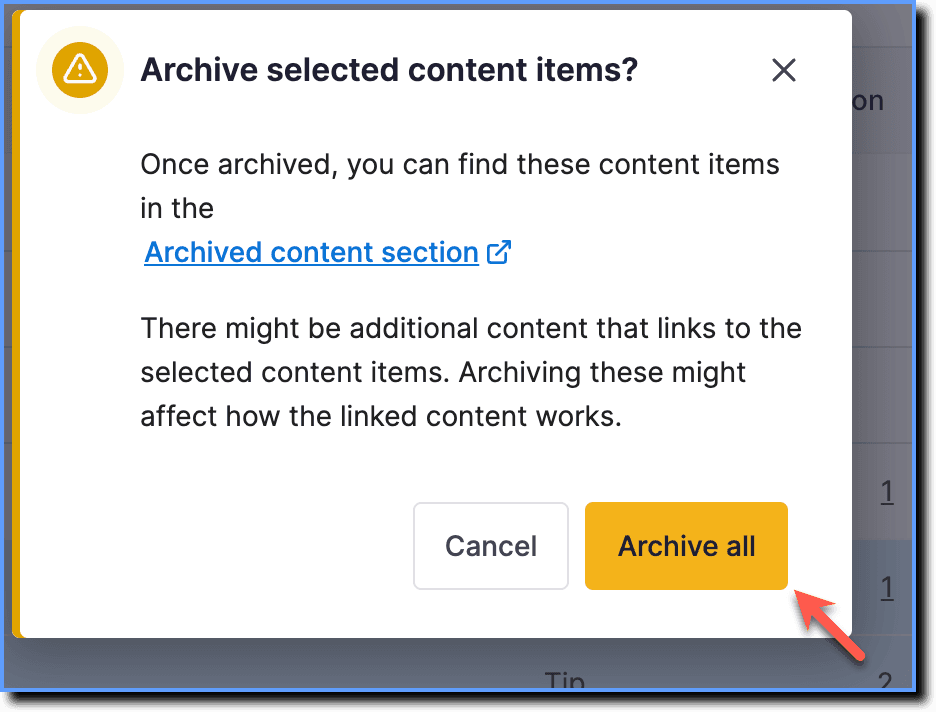
- Click Archive All.
When you archive content or widgets that already have a version in the Archived section, the version present in the Archived section gets overwritten by the new version being archived.