Publish Whatfix Content
Assign Project Priority
Project priority is useful when you have multiple projects that start on the same app screen. In such cases setting a priority ensures that after the content is published, they won't start together and launch only as per the set priority.
Use the following steps to assign a priority to your project:
Info
Whatfix enables you to assign a priority to your project only while publishing your project. For more information, see Publish projects directly
- On the Whatfix Mobile Dashboard, go to the app where you have created your projects.
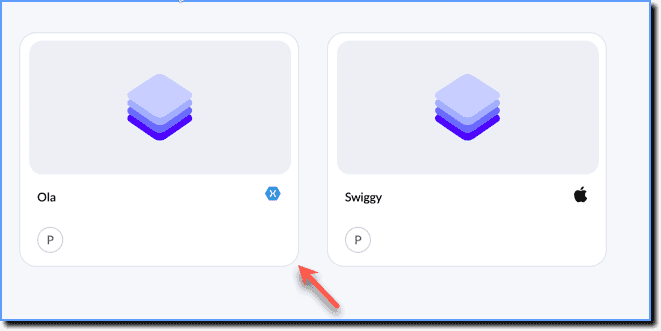
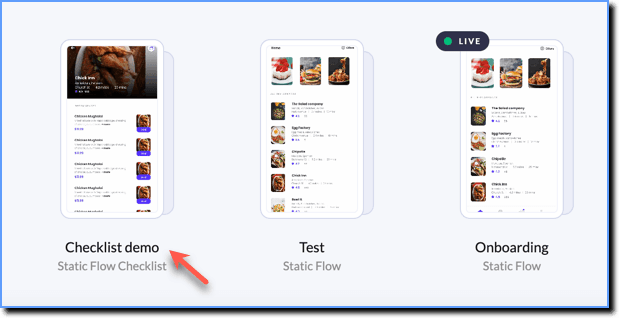
- Open the project you want to publish.
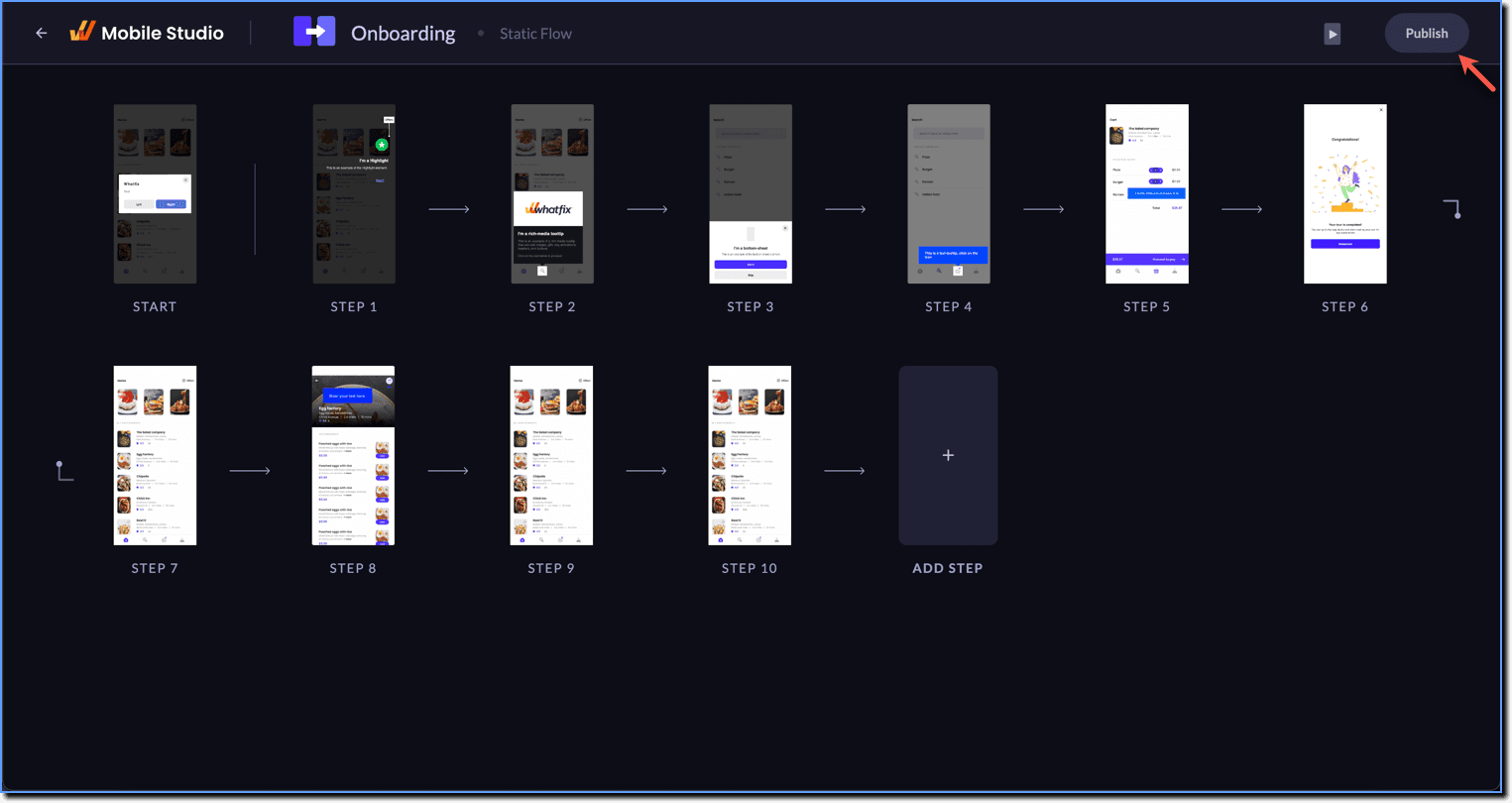
- On the Whatfix Mobile Studio, go to the top-right and then click Publish.
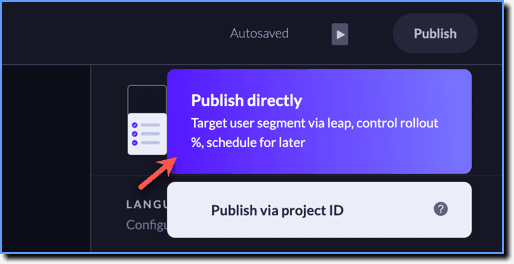
- Click Publish directly.
- In the TARGET tab, under the User segment section, choose the segments you want to target.
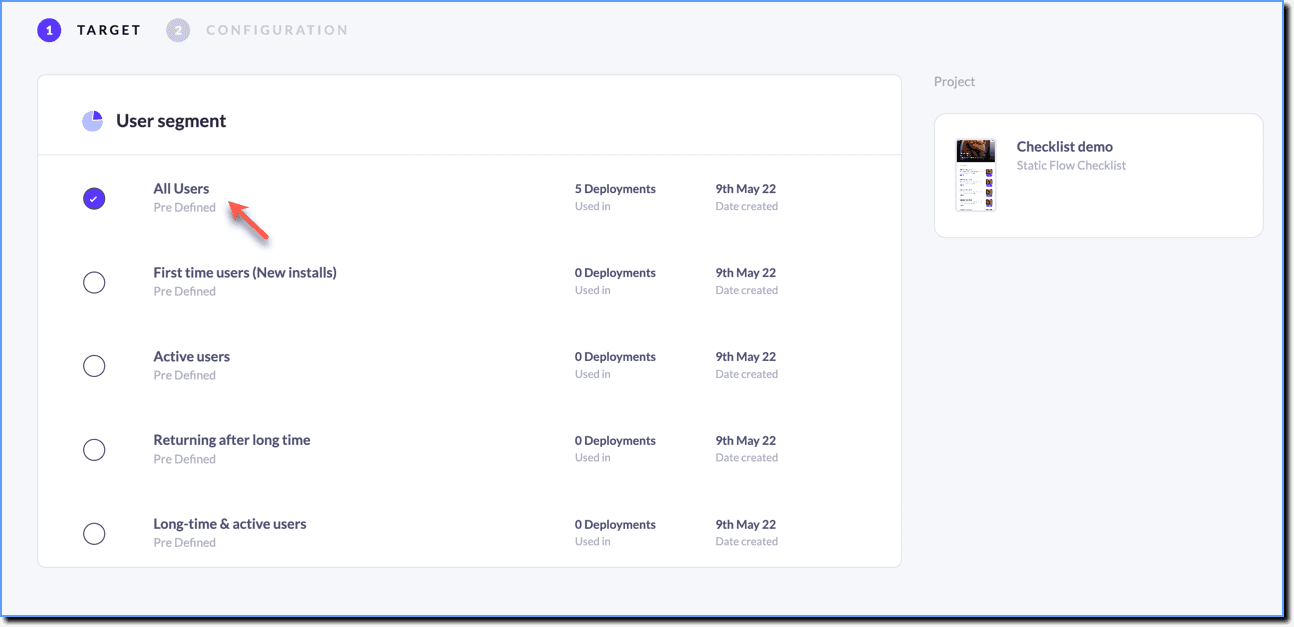
Info
By default, there are pre-built segments available for you to use. In case you want to use a custom segment, you need to create them beforehand. For more information, see Add Custom Properties to User Segments.
- In the CONFIGURATION tab, select your rollout percentage. This helps you publish your project for a percentage of your user segment.
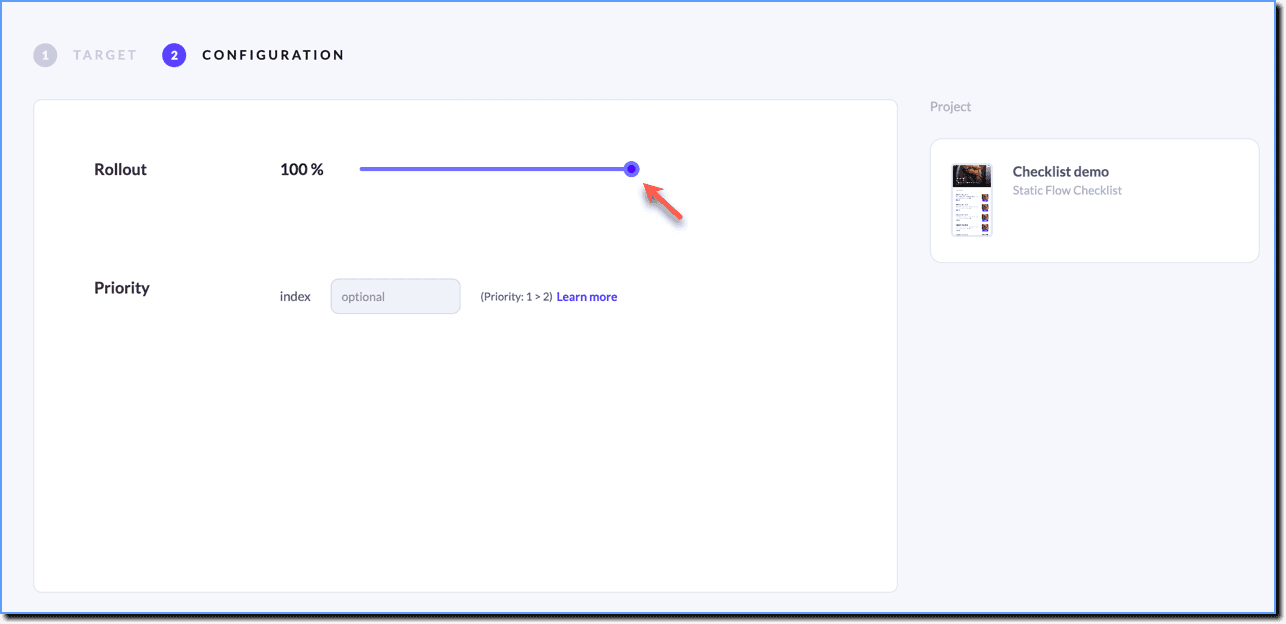
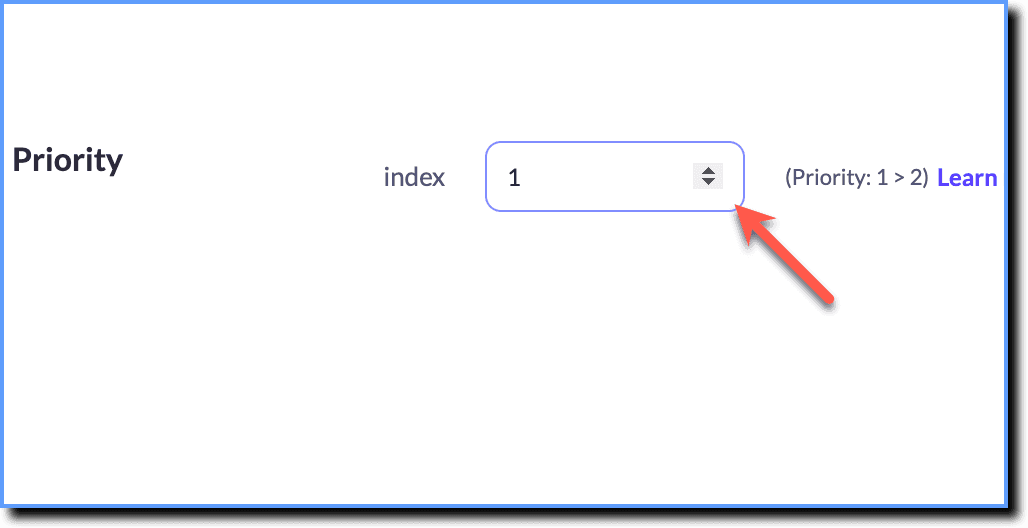
- In the Priority field, enter the index or the rank of the project.
- Click Go Live.
Info
- The priority index is 1 > 2 > 3. So, if you want a particular project to start first, move it up the order.
- Consider that there exist two Walkthroughs set to appear on the same screen. In such a case, the one with the higher priority will appear first. Even when Walkthrough 1 is completed, on returning or reloading the screen, Walkthrough 1 will still appear first. To ensure that Walkthrough 2 appears once Walkthrough 1 is completed, either a Dismissible icon or a Flow termination condition needs to be set up for Walkthrough 1.
- If no priority is set for a published project, it is considered to have the lowest priority by default.