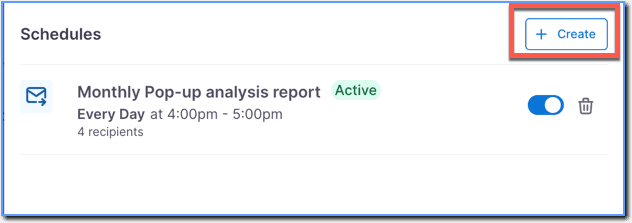
Schedule Insight reports
How can you edit a reporting schedule in Product Analytics?
Whatfix enables you to edit a reporting schedule after creating it. Edit an existing reporting schedule when it expires or to add or remove a recipient.
Make the following changes to an existing schedule:
- Update the name of the schedule
- Add or remove recipients
- Change the scheduling condition
Currently, Whatfix enables you to schedule only Trend Insight reports.
Use the following steps to edit a reporting schedule:
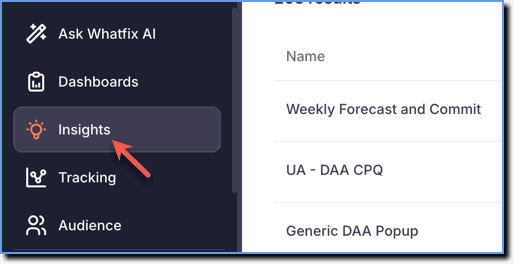
- On the Whatfix Analytics dashboard, click Insights.
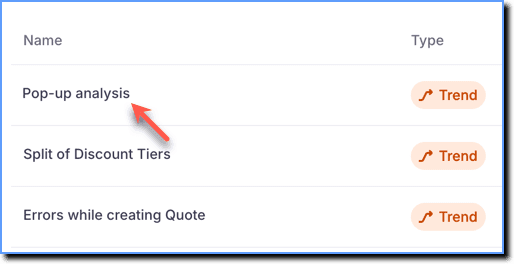
- Click the Trend Insight for which you want to edit the schedule.
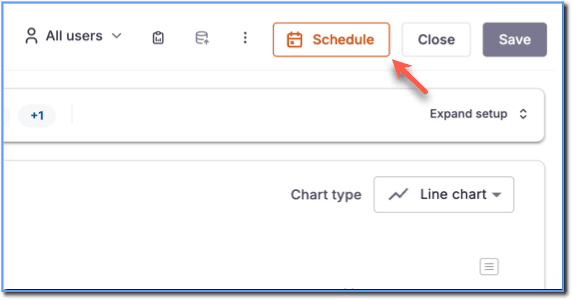
 2. Click Schedule.
 3. Click the existing Schedule.
 4. Make the necessary changes. For more information, see Schedule a Trend Insight.
5. Click Save schedule.
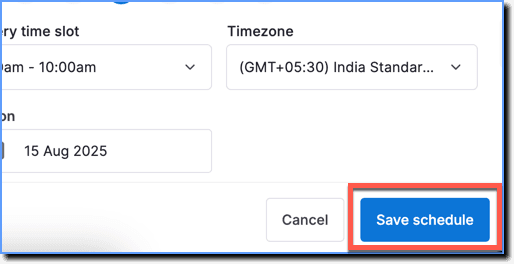
- The schedule gets updated, and the reports are sent according to the updated Schedule.
- Once the schedule is saved, it becomes active by default and is denoted by the Active label. The reports are sent from the time the schedule becomes active.