Dashboards
Use Filters in Custom Dashboards
Use the built-in filtering options available in Dashboards to refine and visualize data based on specific conditions.
Example: Filter all the Insights in your Dashboard to show data of users using the Chrome browser.
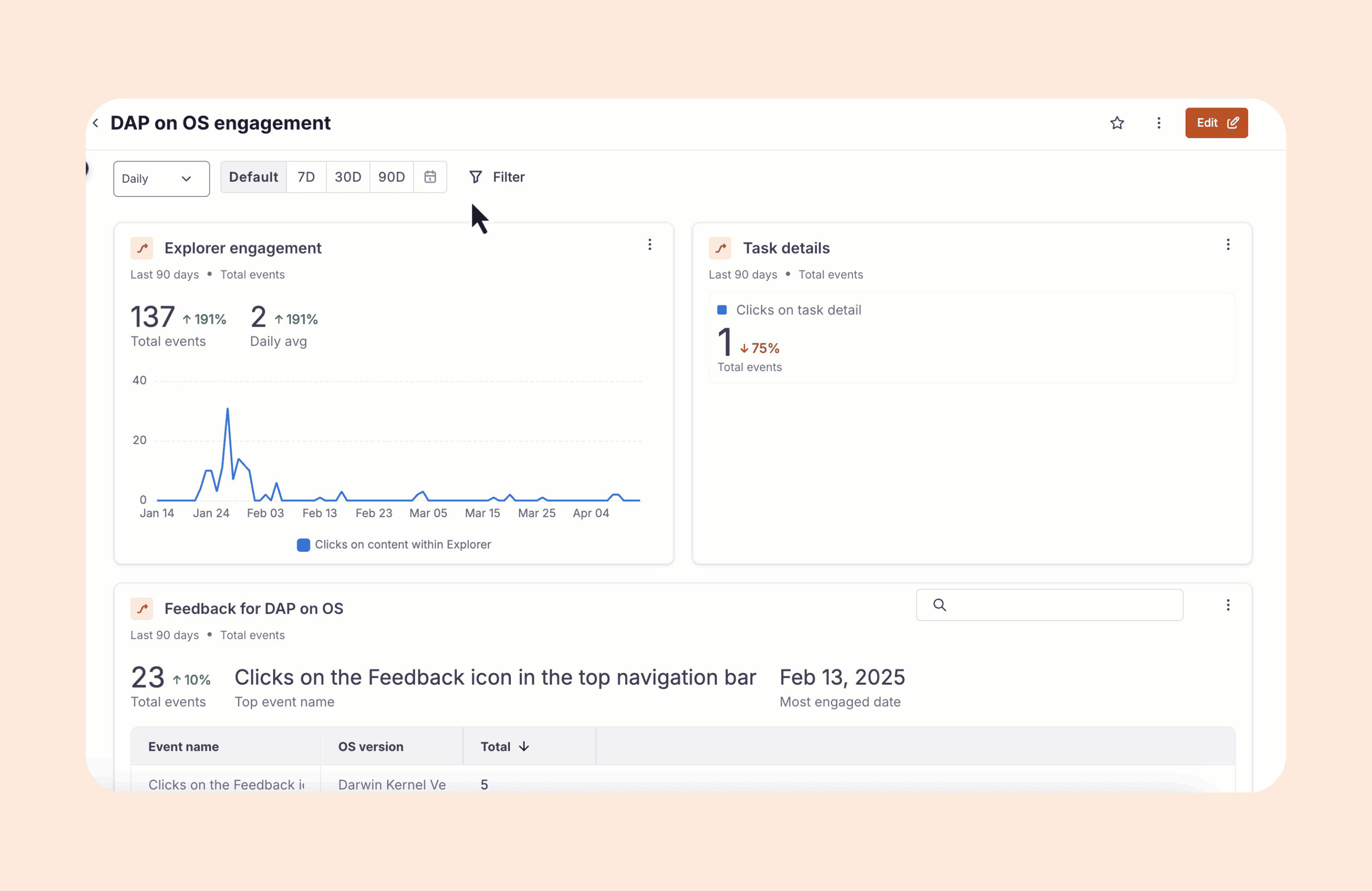
- Filters added on Dashboards are included as an AND condition to the existing filters applied on Insights.
- There is no limit to the number of filters you can add to your Dashboards.
The following table lists the filtering options associated with Dashboards:
| Filters | Description |
|---|---|
| Device Type | Users are filtered based on the hardware they use. Example: Mobile phones, desktops, tablets, and more. > [!NOTE] > Info: > > For more information on the different types of devices that are captured, see What are the device types captured by Product Analytics? |
| Browser | Users are filtered based on the browser type they use to access their websites. Example: Chrome, Firefox, Edge, and more. |
| City | Users are filtered based on the city. The data is taken from the browser. Example: Dallas, Beijing, Bengaluru, and more. |
| Country | Users are filtered based on the country. The data is taken from the browser. Example: United Kingdom, United States, and more. > [!NOTE] > Info: > > The country names are shown as ISO country codes. |
| Event trigger page URL | Users are filtered based on where the event is launched. |
| User ID | Users are filtered based on the ID from which the Whatfix Event is triggered. Example: johndoe@whatfix.com. > [!WARNING] > Note: > > - The User ID filter is case-sensitive. Ensure you add the exact User ID value to get the data. > - Use a comma to search for multiple User IDs. |
| Extension version | Users are filtered based on the browser extension version they are using. |
| OS version | Users are filtered based on the OS versions. |
| Extension name | Users are filtered based on different browser extension names. |
| Reserved variable 1 | Whenever Whatfix sends any event data, two variables are reserved as placeholders for any additional properties that might be required. Reserved Variables are those properties captured along with Default events. They are dependent on events and user interaction and capture data only when all necessary conditions are met. For example, set up a ‘session count’ Reserved Variable that will increment every time the user logs in. For more information, contact support@whatfix.com. Users are filtered based on these additional properties. |
| Reserved variable 2 | Whenever Whatfix sends any event data, two variables are reserved as placeholders for any additional properties that might be required. Reserved Variables are these properties captured along with Default events. They are dependent on events and user interaction and capture data only when all necessary conditions are met. For example, set up a ‘session count’ Reserved Variable that will increment every time the user logs in. For more information, contact support@whatfix.com . Users are filtered based on these additional properties. |
| User Attribute | Users are filtered based on the captured User Attributes, such as role and department. |
| Language | Users are filtered based on the browser language. Example: French (fr), Spanish (es), and more. |
| Region | Users are filtered based on the geographical region. The data is taken from the browser. Example: Camden, Kerala, Central Province, and more. |
| Model | Users are filtered based on the model of their device. Example: Apple iPhone, Linux Desktop, and more. |
| OS | Users are filtered based on the base software(Operating System OS) that runs on the hardware. Example: iOS, Linux, Windows, and more. |
| User type | Users are filtered based on whether Whatfix is able to detect and identify their User ID when they log in to the application. There are two types of users: identified and unidentified users. For more information, see How can I filter unidentified users in Product Analytics? |