Configure Self Help
Integrate Chatbot in Improved Self Help
Overview
Whatfix supports Chatbot integration within the Improved Self Help widget. Once integrated, the Chatbot appears within the iframe of the Self Help widget. The Chatbot integration enables users to complete tasks independently, improving efficiency and reducing the need for external assistance.
End-user experience
Once enabled, the Chatbot appears as an icon within the header of the Improved Self Help widget. Users can click the Chatbot icon for assistance. 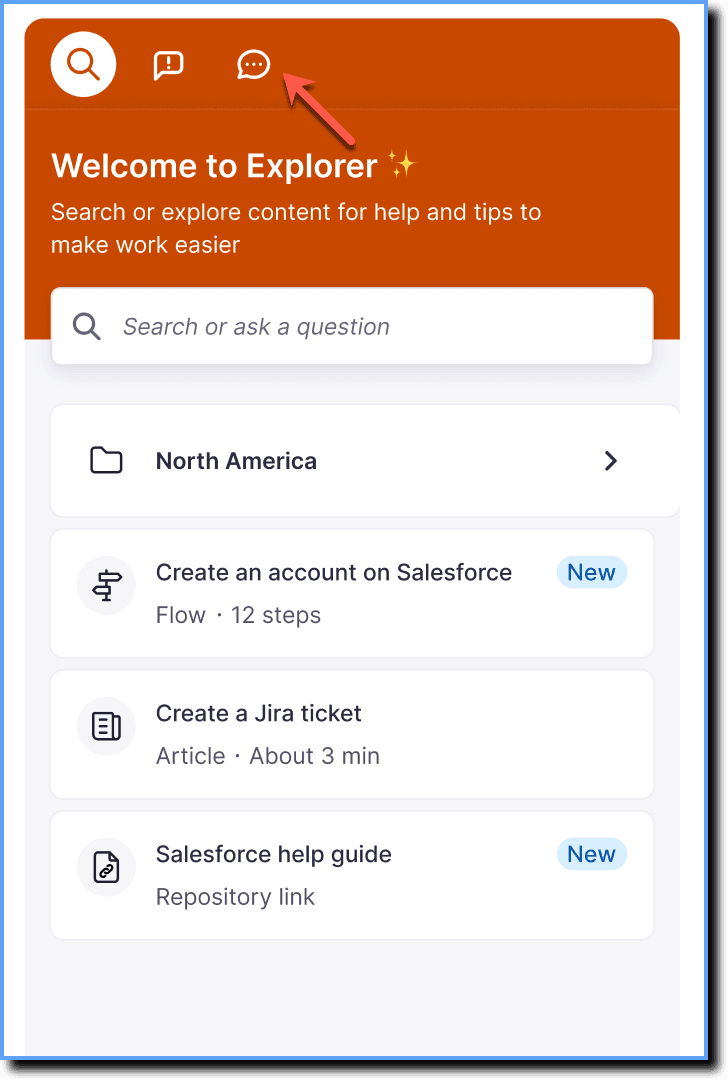
Enable Chatbot Integration
Chatbot integration is configured within the Whatfix Guidance Dashboard.
Use the following steps to enable Chatbot integration in Improved Self Help:
-
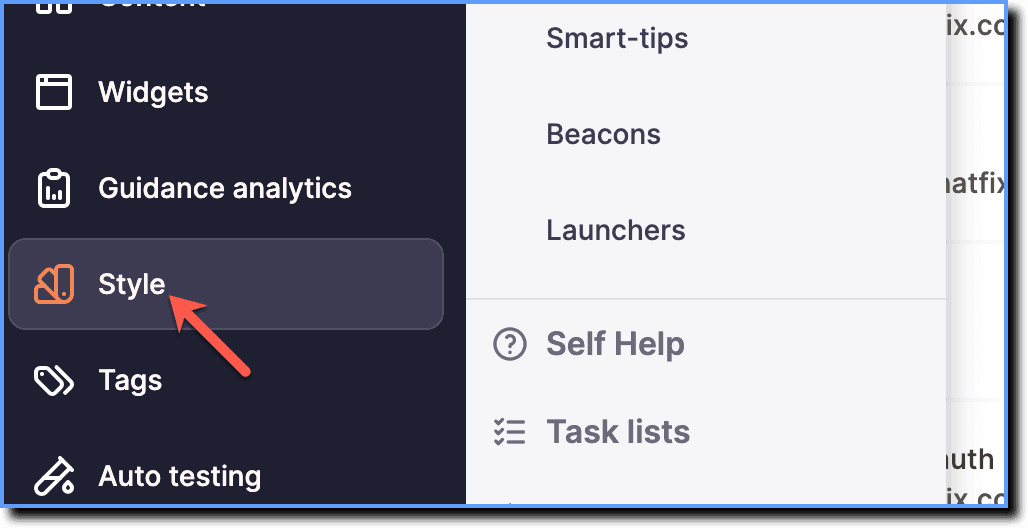
On the Whatfix Guidance dashboard, click Style.
-
Click Self Help.

-
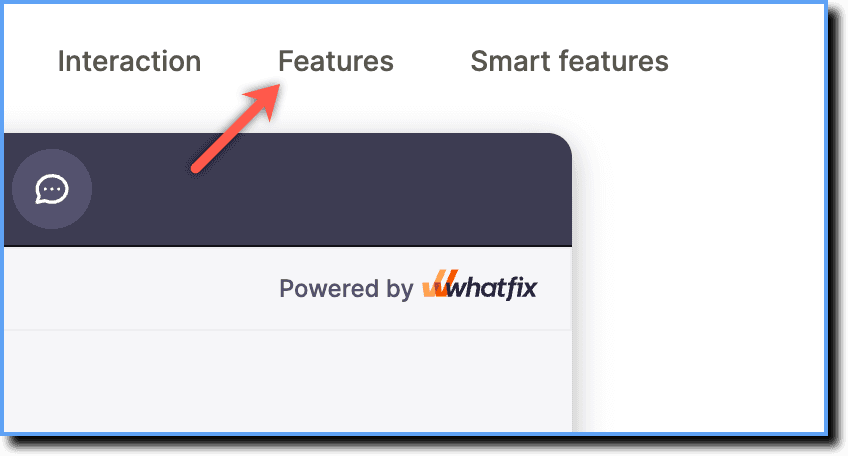
Click the Features tab.
-
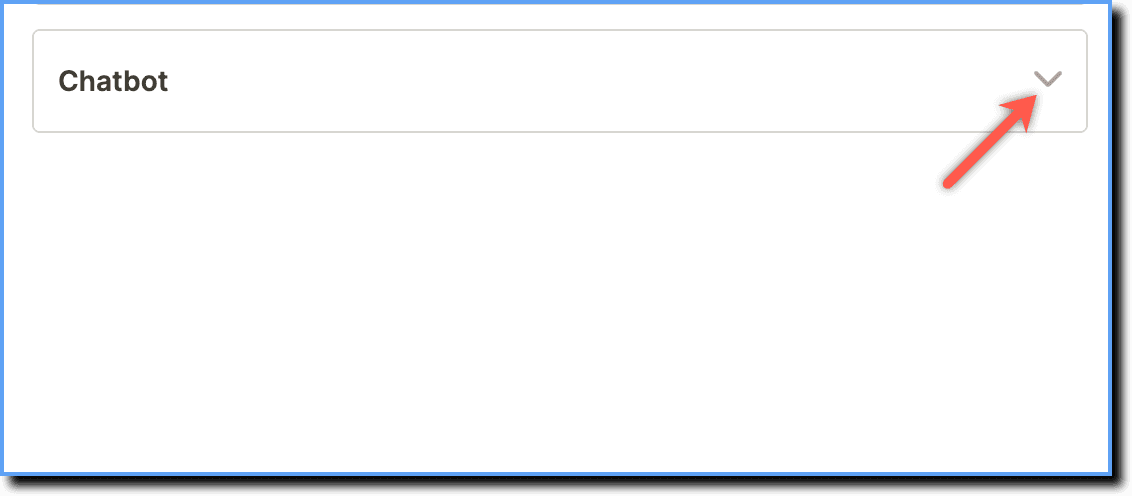
Expand the Chatbot accordion.
-
Enable the Chatbot integration toggle.

-
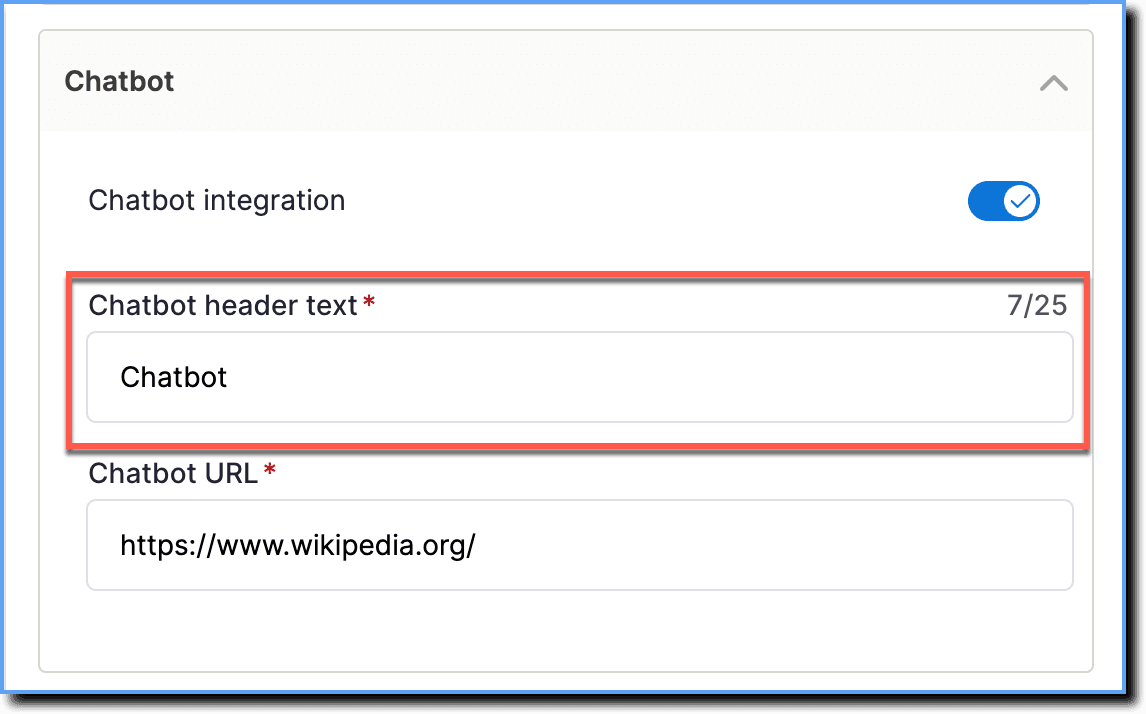
Enter a header text that appears at the top of the Chatbot window.
-
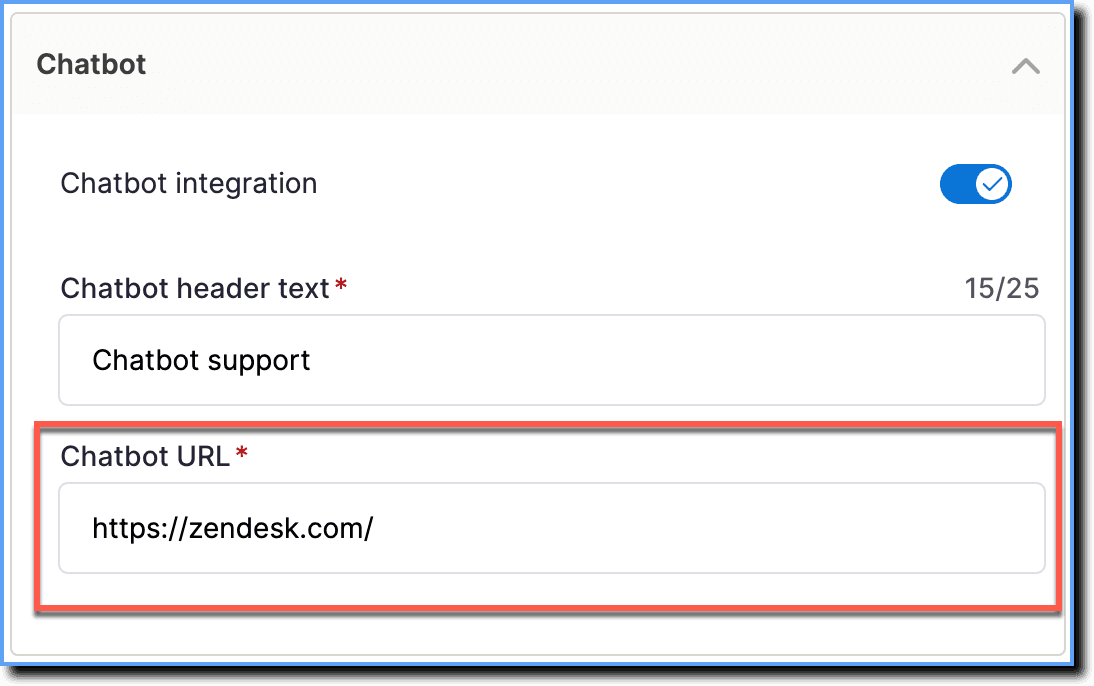
In the Chatbot URL field, enter the URL of the Chatbot you want to integrate into the Improved Self Help widget.
Note:
Ensure that the provided URL is iframe-compatible; otherwise, the Chatbot does not display.
- Click Save.

Note:
You must perform a dummy push to production for the changes to reflect.
An iframe (short for inline frame) is an HTML element that lets you embed another web page within your own page. It's often used to display content from another source, such as a video, form, or in this case, a Chatbot, inside a widget or panel.