Configure Self Help
Add a PDF to Self Help
Whatfix enables you to add PDF files to Self Help. You can either create a PDF within the Self Help segment or add an existing PDF to the Self Help segment.
Create a PDF within a Self Help Segment
Use the following steps to create a PDF within a Self Help segment:
-
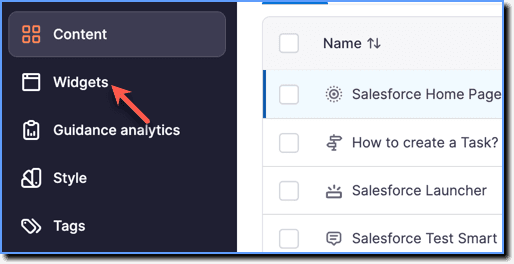
On the Whatfix Guidance dashboard, click Widgets.
-
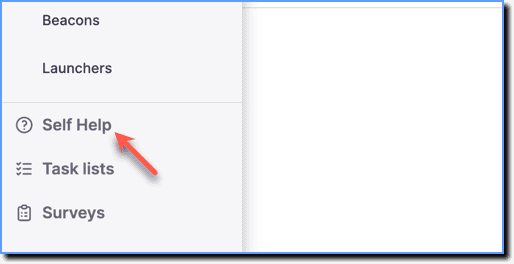
Click Self Help.
-
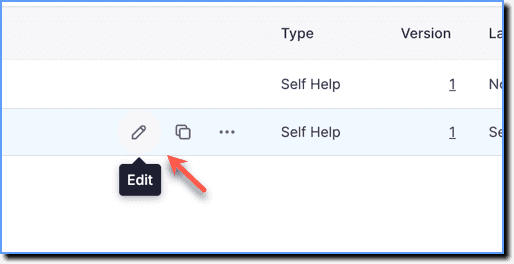
Go to the required Self Help segment and then click the Edit icon.
-
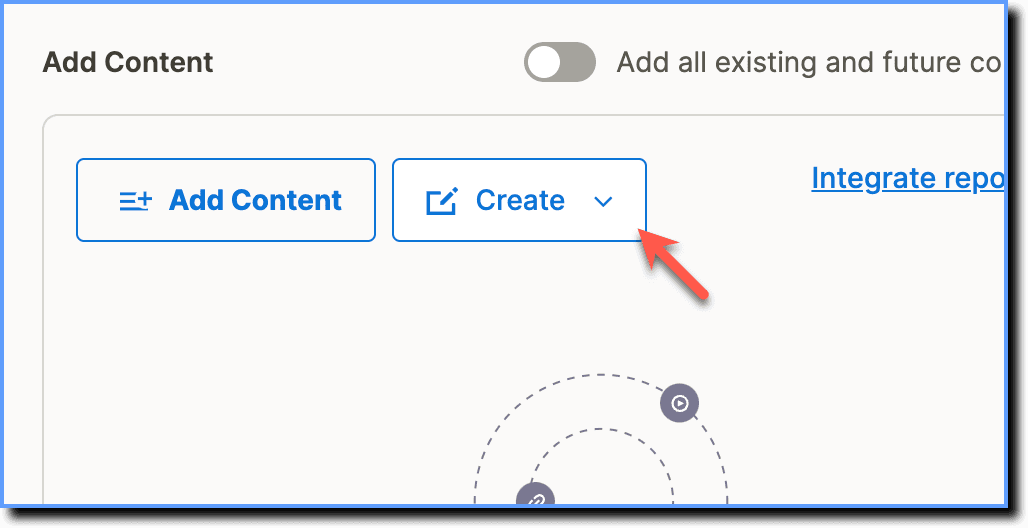
Click Create.
-
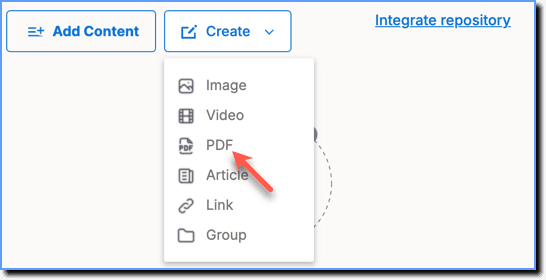
Click PDF.
-
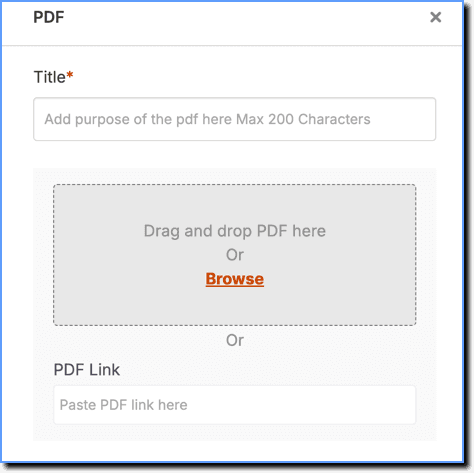
Enter the Title and upload the PDF or insert the PDF Link.
Note:
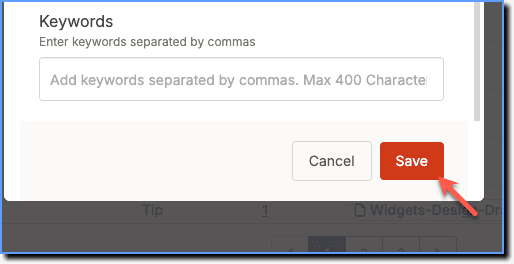
- Add search keywords to the PDF to make it easy for your end user to search for it in Self Help.
- Add tags to your PDF content for easier organization.
- Click Save PDF.
Add an existing PDF to a Self Help segment
Whatfix enables you to add an existing PDF to your Self Help segment.
Use the following steps to add an existing PDF to a Self Help segment:
-
On the Whatfix Guidance dashboard, click Widgets.
-
Click Self Help.
-
Go to the required Self Help segment and then click the Edit icon.
-
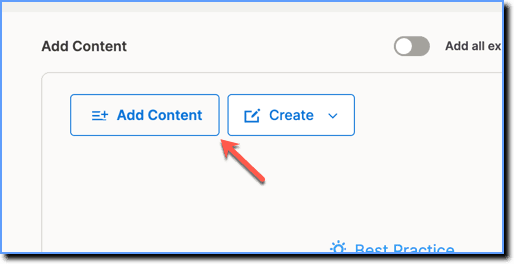
Click Add Content.
-
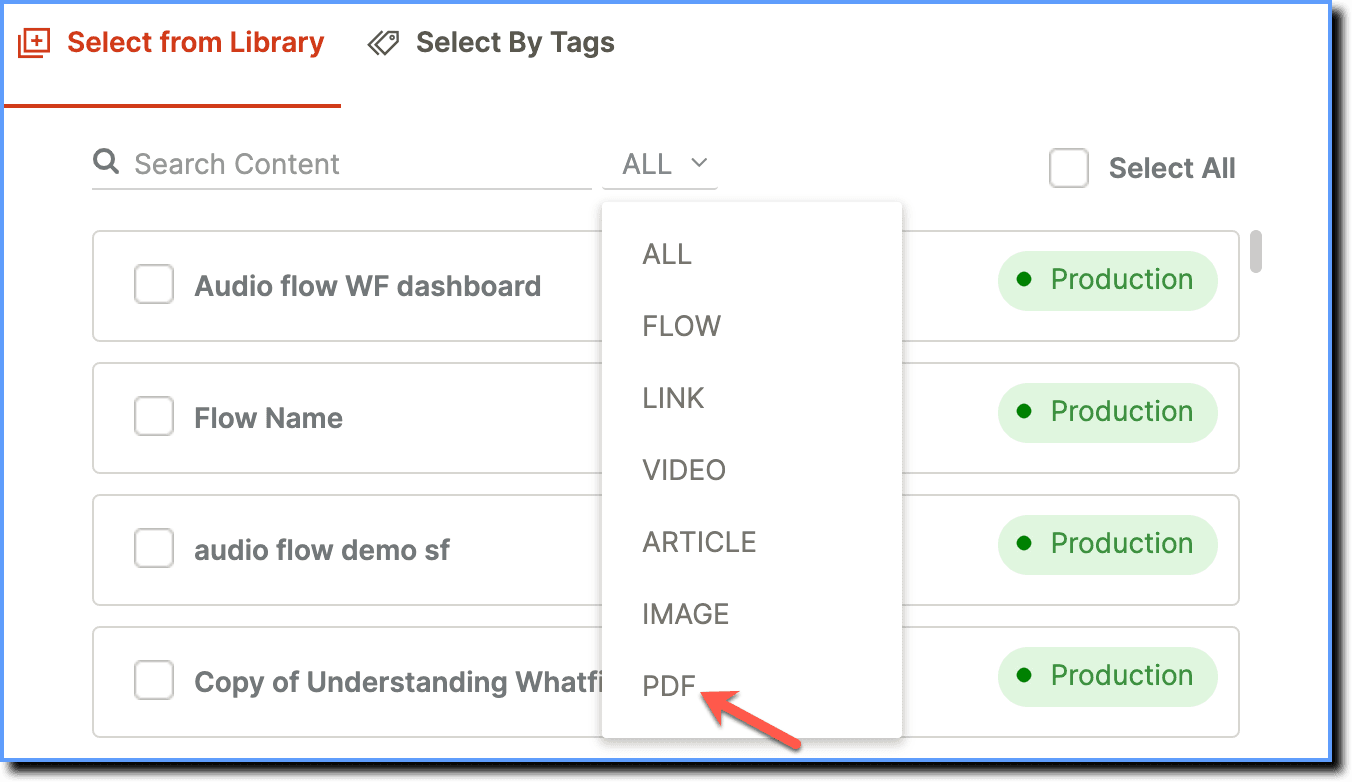
Filter the content using the Filter option. From the dropdown, select PDF.
-
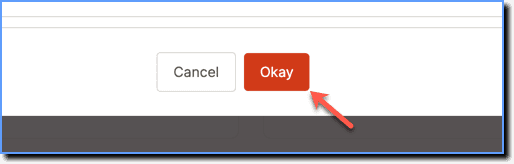
Select the required PDF, and then click Okay.
Note:
The existing PDF is added to your Self Help segment. 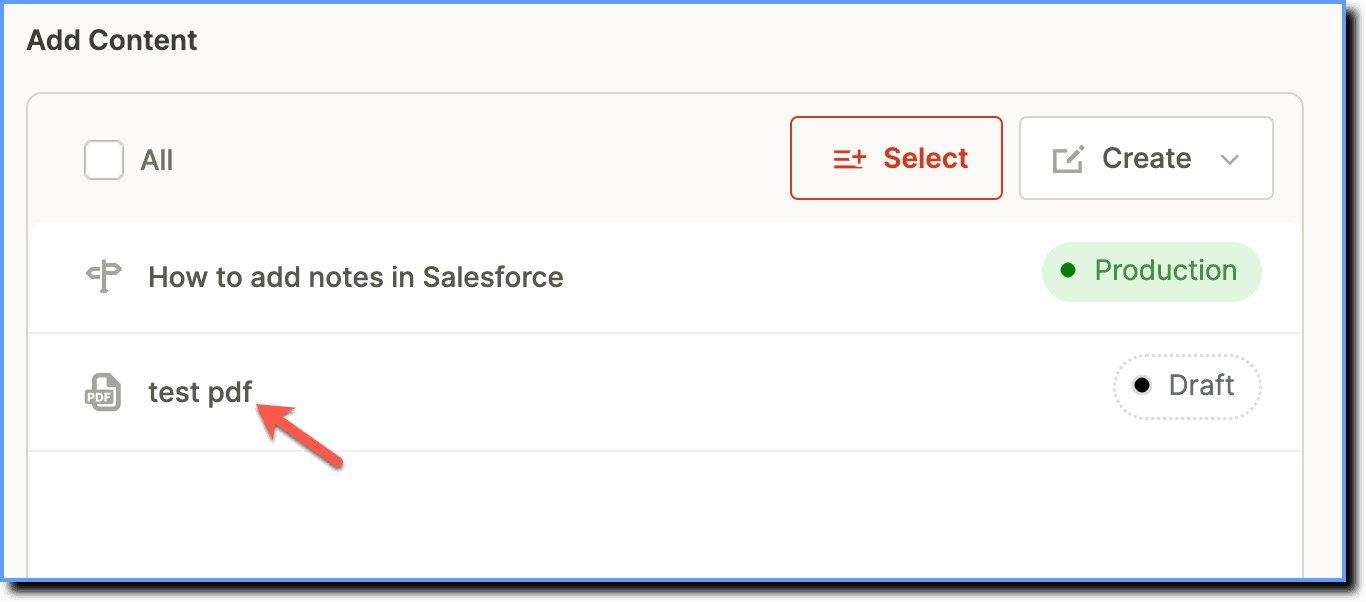
- Click Save.