Configure Self Help
Add a Survey to Self Help
Add a Survey to the Self Help Segment by creating a Link for the Survey from the Whatfix Dashboard and then adding the Link to the Self Help.
Note:
- Sharing a Survey is part of the Premium plan. To enable this feature, contact support@whatfix.com.
- The Share a Survey functionality is available only in the Production stage.
Step 1: Create a Link for the Survey Step 2: Add the Link to Self Help
Create a Link for the Survey
Use the following steps to create a Link for your Survey:
-
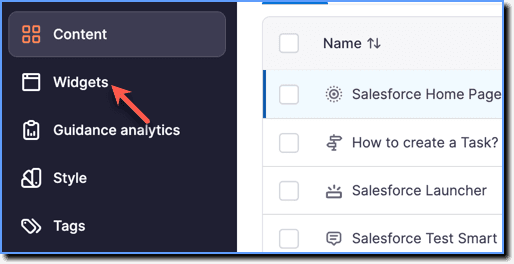
On the Whatfix Guidance dashboard, click Widgets.
-
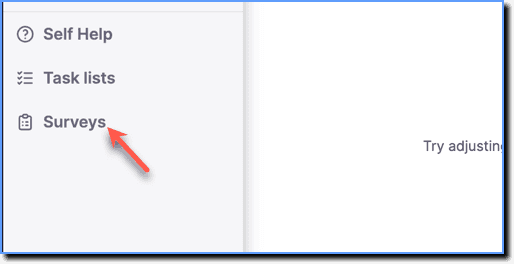
Click Surveys.
-
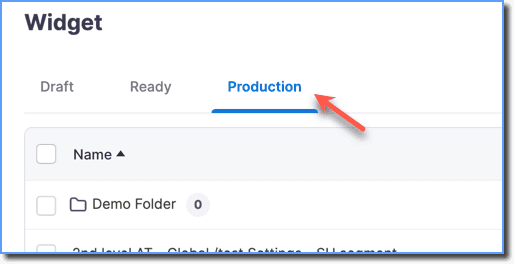
Click the Production tab.
-
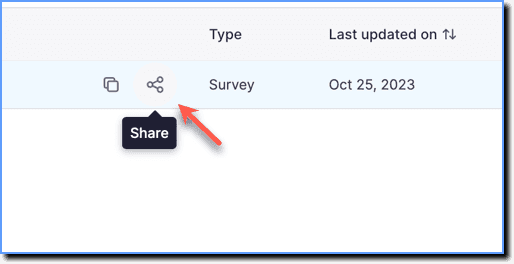
Hover your cursor over the required Survey, and then click the Share icon.
Note:
The Share icon only appears for Surveys in the Production stage.
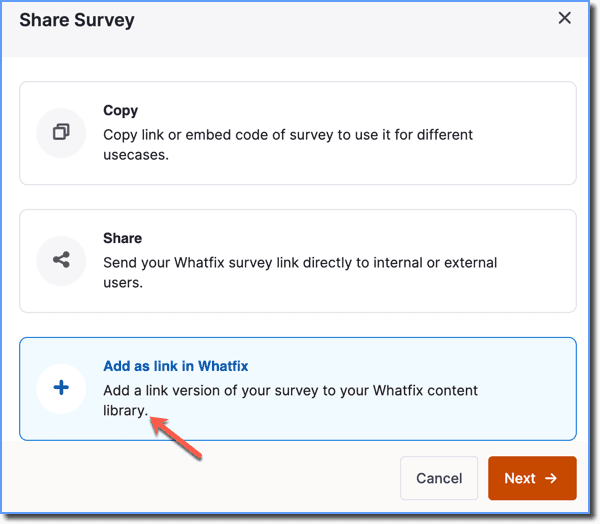
- Click Add as link in Whatfix.
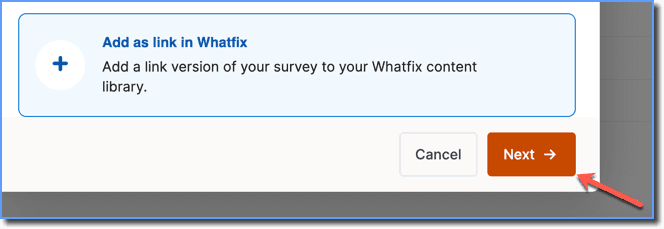
- Click Next.
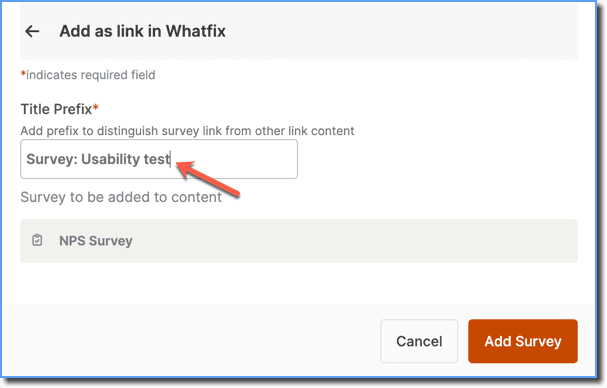
- Enter a Title Prefix.
Info:
The prefix title distinguishes the Survey link from other links on the dashboard. 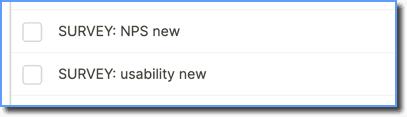
- Click Add Survey.
Info:
View the Link created in the Draft Stage of the Dashboard.
Add the Link to a Self Help
Use the following steps to add a Survey Link to a Self Help segment:
-
On the Whatfix Guidance dashboard, click Widgets.
-
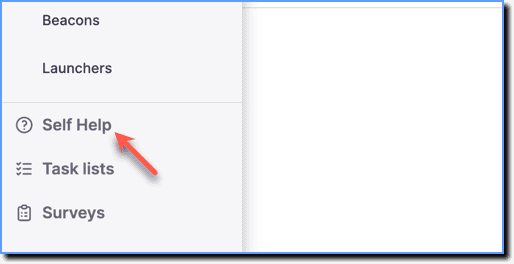
Click Self Help.
-
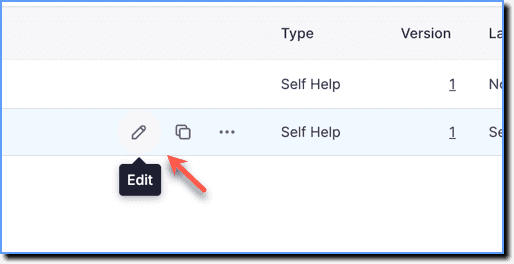
Go to the required Self Help segment and then click the Edit icon.
-
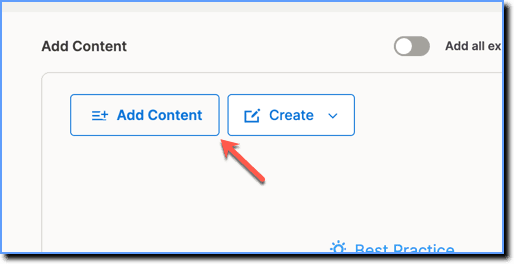
Click Add Content.
-
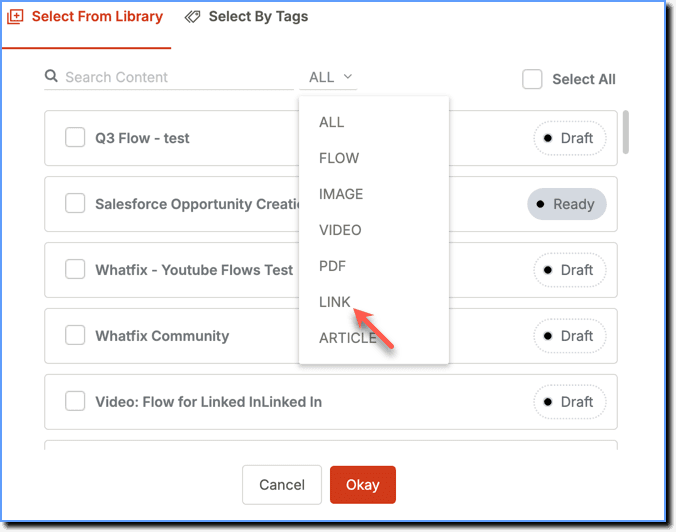
Filter the content using the Filter option. Select LINK using the dropdown.
-
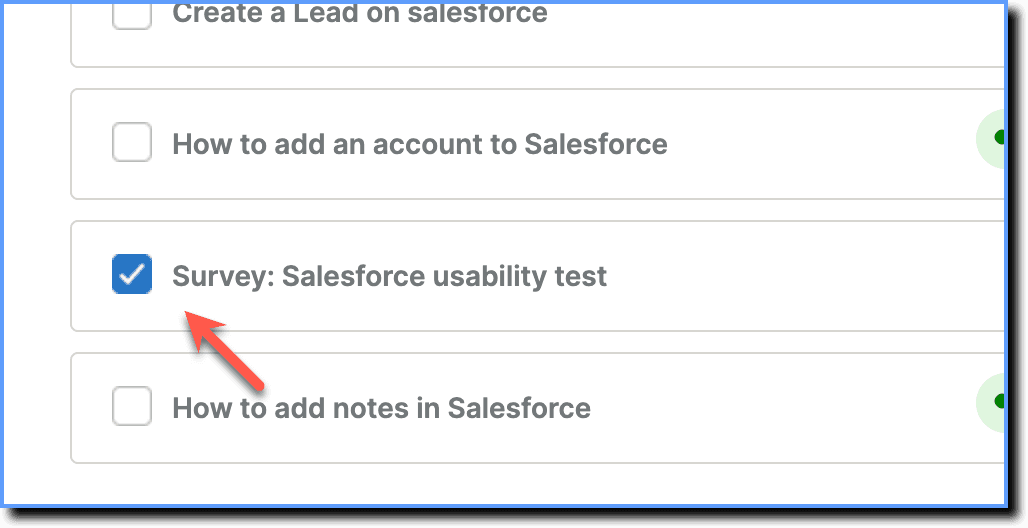
Select the Link you created.
-
Click Okay.

-
To save the segment, click Save.