Custom Repository
Delete a Content Repository
Use the following steps to delete a repository:
-
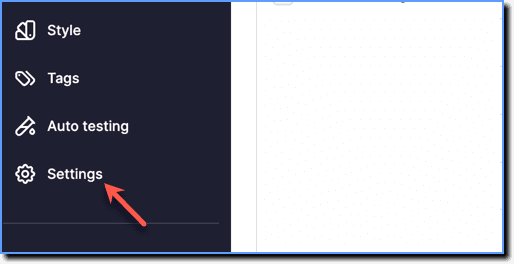
On the Whatfix Guidance dashboard, click Settings.
-
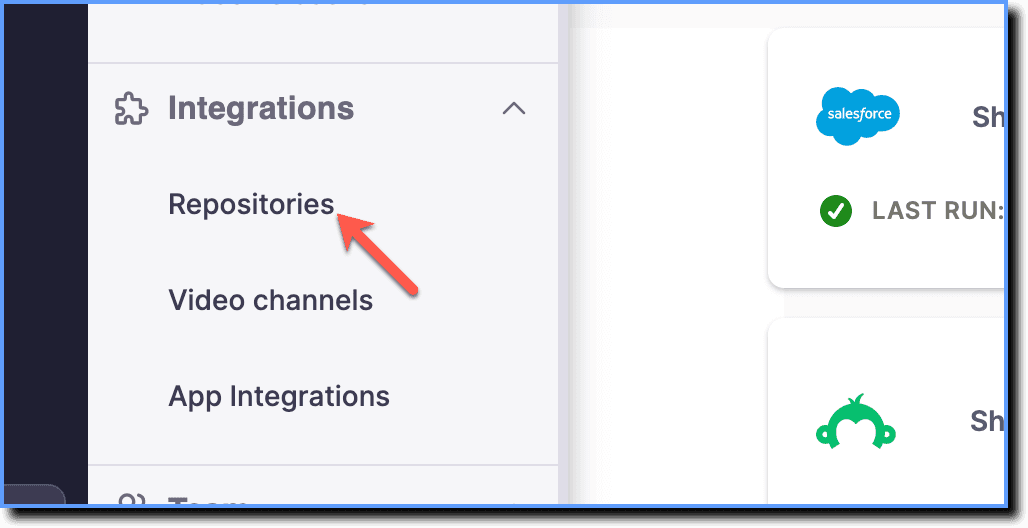
Click Repositories.
-
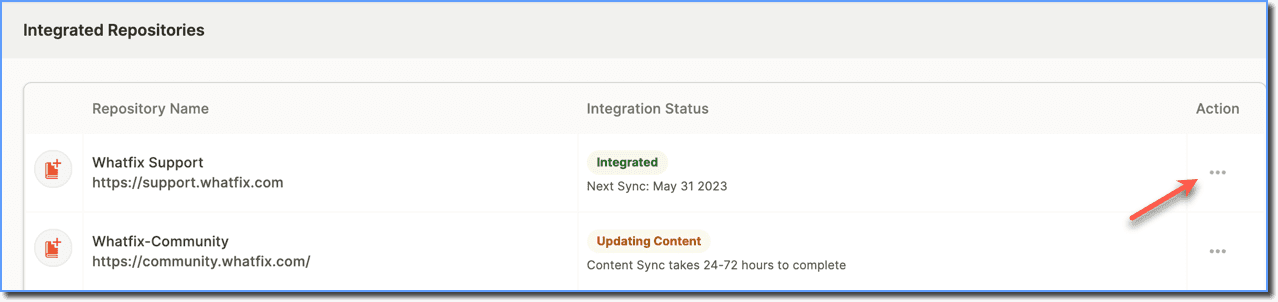
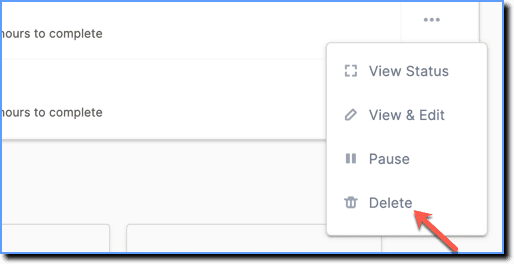
Under Integrated Applications, Go to the repository that you want to delete, and then click the more icon.
-
Click Delete.
-
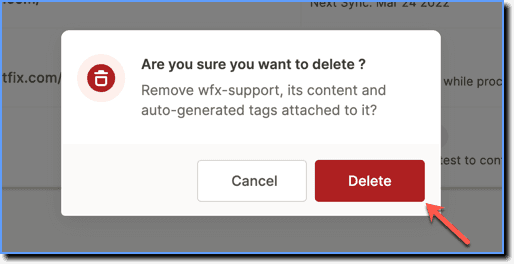
In the confirmation pop-up, click Delete.
your title goes here
The repository and its associated content are deleted instantly. However, for the changes to reflect on your users' application, you must do a Push to Production (JS Embed model) or Update Extension (Browser Extension model).
Delete Content Repository links
Note:
You can only delete repository links from the Ready stage.
Use the following steps to delete specific repository links:
- On the Whatfix Desktop dashboard, click Repositories.

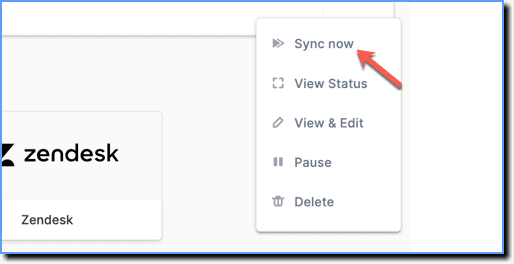
- Under Integrated Applications, Go to the repository that you want to delete links from, and then click the more icon.
- Click Sync now.
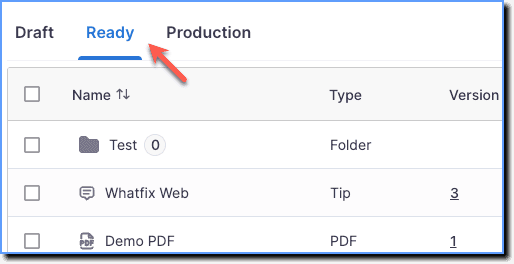
- Once the repository is synced, Go to the Ready stage.
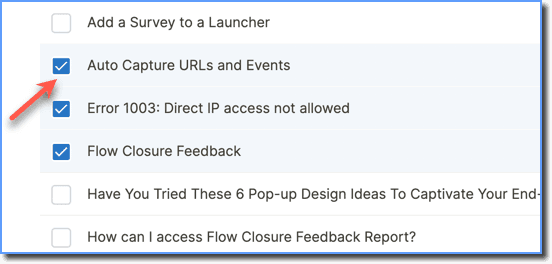
- Select the repository links that you want to delete using the checkboxes.
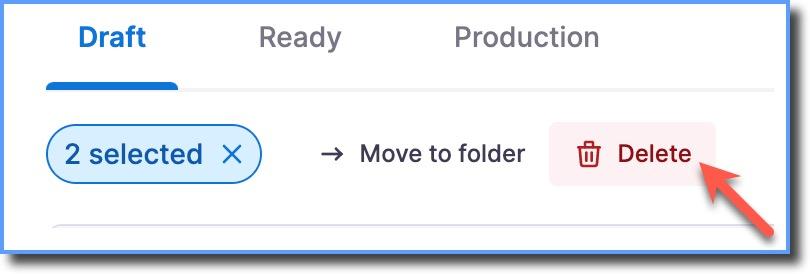
- Click the Delete icon.
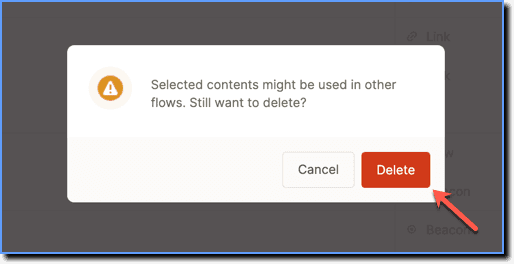
- On the confirmation pop-up, click Delete.
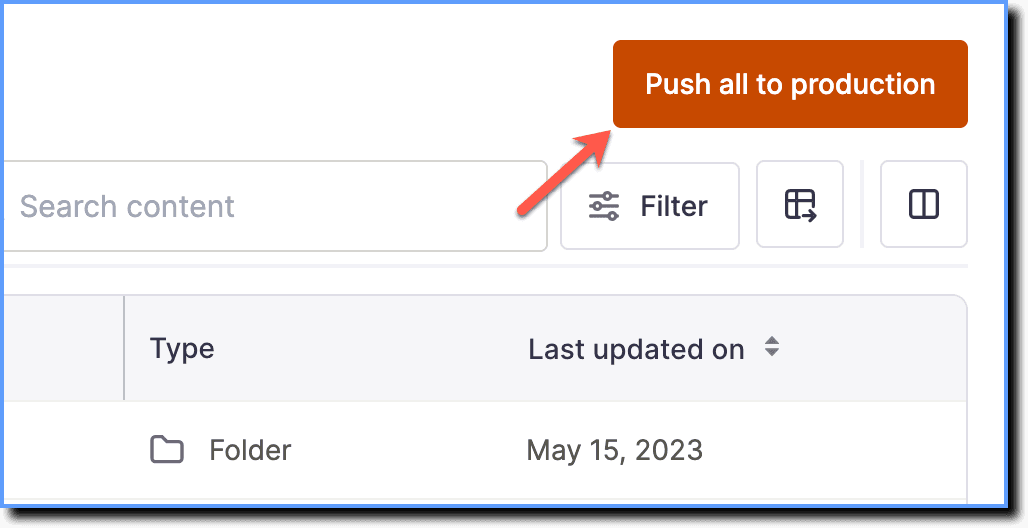
- Once the links are deleted, click the Push all to production button.