Deployment and Content Delivery
How to show in-app guidance based on the user's device language?
Whatfix enables you to target in-app experiences to users based on their device language. Create User Segments to group users who share the same device language and target the in-app experience to them. The segments can be created by defining the Device Language User Property.
Use the following steps to create a User Segment based on the device language:
Consider that you want to create a User Segment to show the in-app experience to users with French as their device language.
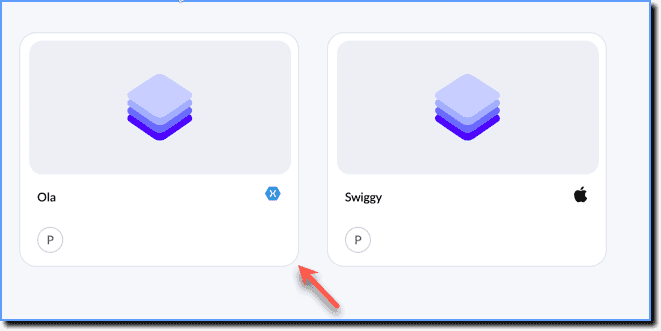
- On the Whatfix Mobile Dashboard, select an app.
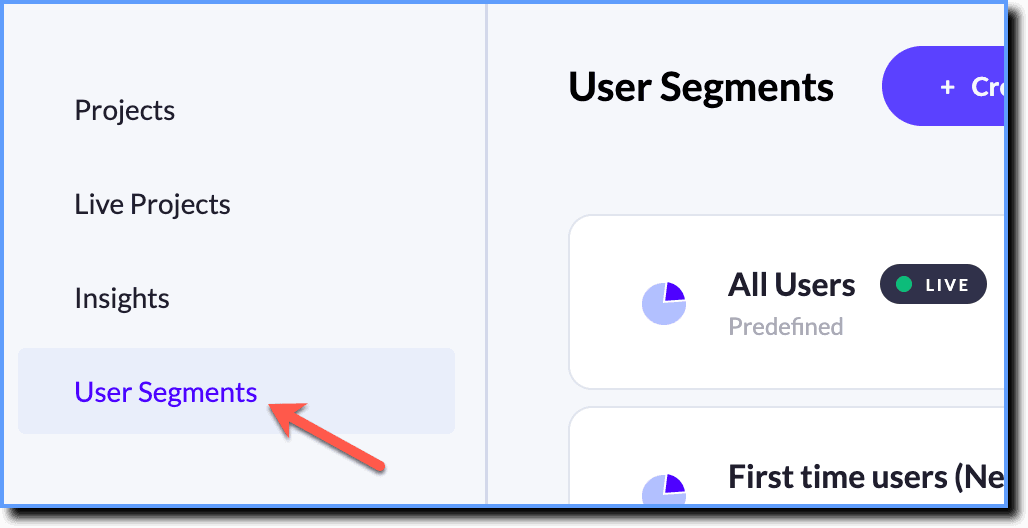
- In the navigation panel, click User Segments.
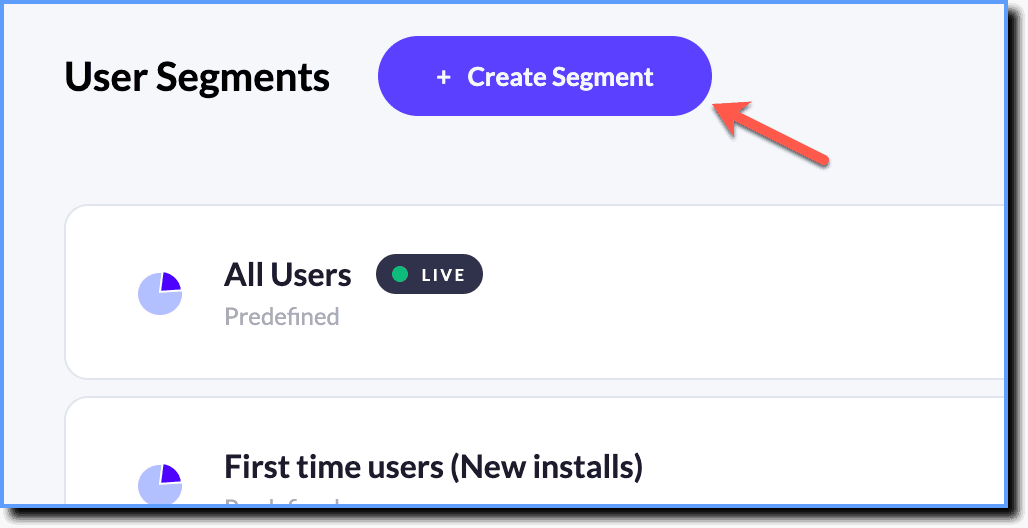
- Click + Create Segment.
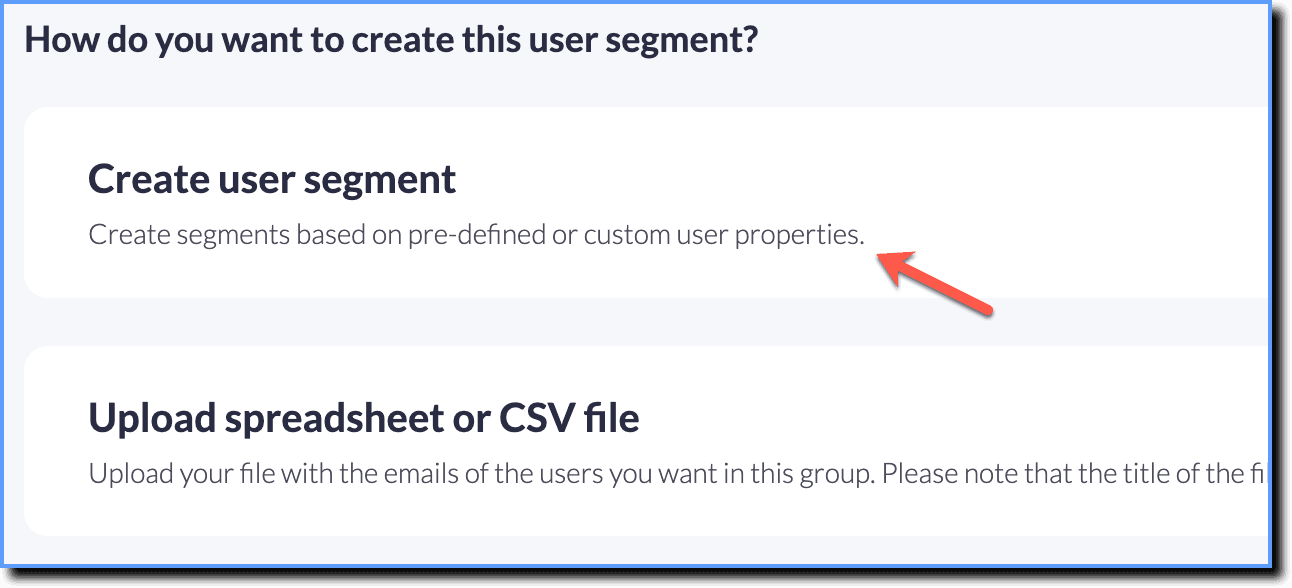
- Click Create user segment.
- Enter a name for the user segment. Example: Content for French users.
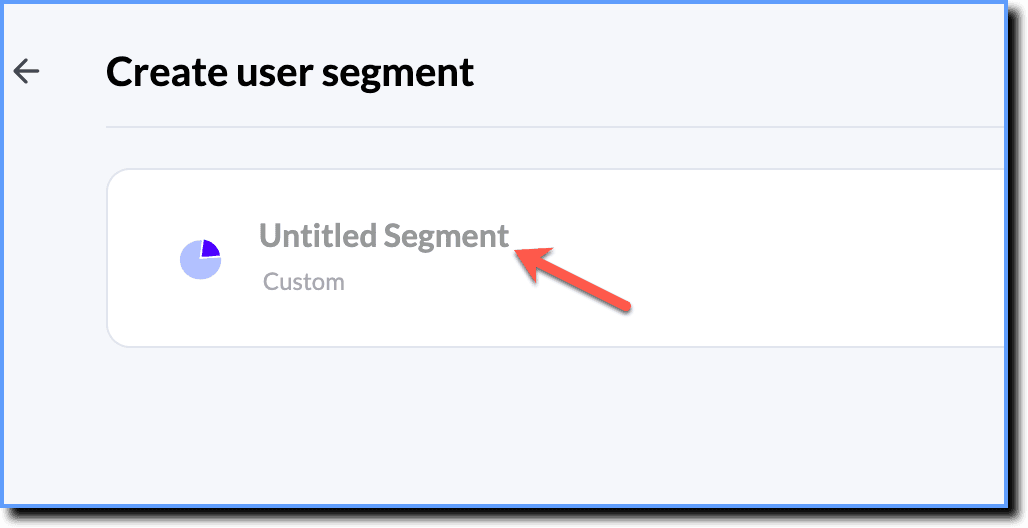
- Click Add Rules.

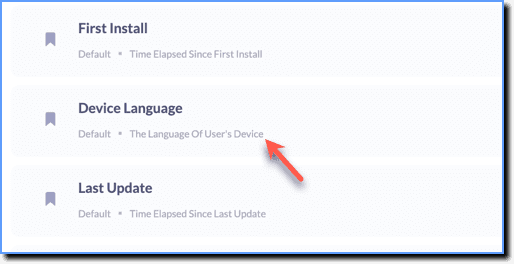
- Click the Device Language property.
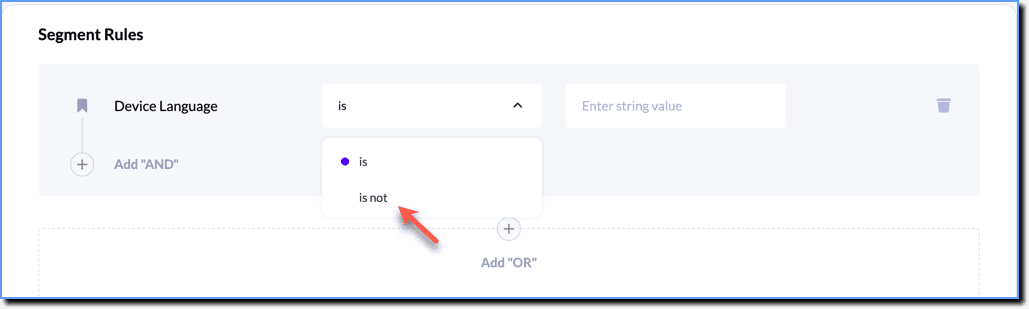
- In the Segment Rules section, select the operator using the dropdown.
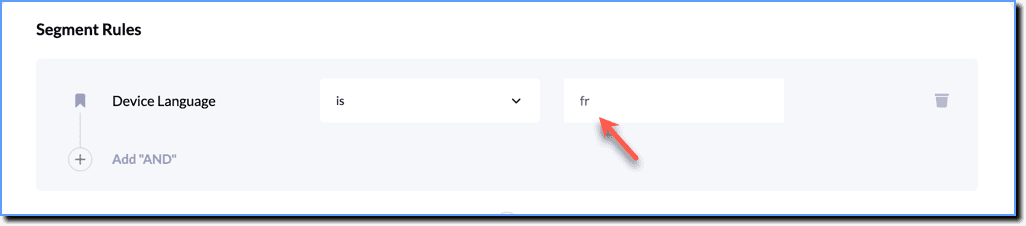
- Enter the language code. Example: fr
Info
For more information on the language codes used for different languages, refer to the following articles:
- Android: Device Localization codes
- iOS: Device Localization codes
- Click Create segment.
- Create and design the in-app experience.
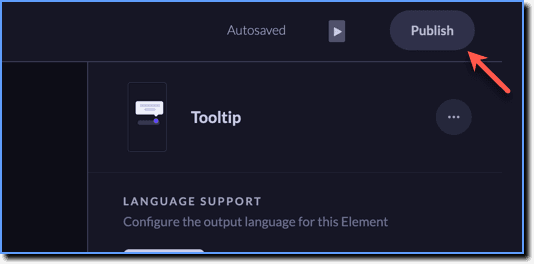
- Once you are ready to make the project live, click Publish.
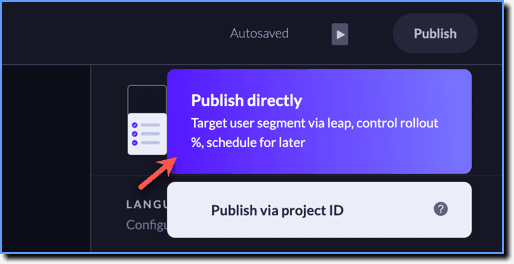
- Click Publish directly.
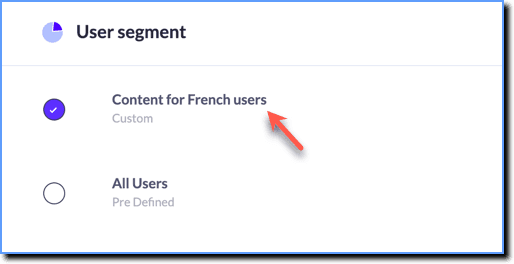
- In the TARGET tab, under the User segment section, choose the segment you created.
- Click Go to configure.
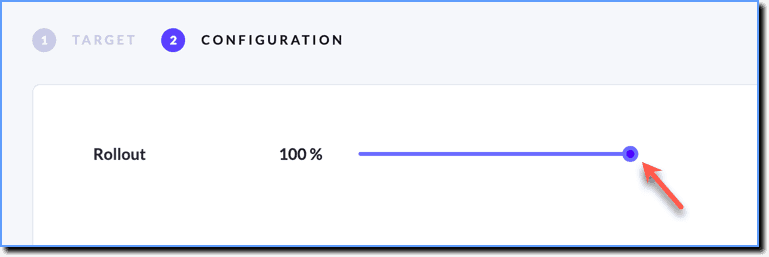
- In the CONFIGURATION tab, select your rollout percentage.
Info
This helps you publish your project to a percentage of your user segment.
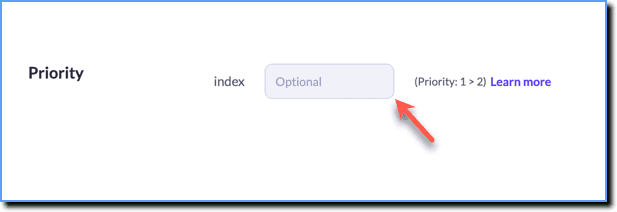
- If you are creating multiple projects and want them to appear in a particular order, select Priority. (Priority 1 > 2 > 3 > n).
- Click Go Live.
Info
The in-app experience is published for users with French as their device language.