Beacons - Whatfix Desktop
Schedule a Beacon
Whatfix enables you to schedule your Beacons to plan your announcements and alerts. Schedule alerts for a specified time and set recurring alerts.
Schedule a Beacon based on the following options:
- Start date
- End date
- Time zone
- Number of occurrences over a period
A few use cases are listed below.
Use the following steps to schedule a Beacon:
-
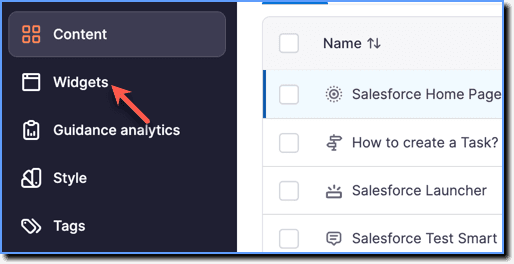
On the Whatfix Guidance dashboard, click Widgets.
-
Click Beacons.

-
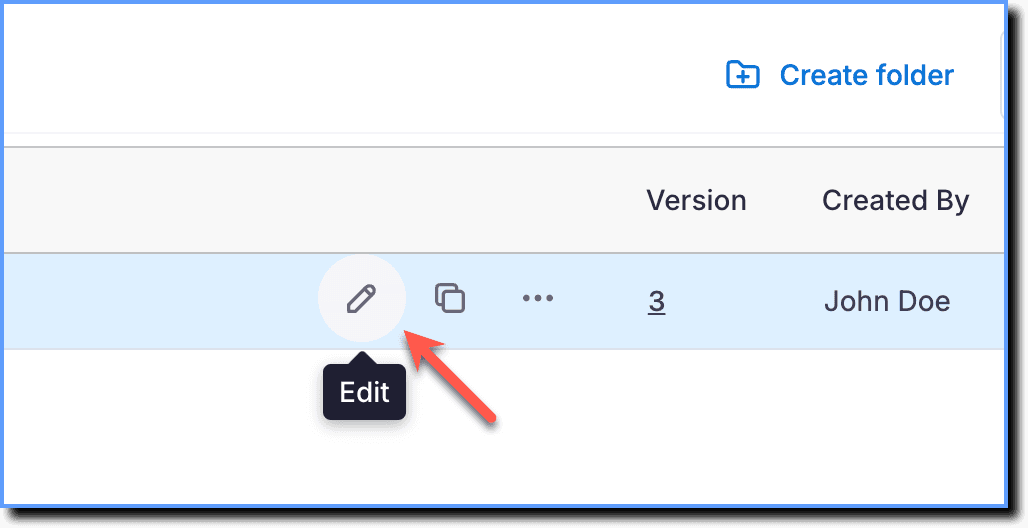
Hover your cursor over the Beacon segment you want to schedule, and then click the Edit icon.
-
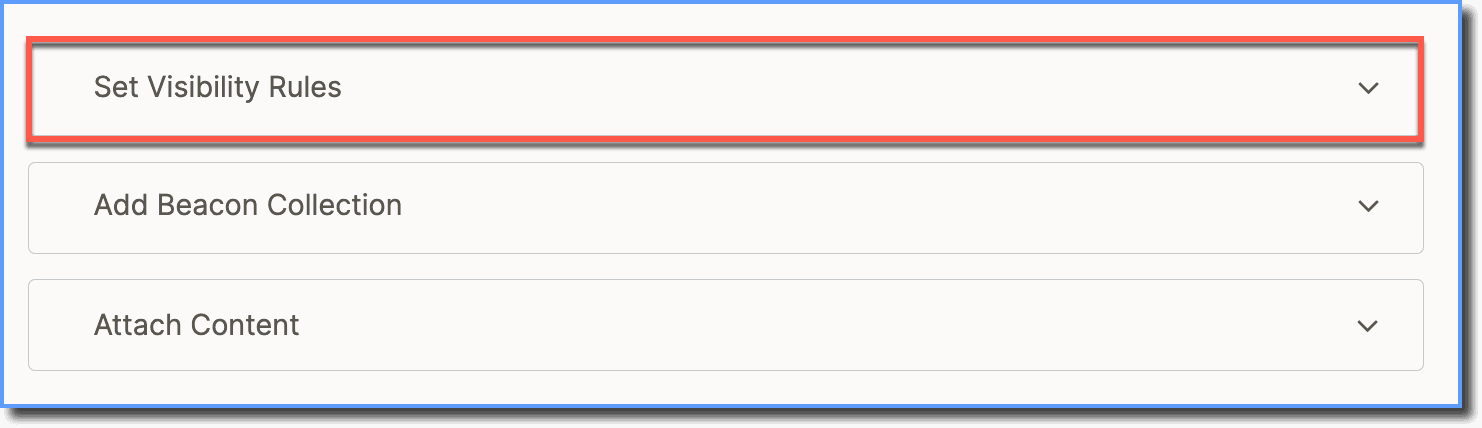
Click Set Visibility Rules.
-
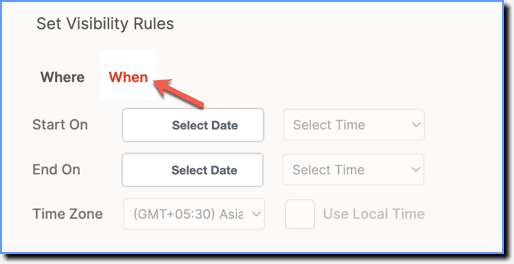
Click the When tab.
-
Use the When tab to set the time span for the Beacon's appearance.
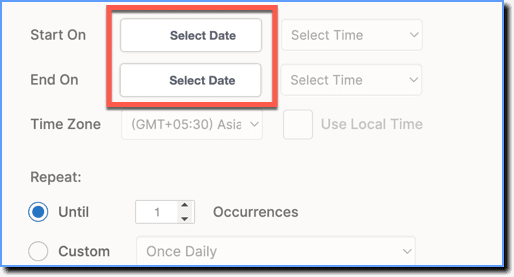
- In the Start On and End On fields, set the date and time period.
- In the Time Zone drop-down, select any time zone or click Use Local Time to use your local time zone.

Note:
- Clicking the Use Local Time converts the Start On and End On settings based on your local time zone, and the Beacon displays accordingly.
- The Beacon appears only during the set time duration on the selected dates. For example, if the start time is set at 08:00 and the end time at 21:00, the Beacon appears between 08:00 and 21:00 every day until the end date.
- In the Repeat section, set the frequency for the Beacon. Use any one of the following options:
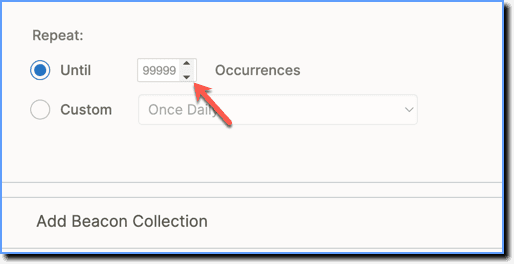
- Click Until and set the number of times the Beacon appears. The Beacon stops displaying after reaching the specified number.
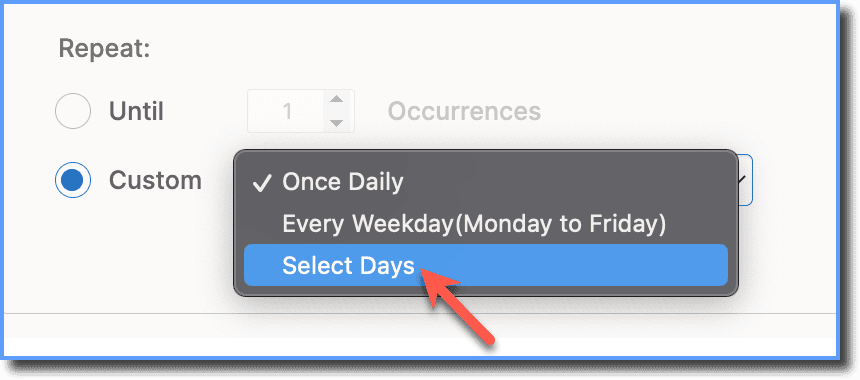
- Click Custom, and from the dropdown, select the days for the Beacon's appearance.
Note:
In the custom configuration, the Beacon appears only once per day.
- Click Save.
Example Use Cases
Display Beacon on particular days in a week
- Under Set Visibility Rules, click the When tab and then select the Start On and End On dates.
Note:
If you want to show the Beacon perpetually, do not select the start and end date.
- Select Custom under the Repeat section.
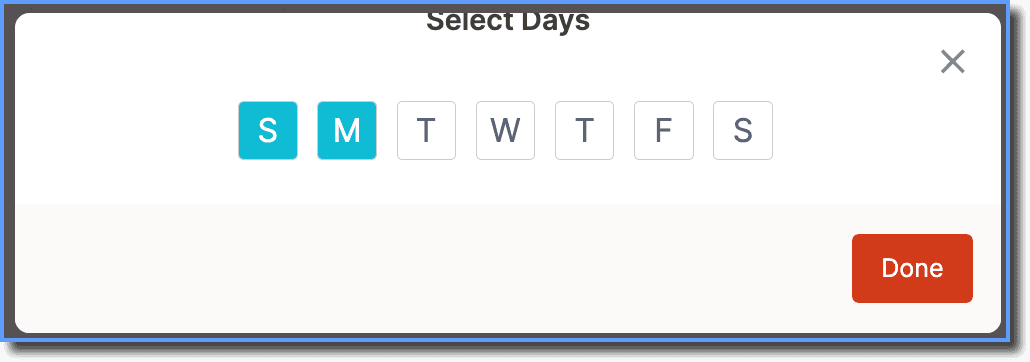
- Click Select Days from the dropdown.
- Select the days you want to show the Beacon and click Done.
Note:
In the custom configuration, the Beacon appears only once per day.
- Click Save.
Display Beacon once every day the first time a user logs in
- Under Set Visibility Rules, click the When tab and do not select the Start On and End On dates.
Note:
If you want to show the Beacon perpetually, do not select the start and end date.
- Select Custom under the Repeat section.
- Click Once Daily from the dropdown.
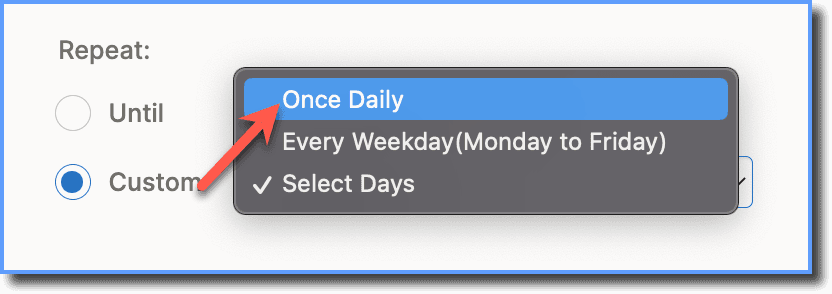
- Click Done.
Display Beacon every time a user logs in for a particular time frame
- Under Set Visibility Rules, click the When tab and then select the Start On and End On dates.
- Select Until under the Repeat section.
- Enter a large number, for example, 99999.
- Click Done.