User Management
Add New Users
Note:
Only an Account Manager can perform the following task. For more information about the available user roles, see Whatfix User Roles.
Use the following steps to add a new user:
-
On the Guidance dashboard, click Settings.

-
Click Teammates.

-
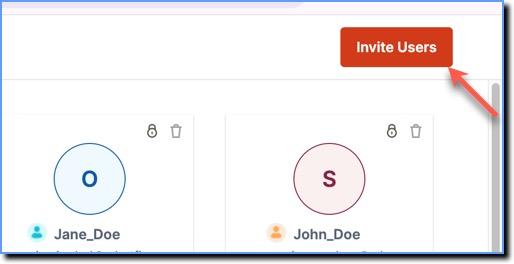
On the top-right side of the page, click Invite Users.
-
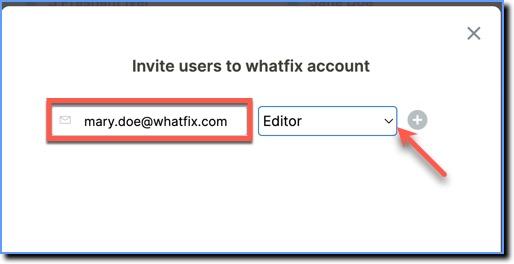
In the pop-up, enter the email address of the new user and select their role using the dropdown menu. For more information about each role, see Whatfix User Roles.
-
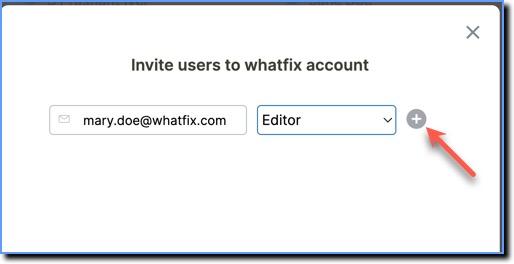
Invite multiple users at the same time by clicking the Plus icon.
Note:
- Though there are no limitations to the number of users you can add to your account, you can only send invites to 5 users using a single request.
- To add more users, repeat the action in batches of 5.
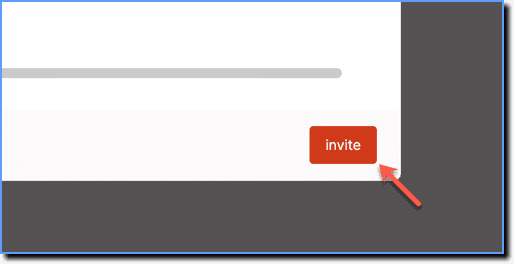
- Once you have added all the users you want to invite, click Invite.
Note:
- An email with a link to sign up for the application is sent to the new user's email address.
- The signup link is valid only for 24 hours. If the link expires, a new invite needs to be sent again.