Analytics
How can I exclude filter values in Product Analytics?
Occasionally, eliminating specific filter values enables visualization of data with all other filter values. Excluding a filter value enables focus on the data required for analysis.
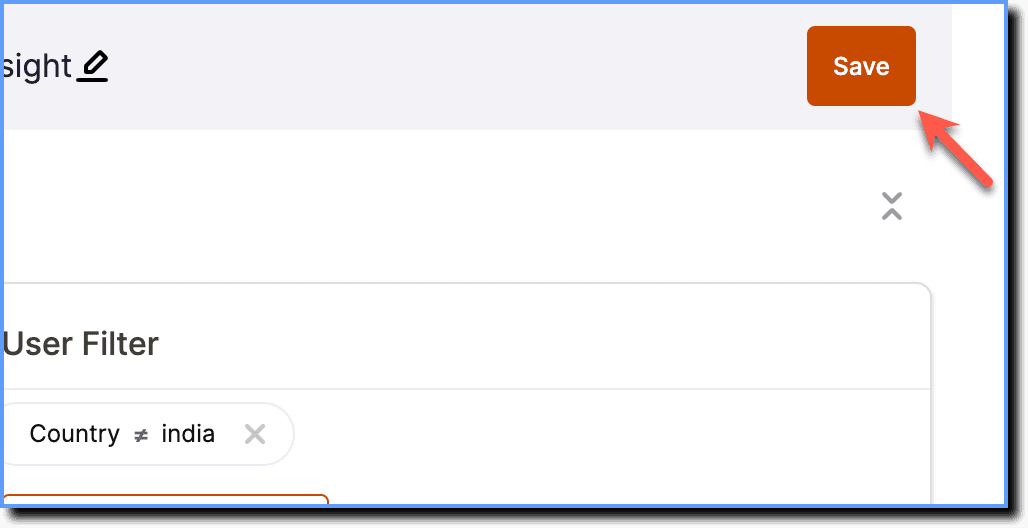
For example, if a Pop-up rolls out for customers, Trend Insights enables analysis of the number of people who have seen the Pop-up from all countries except India. Whatfix enables exclusion of India from the User Filter and provides analytics data from all other countries.
Info:
- The exclude filter applies to the User Filters and User Breakdown in Insights found in Trend Insights, Funnel Insights, User Journey, and Dashboards.
- It is also applies to the Event Filters and Breakdown in Trend Insights associated with the Trend Insights.
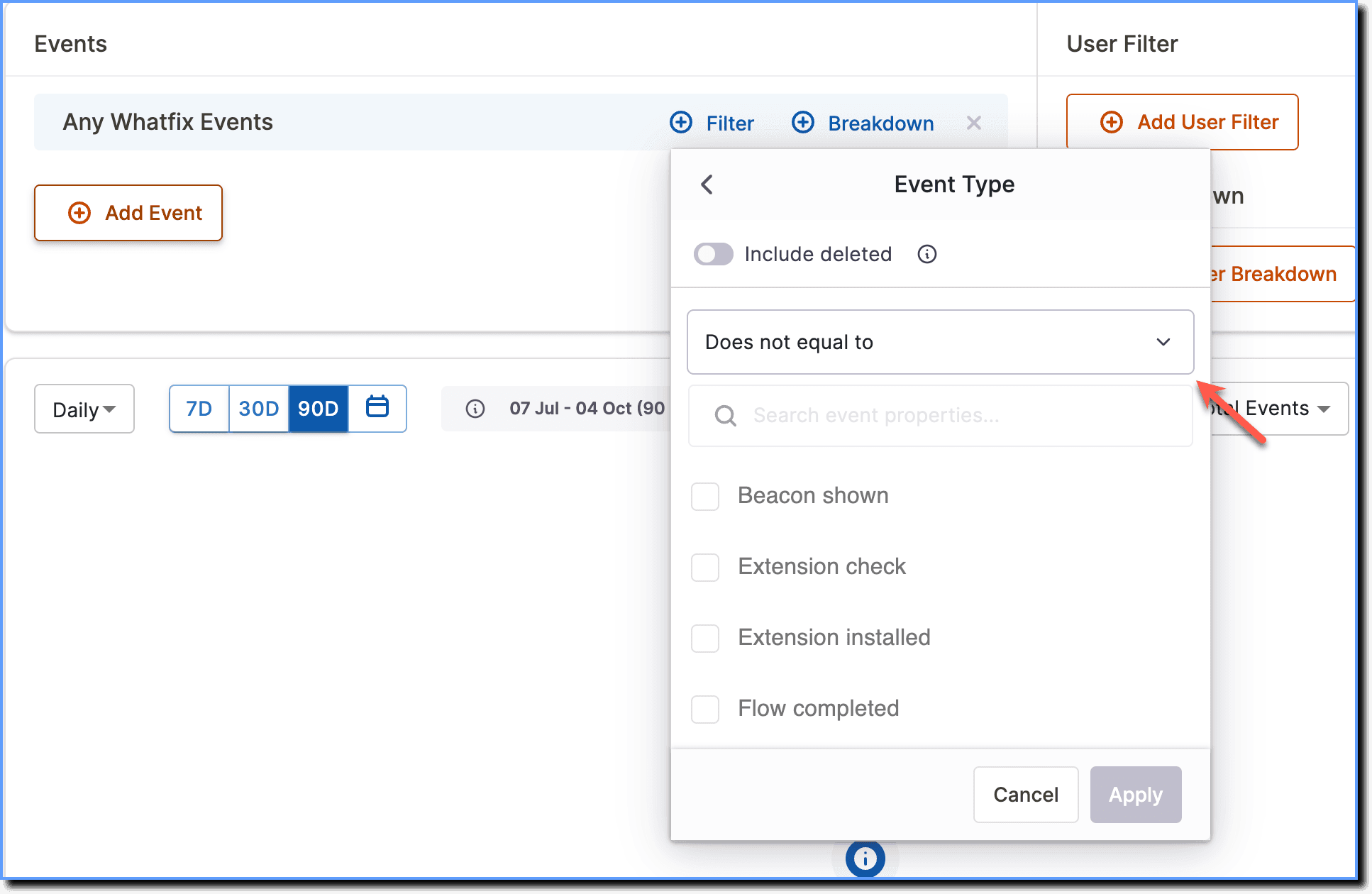
Use the following steps to exclude a filter in Trend Insights:
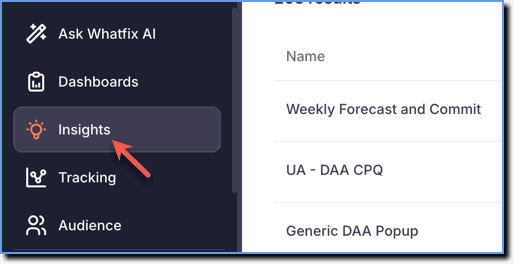
- On the Whatfix Analytics dashboard, click Insights.
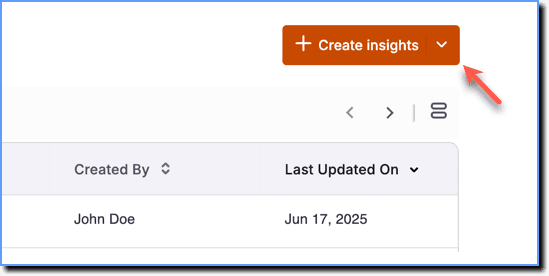
- Click + Create Insights.
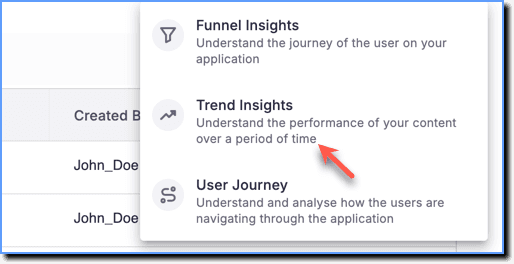
- Click Trend Insights.
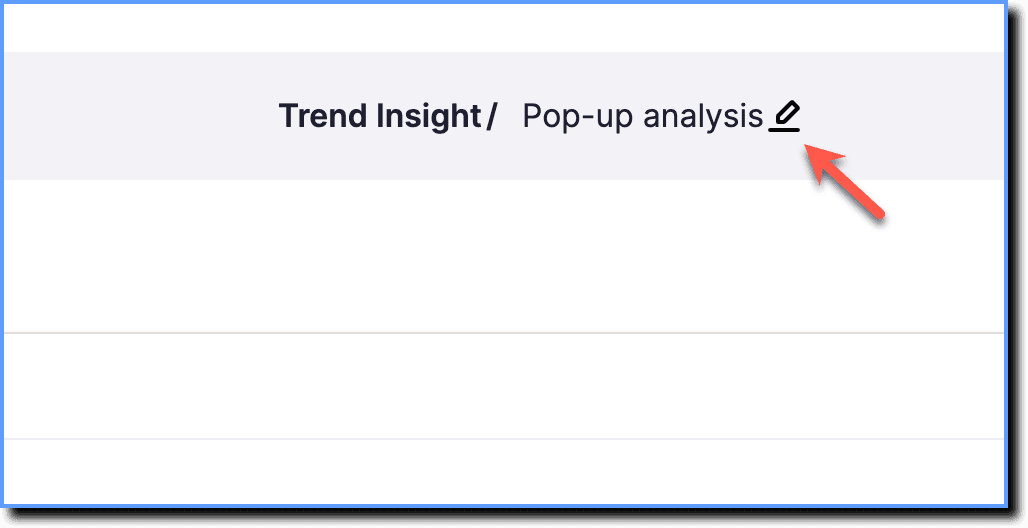
- To name your Insight, click the Edit icon.
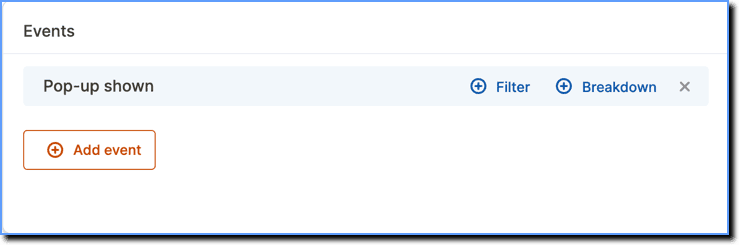
- Click Add Event and select the event that you want to analyze.
Info:
Add Default (Whatfix-related events) and Custom events. For more information, see List of Whatfix-related events.
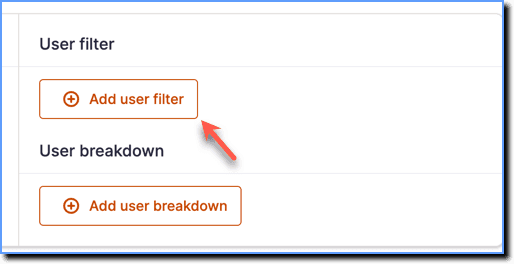
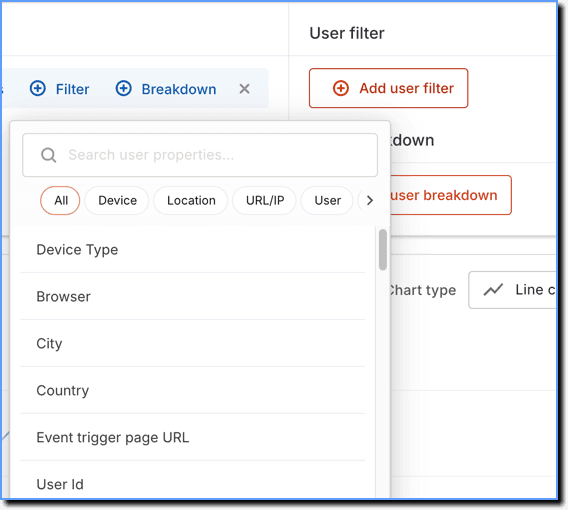
- Click Add User Filter to filter the data based on specific criteria like country, city, browser, etc.
- Select the required User Filter.
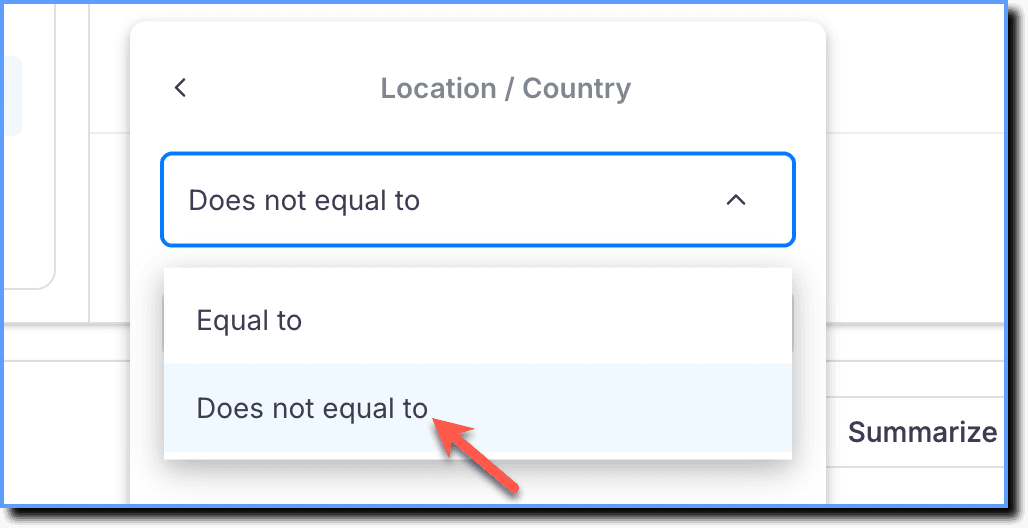
- Select the condition as Does not equal to using the dropdown.
Info:
In the aforementioned example, we want to filter the number of users who've seen a Pop-up based on all countries except India.
- Select the filter value that you want to exclude.
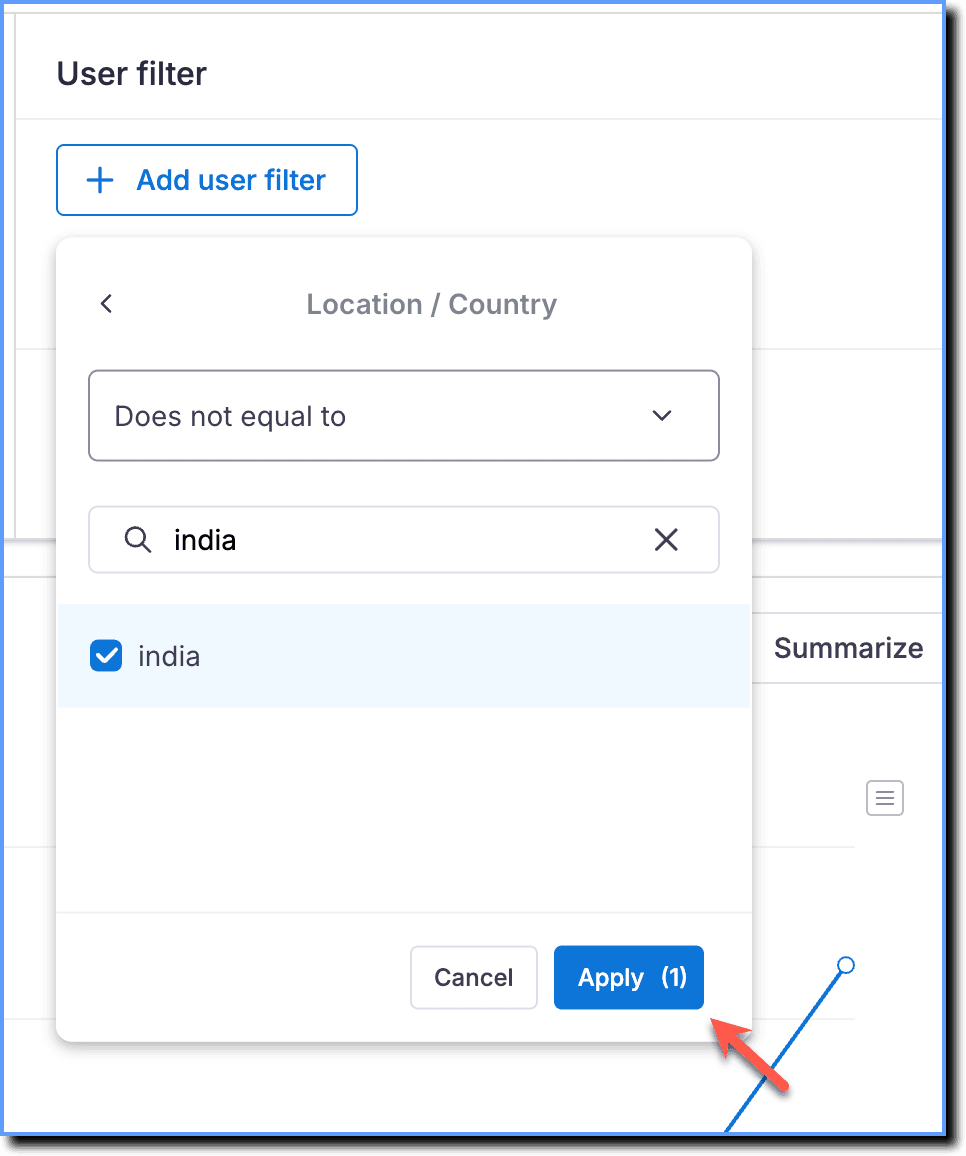
- Click Apply.
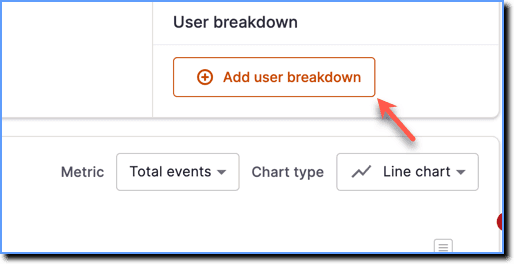
- Click Add User Breakdown and select the criteria to breakdown the data.
Info:
- Scroll down to see the data chart that is generated.
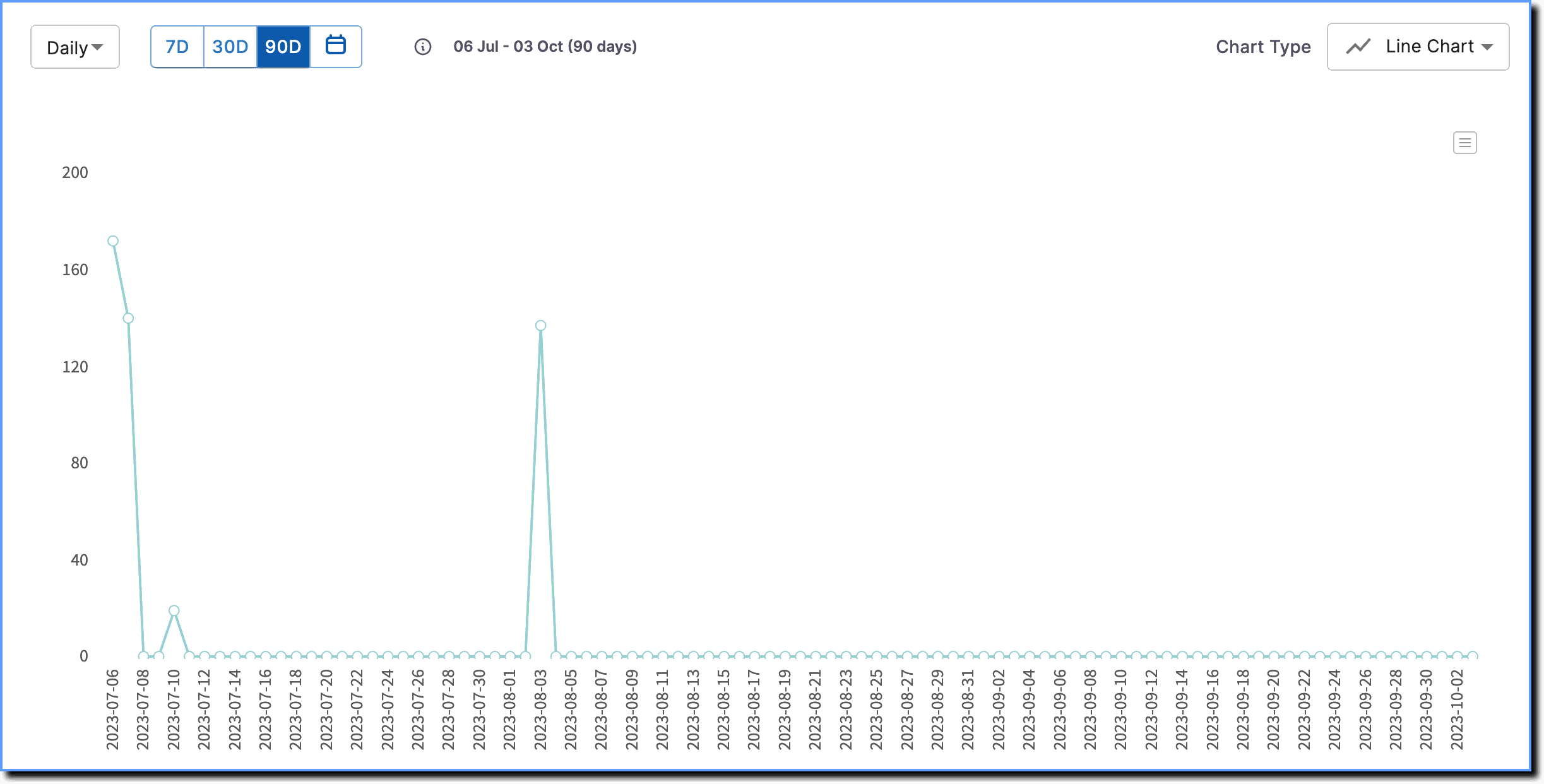
- The data chart is generated without the data for the excluded filter. It is excluded from the User Breakdown as well.
- Click Save.