Smart Tips- Whatfix Desktop
Rules to display Smart Tips
Display Rules enable you to configure Smart Tips to display the tooltip only when certain conditions are met.
Set conditions based on:
- Selected Element Is
- Selected Element Text
For more information, contact support@whatfix.com.
Use the following steps to add the display conditions:
-
Go to the application where you want to create content, and then launch the Whatfix Desktop Studio.
-
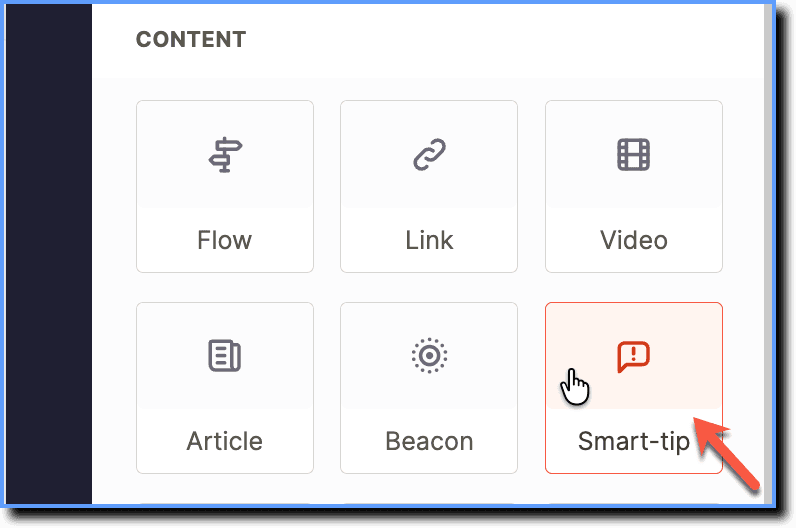
Click Smart-tip.
-
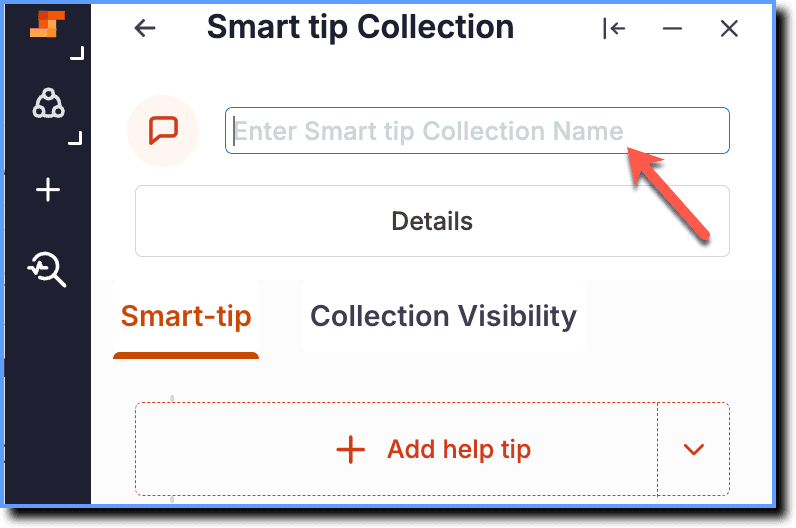
Enter a name for the Smart tip Collection.
Info
- A Smart Tip Collection is a group of Smart Tips created on the same page of an application.
- The Smart Tip Collection name is solely for your (Creator's) reference and is not visible to the end user.
-
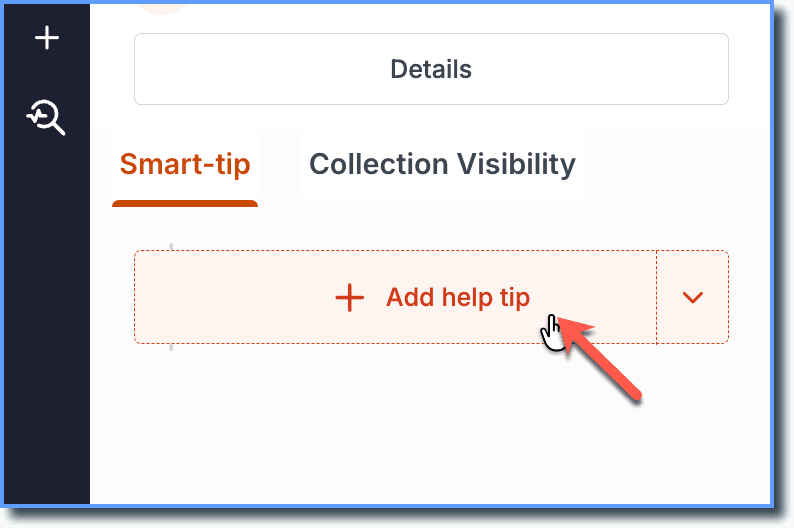
Click + Add Help Tip to create a new Smart Tip.
your title goes here
In case you want to create a Validation Tip, click the dropdown, and then click + Add validation tip. 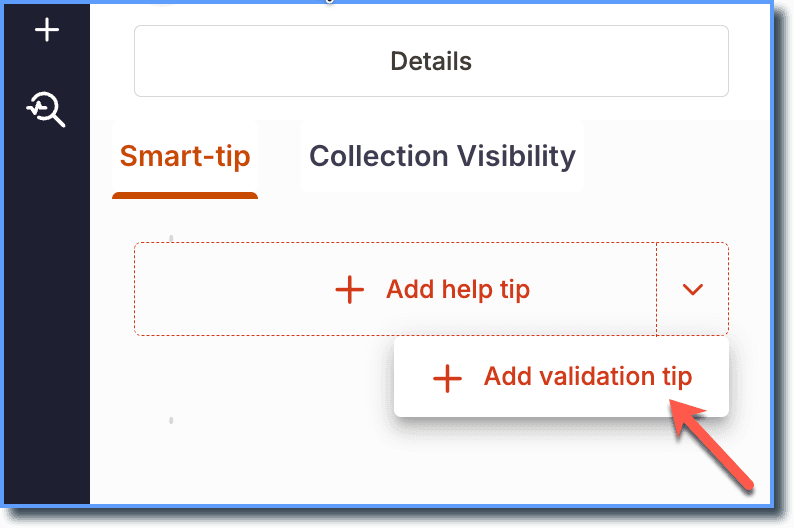 5. Select an element on the application that you would like the Smart Tip to point to.

- Enter the purpose of the Smart tip.
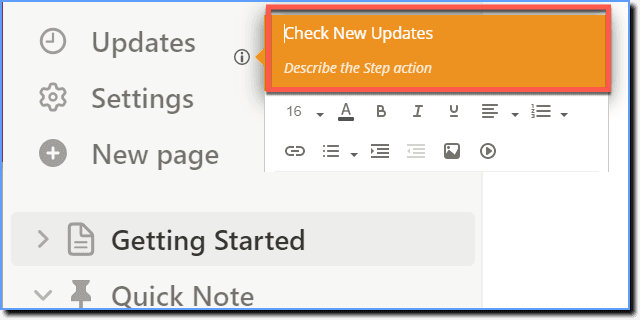
Optional. Add a more detailed description if required.
- Click the ADVANCED OPTIONS tab.

- Under the Display Rules section, click + Add Rule to set the desired conditions.
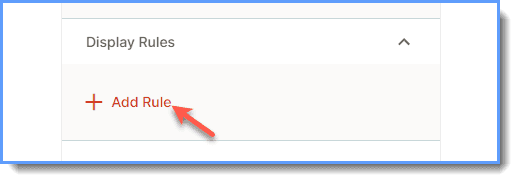
For more information on the different conditions that can be used in Display Rules, see Visibility and Display Rule Conditions.
To find the value of the CSS selector for the selected element, contact support@whatfix.com.
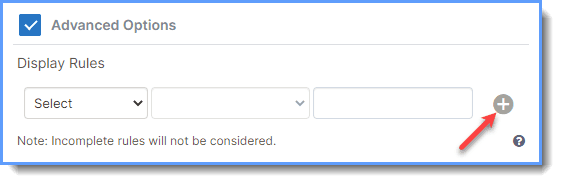
- Add additional Display Rule conditions using the plus icon.
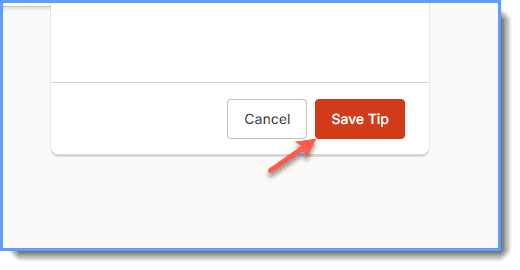
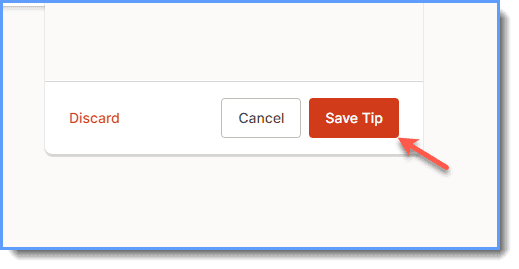
- Click Save Tip.
To add more Smart Tips, click + Add Help Tip on Studio.
- After all the Smart Tips are created, on the Studio, click Save Tip.
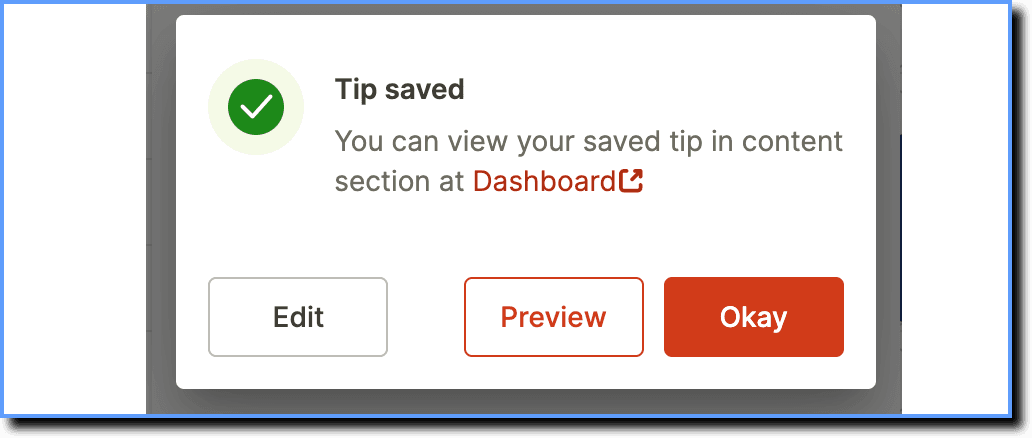
- On the confirmation Pop-up, click Okay.
Once you have created the Smart Tip collection, a segment is automatically created on your Whatfix Dashboard.