Whatfix PDF Export
Customize a PDF template
Whatfix enables you to customize the PDF template used when generating PDF output from a Flow. You can add your company logo, include or remove the header and footer section, and choose whether to use a portrait or classic design of the PDF.
Use the following steps to customize the PDF template:
-
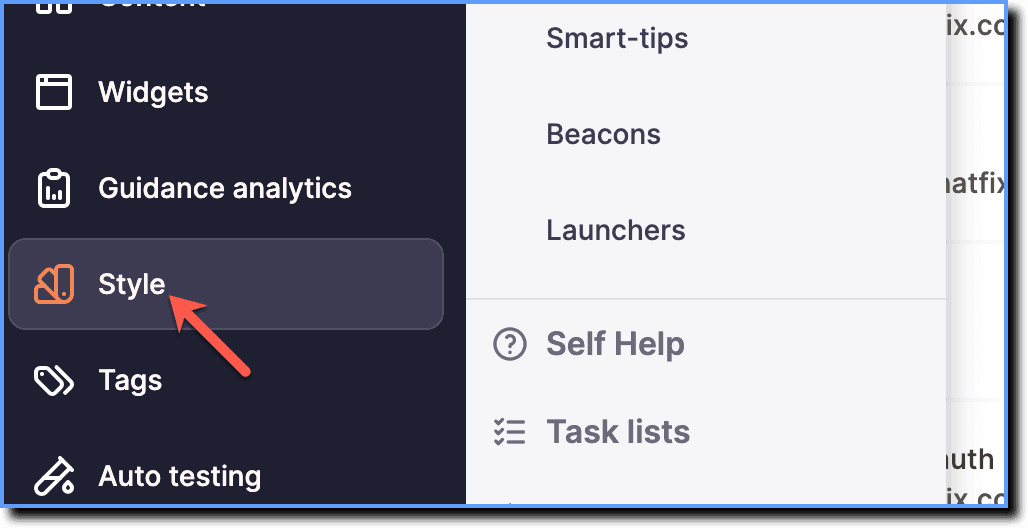
On the Whatfix Guidance dashboard, click Style.
-
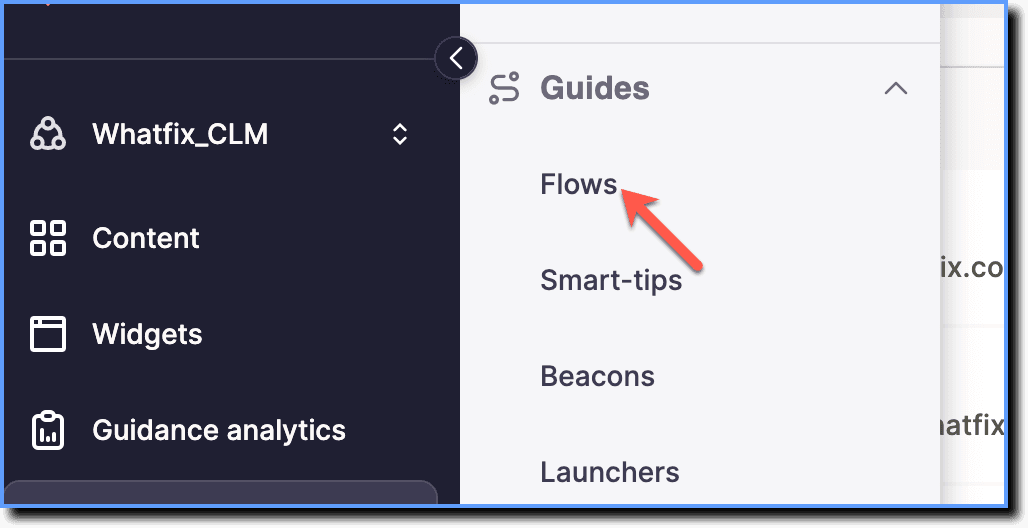
Click Flows.
-
Go to the PDF tab to perform the following customizations.
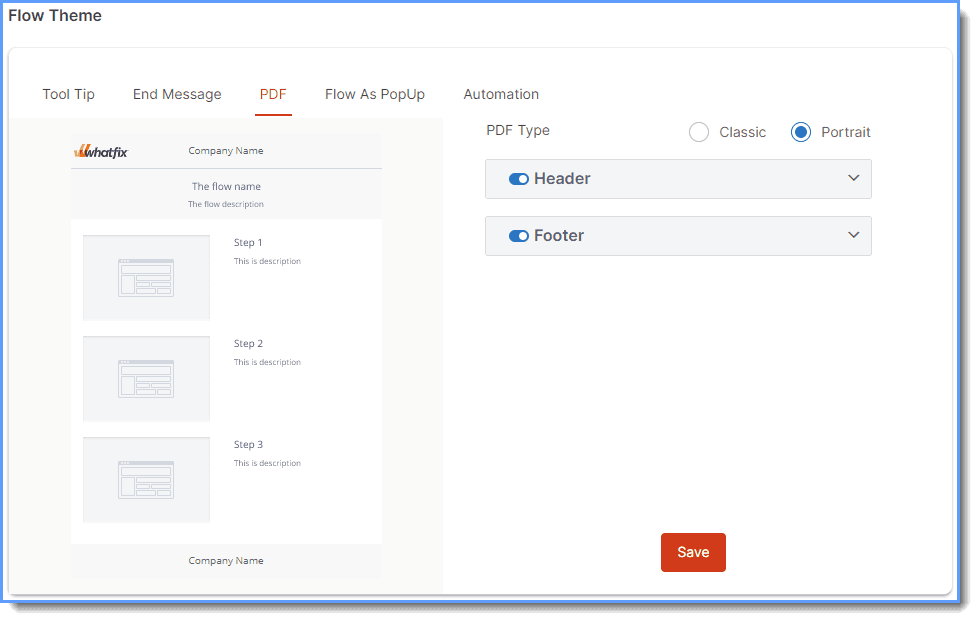
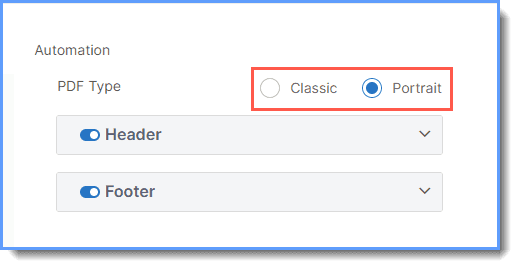
- Choose one of the options for the PDF export.
- Classic: One step in a page
- Portrait: Three steps in a page
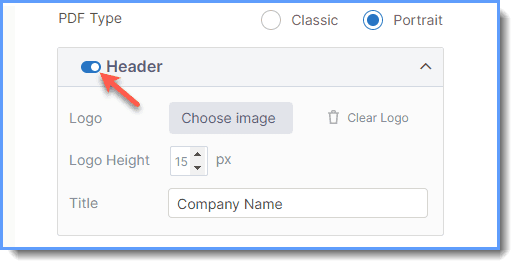
- Enable the Header toggle. Once enabled, you can add your company logo, configure the size, and the header content.
Note:
The dimension of the image added to the header can vary, but the logo height cannot exceed 30 pixels.
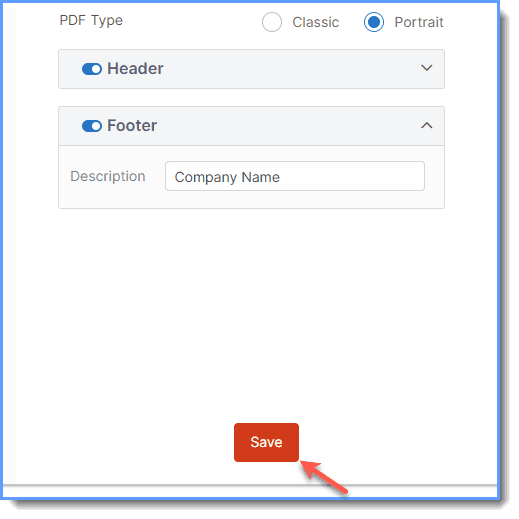
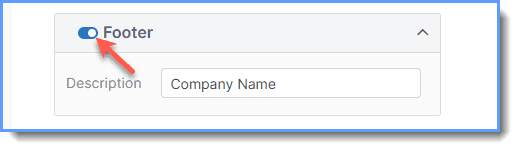
- Enable the Footer toggle to add footer content.
- Click Save.