Icon Library
Migrate from PNG Icons to SVG Icons
Why migrate to SVG Icons?
With the Icon Library, Whatfix deprecates the use of PNG icons. If you are using PNG icons in content such as Smart Tips, ensure that you update all existing PNG icons to the SVG format. Migrating to SVG icons ensures that your content remains consistent and aligns with your application’s design.
Expand the accordion for more details.
Benefits of using SVG Icons over PNG Icons
| Aspect | SVG icons | PNG icons |
|---|---|---|
| Scalability | Can be resized without losing quality; remains sharp and clear at any size | Loses quality when resized, becomes blurry or pixelated |
| File Size | Often smaller, which improves load time and performance for your application | Can be larger, especially at higher resolutions, which may slow down the application |
| Customization | Enable easy manipulation using CSS or JavaScript for dynamic changes in color, size, and effects | Static, requires new images for any changes, making customization cumbersome |
| Consistency | Maintains a uniform appearance across devices and screen sizes, contributing to a consistent user experience | May appear differently on various devices, leading to inconsistencies in content |
How to migrate from PNG to SVG Icons in Smart Tips?
- Create or find SVG replacements for your existing PNG icons.
- Upload the SVG icons to the Icon Library. For more information, see Use custom icons in Whatfix Contents and Widgets.
Expand the accordion for more details.
Upload the SVG icons to the Icon Library
To upload SVG icons to the Icon Library, see Use custom icons in Whatfix Contents and Widgets. 3. Replace existing PNG Icons with SVG Icons.
Expand the accordion for more details.
Replace existing PNG Icons with SVG Icons
Use the following steps to replace existing icons with SVG icons in Smart Tips:
- Go to the Whatfix Guidance Dashboard, click Style.
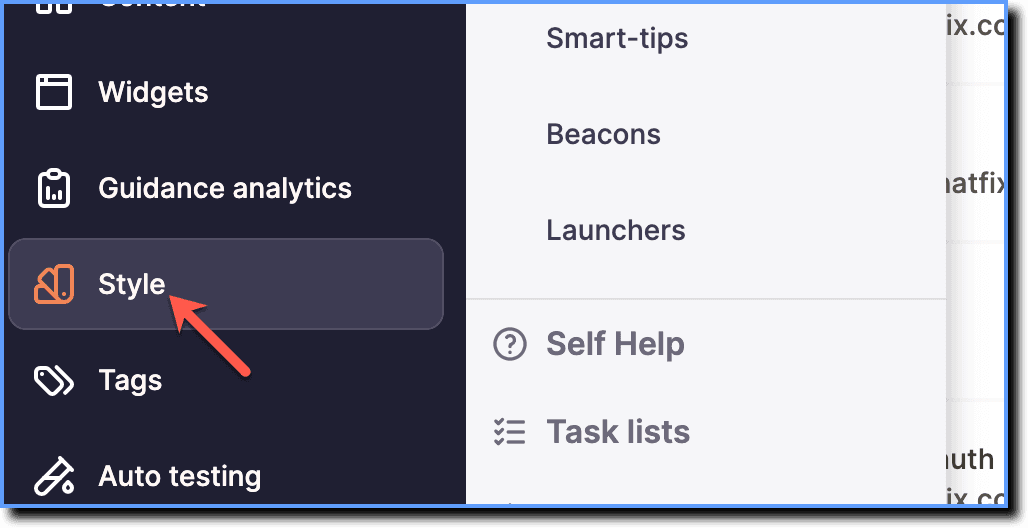 2. Click Smart-tips.
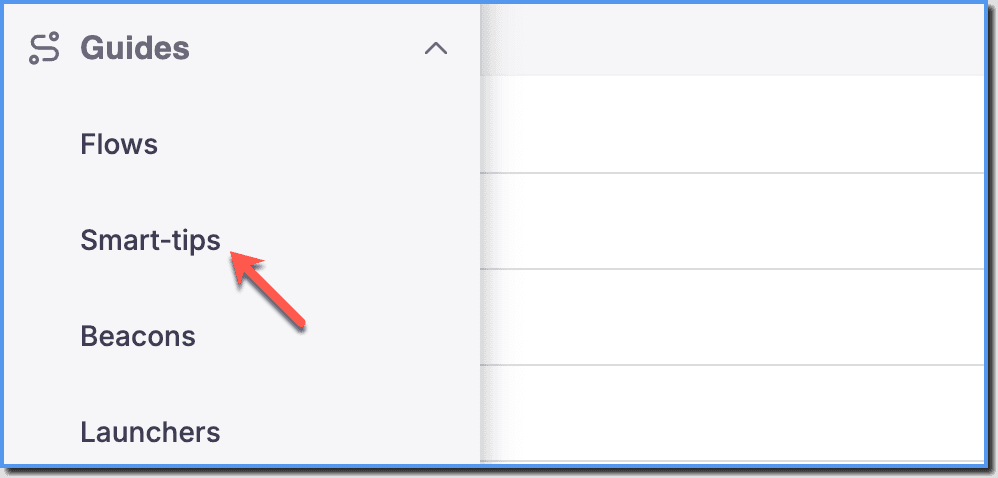 3. Under the Icon section, click + Add Icon.
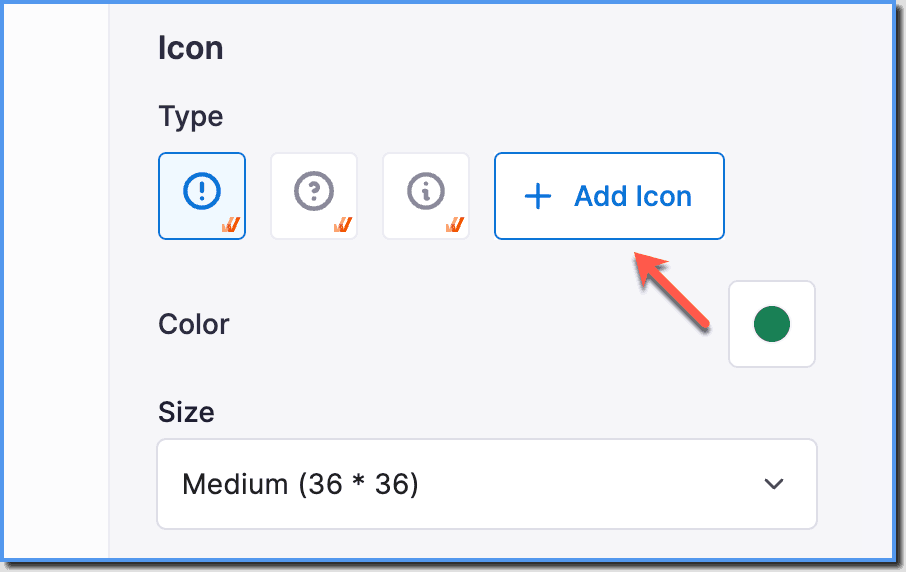 4. Select the uploaded icon from the Icon Library and click Add.
 5. Select the icon and then configure its Color and Size.
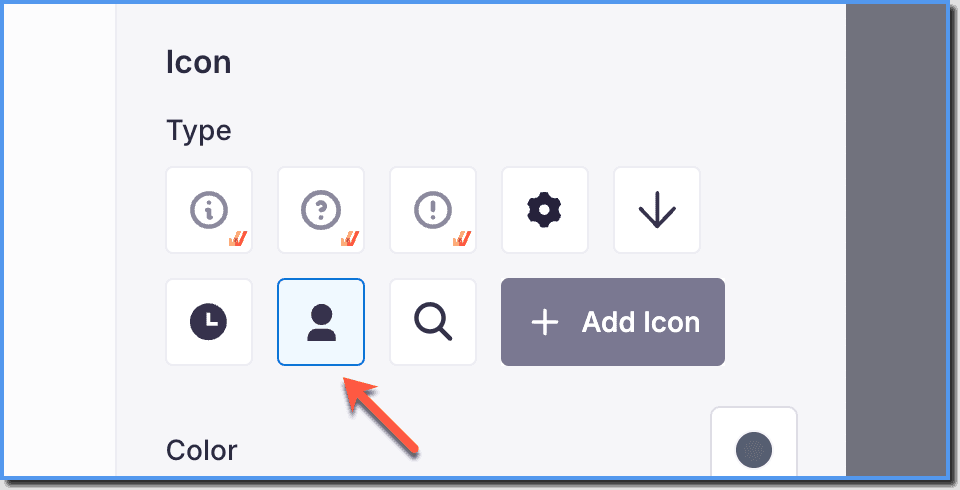 6. Click Save.
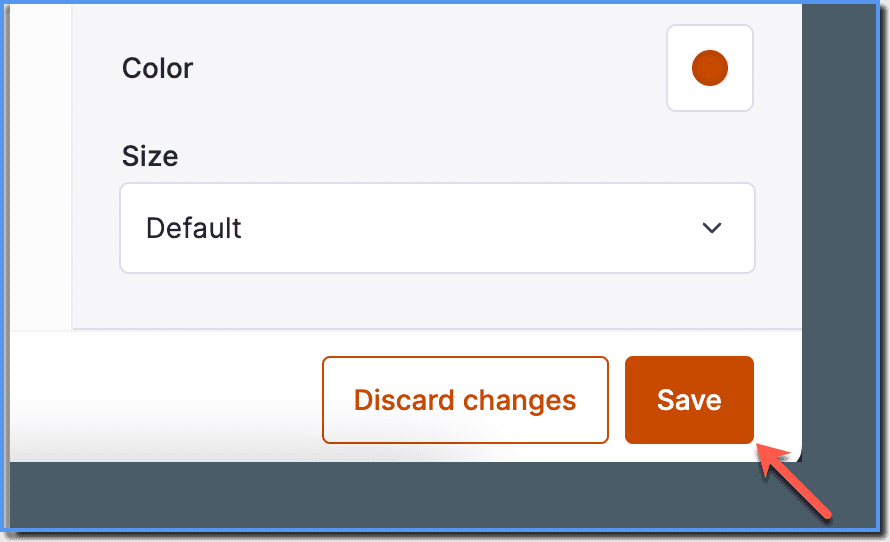
Once saved, this SVG icon applies to all the Smart Tips in your application, and wherever PNG icons are used, they are replaced with this SVG icon. The PNG icons are deprecated.