Self Hosting Whatfix Desktop content
Enable Multi-format Content Export
Dashboard users can choose to export the On-premise deployment package with or without the multi-format content.
Use the following steps to export multi-format content:
-
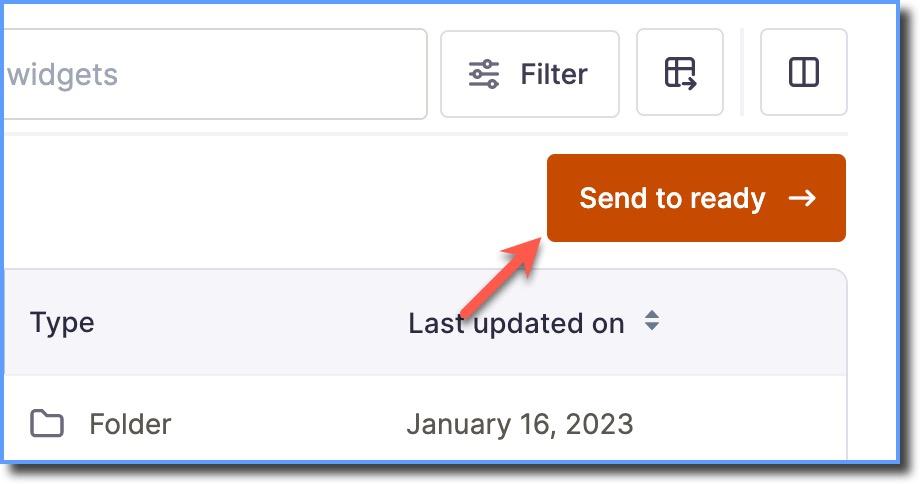
On the Whatfix Dashboard, move the content and widgets that you want to export from the Draft to Ready stage.
-
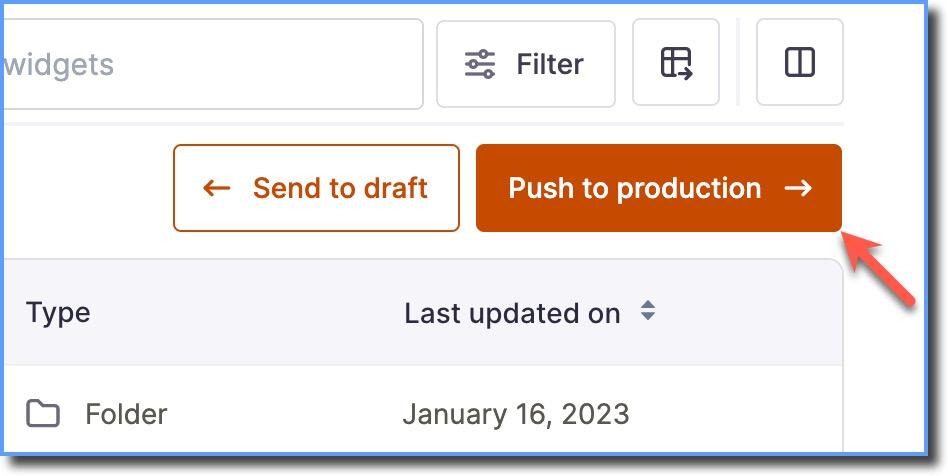
In the Ready stage, click Push to production.
-
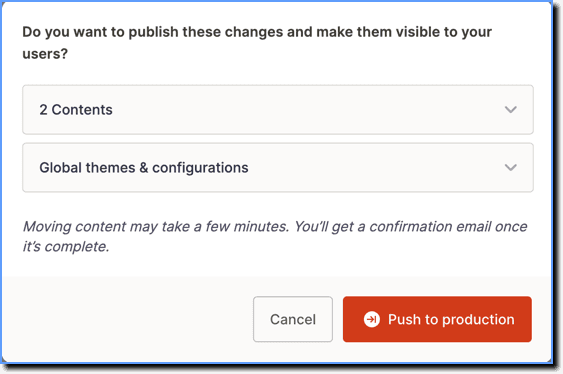
Review the changes on the summary pop-up, and then click Push to production.
-
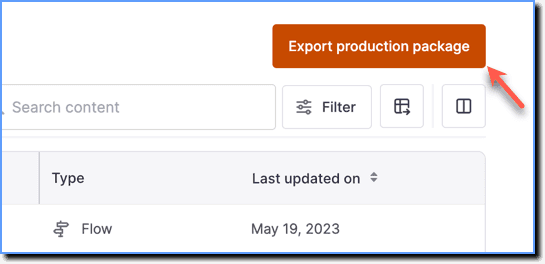
Go to the Production stage, and then click Export production package.
-
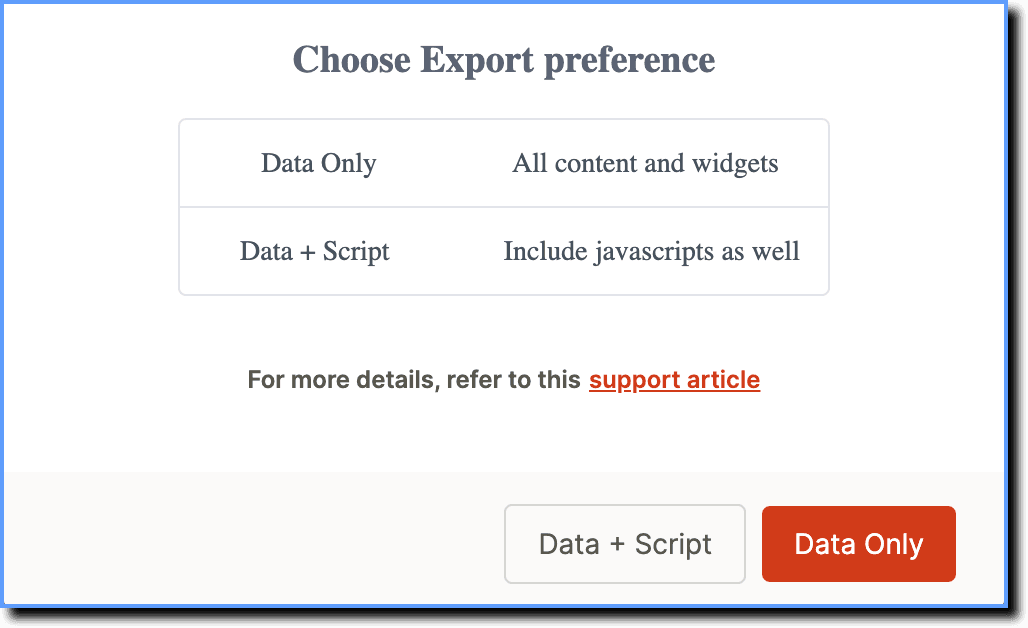
In the Choose Export Preference pop-up, click Data Only or Data + Script, depending on your preference.
-
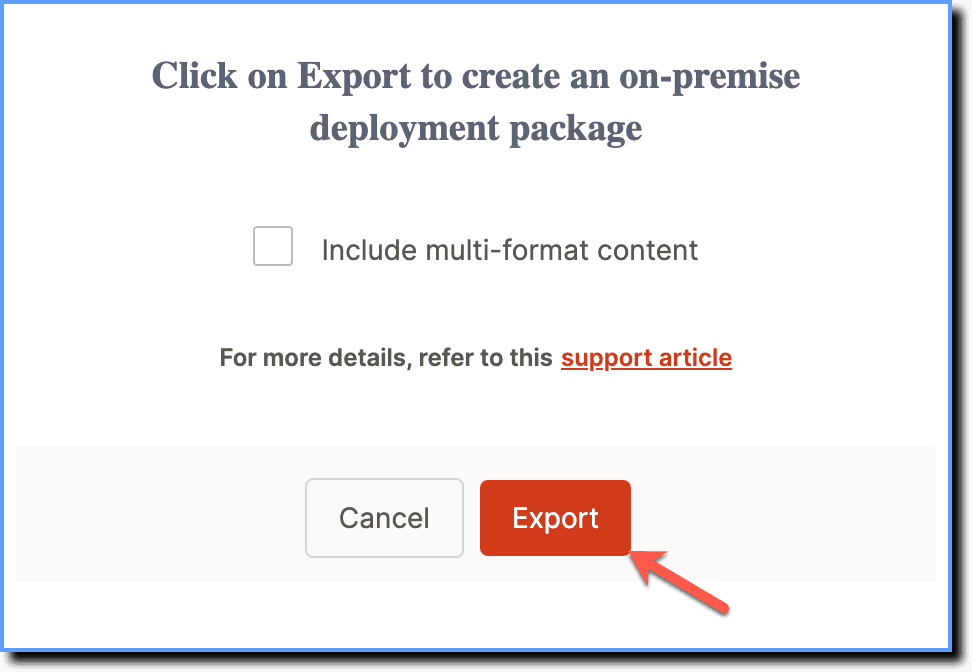
Click Export.
Note
To export the multi-format content, select the Include multi-format content checkbox. 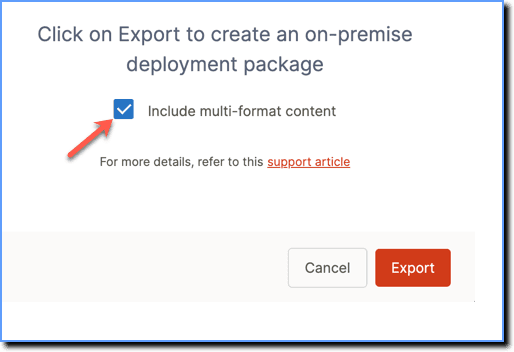
If you do not see the Export Production Package option, contact support@whatfix.com.
7. An email with a link to download the content is sent to your registered email ID. Download the ZIP file. 
your title goes here
- Once you have downloaded the package, remember to replace the source URL of all the slideshows and articles with the server path where whatfix.com folder is hosted.
- If the multi-format option is not selected, the export package does not contain the following:
- Slideshow (images are not present)
- Articles
- This option is NOT selectable when the Flows in the Self Help are configured to launch as Slideshows.