Whatfix Player
How to collect Whatfix Desktop Logs
This article helps you collect Whatfix desktop logs and share it with the support team when you face an issue.
Note:
The following article is applicable only for Whatfix Player installed post March 11th, 2021. For all the other older versions, contact support@whatfix.com or your Whatfix representative. To check your latest Whatfix Player version see, How can I check the version of Whatfix Desktop Player?
Whatfix Player logs are shared based on user-level installation and system-level installations.
Collecting Whatfix Player logs for user-level installation
Application logs from your system are required by Whatfix to investigate the source of a malfunction.
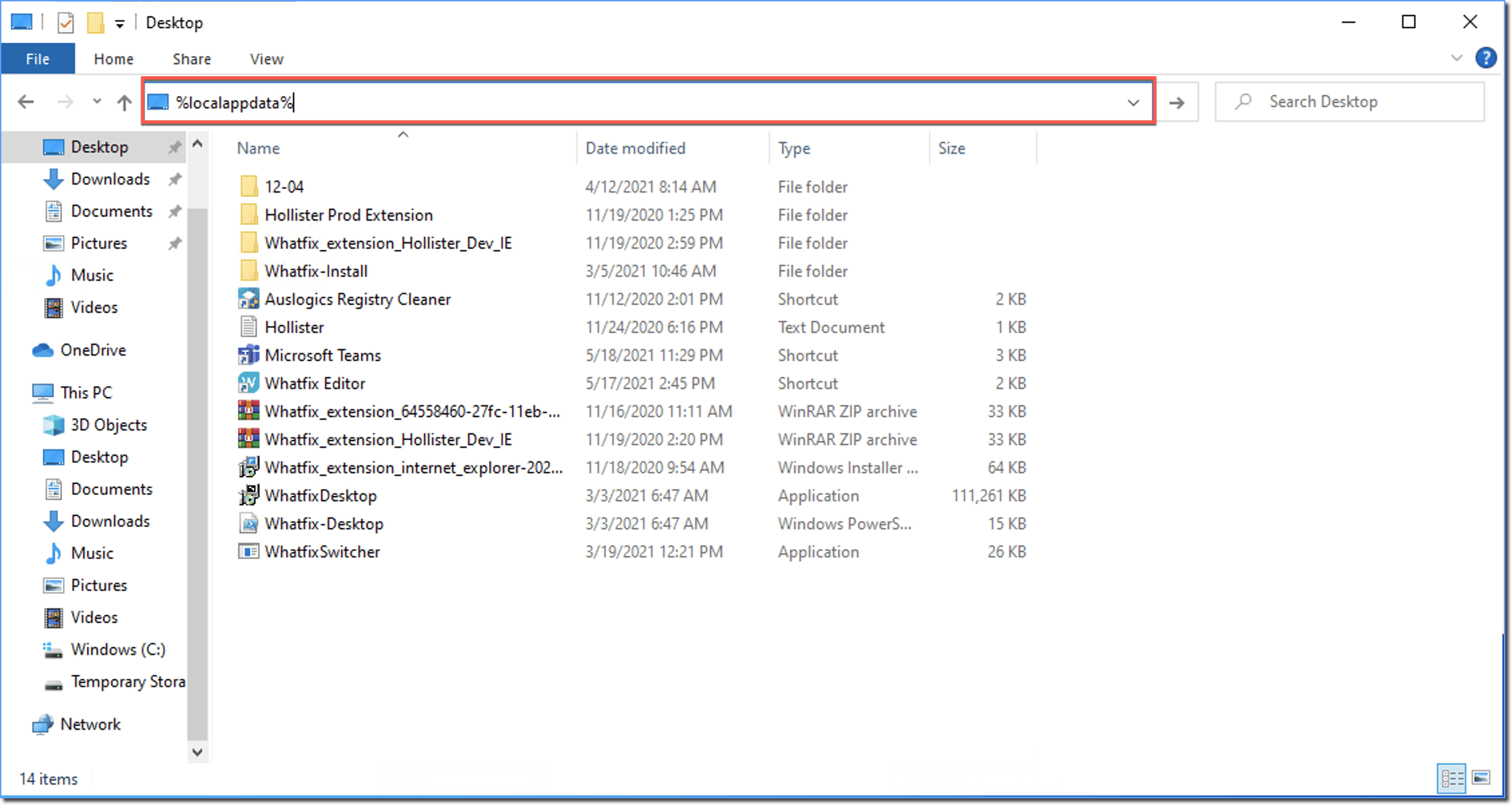
- In the Windows File Explorer, enter %localappdata% in the file bar.
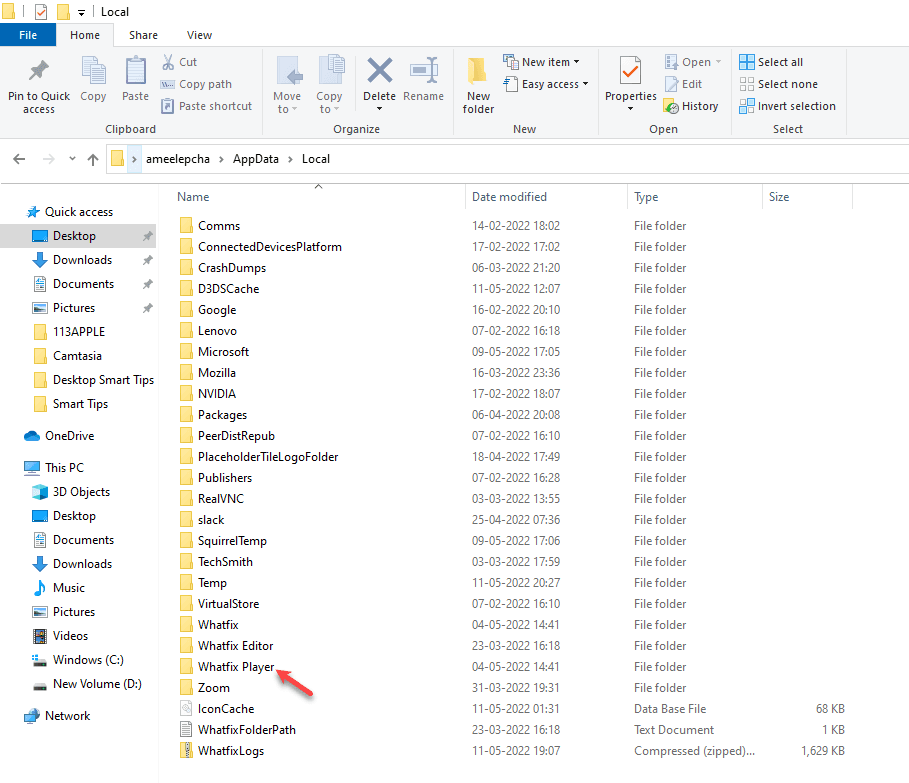
- Locate the Whatfix Player folder and double-click to open the folder.
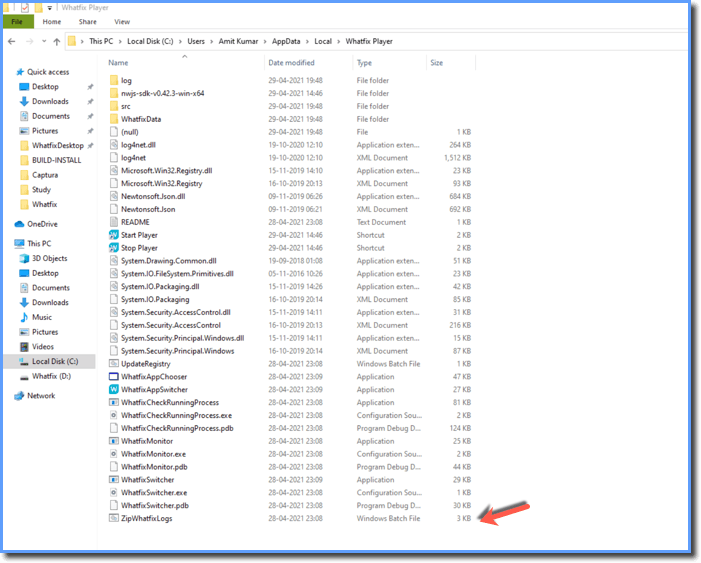
- Double-click the file ZipWhatfixLogs.bat Windows Batch File.
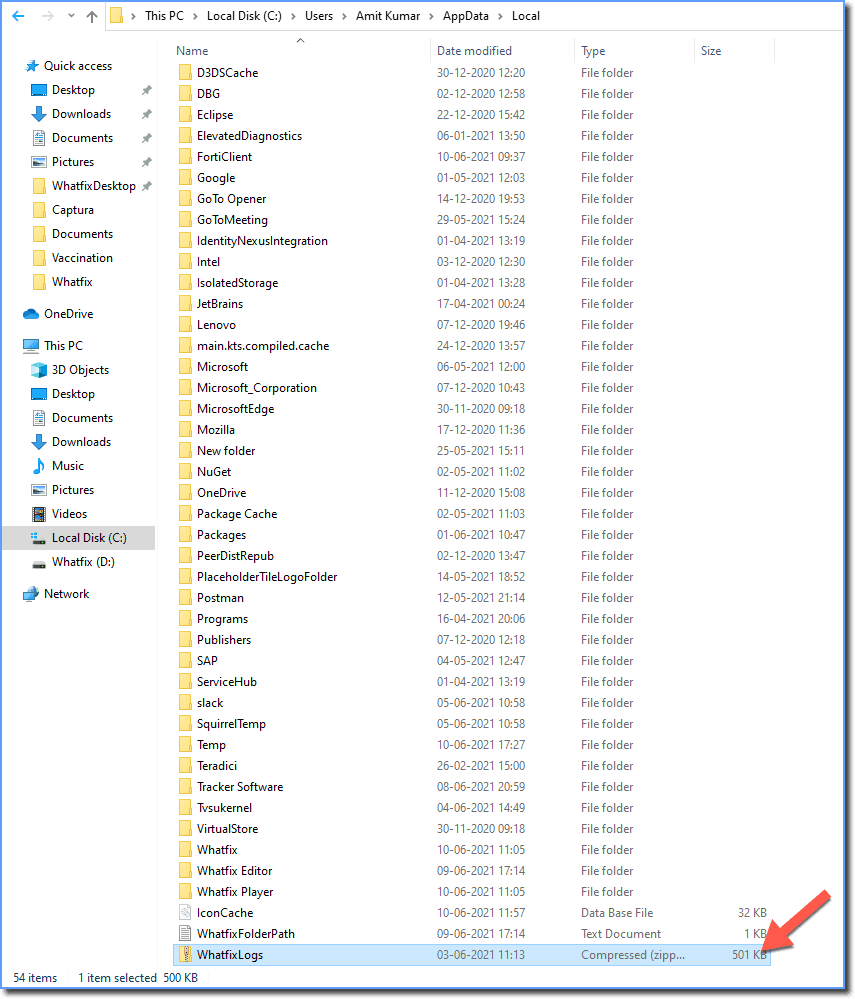
- Go to %localAppData% folder and locate WhatfixLogs .zip file.
- Send the .zip file to support@whatfix.com or your Whatfix representative.
Collecting Whatfix Player logs for system-level installation:
- Navigate to C:\Program Files\Whatfix\Whatfix Player.
- Click the ZipWhatfixLog button. This will generate a zip file containing the Whatfix logs.

- Open File Explorer and in the address bar type %localappdata%.

- Look for the WhatfixLogs.zip file.
