Content Author
Visibility Rule Conditions for Pop-up
Visibility rules for Pop-ups help you define when and to whom you want to display the Pop-up.
Use the following steps to configure the Visibility Rules for the Pop-up:
-
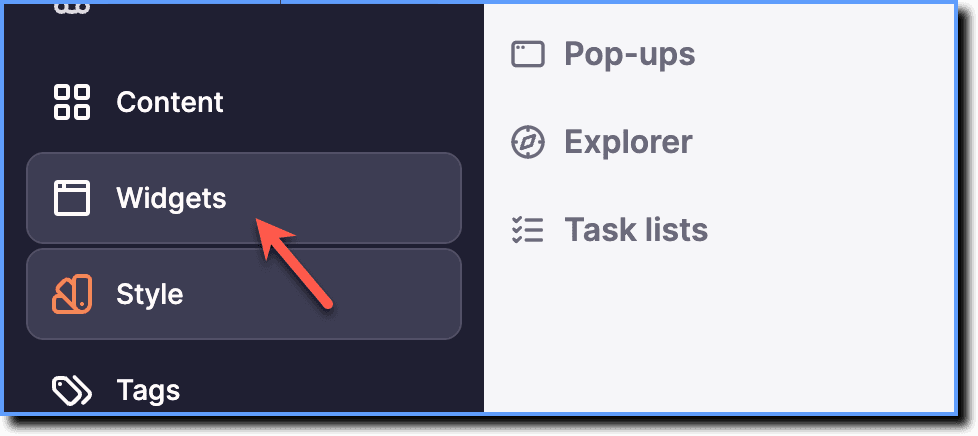
On the Guidance dashboard, click Widgets.
-
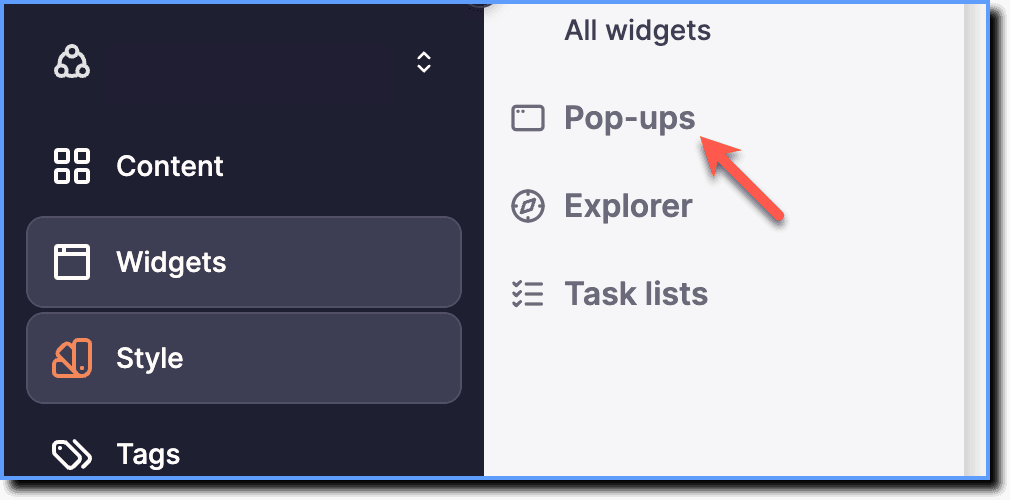
Click Pop-ups.
-
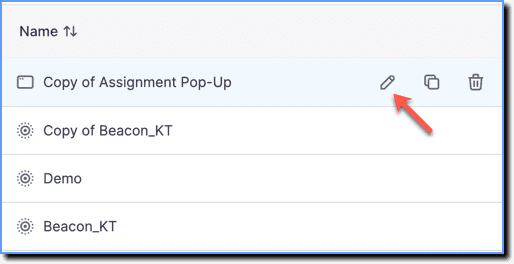
Hover your cursor over the Pop-up segment you want to configure, and then click the Edit icon.
-
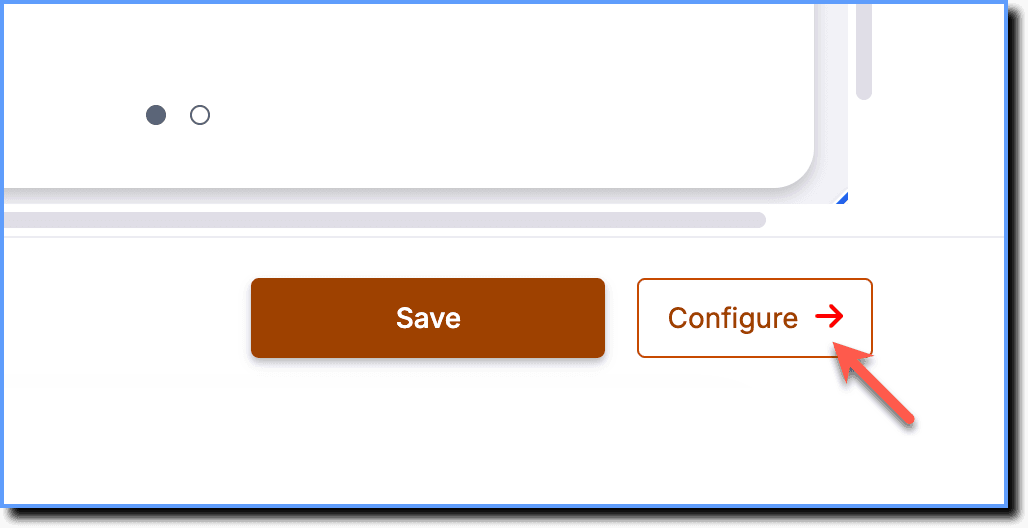
Click Configure.
-
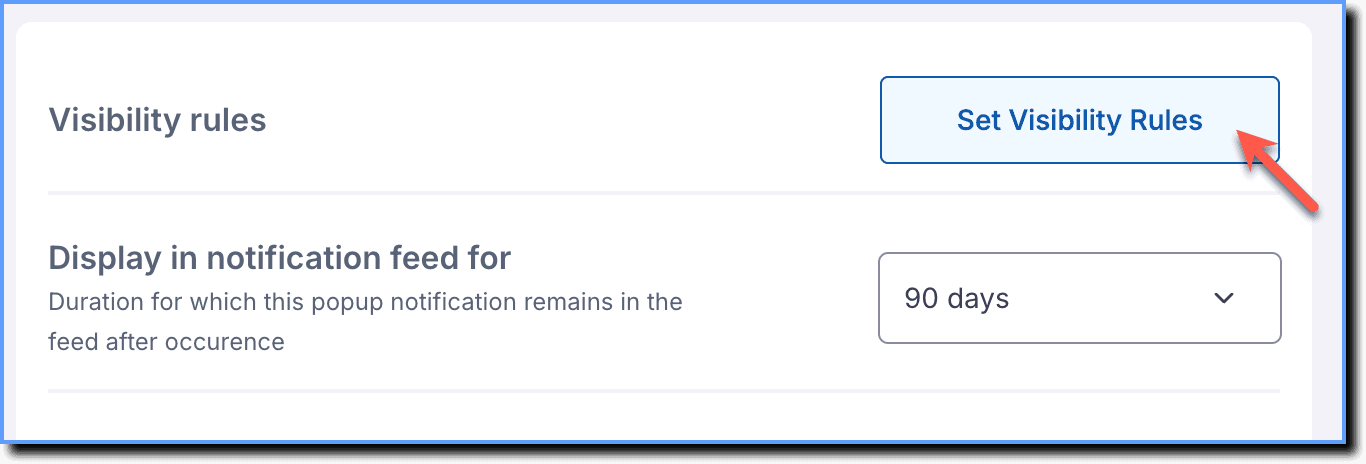
Click Visibility Rules.
-
Configure When and Who condition as follows:
When does the Pop-up start and stop appearing?
This condition helps you configure specific display timings for the Pop-up. The Start and End time determines when the Pop-up display will start and stop.
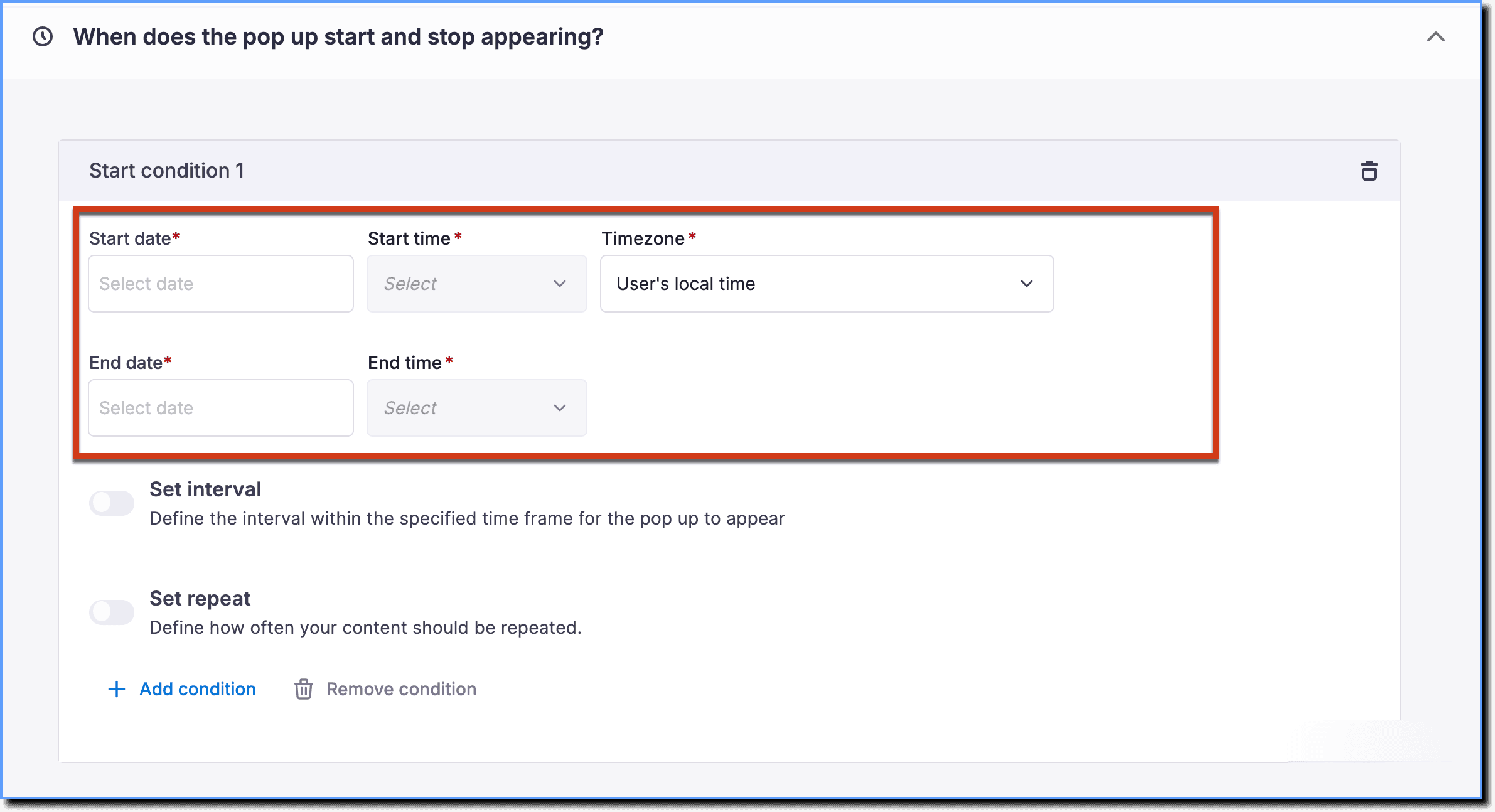
In the Time Zone dropdown, select the time zone you want the Pop-up display to follow. If your end users are from different time zones, then select the Use Local Time option.
Additionally, the condition includes the following rules:
- Set interval: The duration for which the pop-up will appear within the specified dates. For example, set a morning slot to show a release Pop-up from 9:00 to 9:30 AM.
- Set repeat: The number of times the Pop-up must repeat. The frequencies include the following options
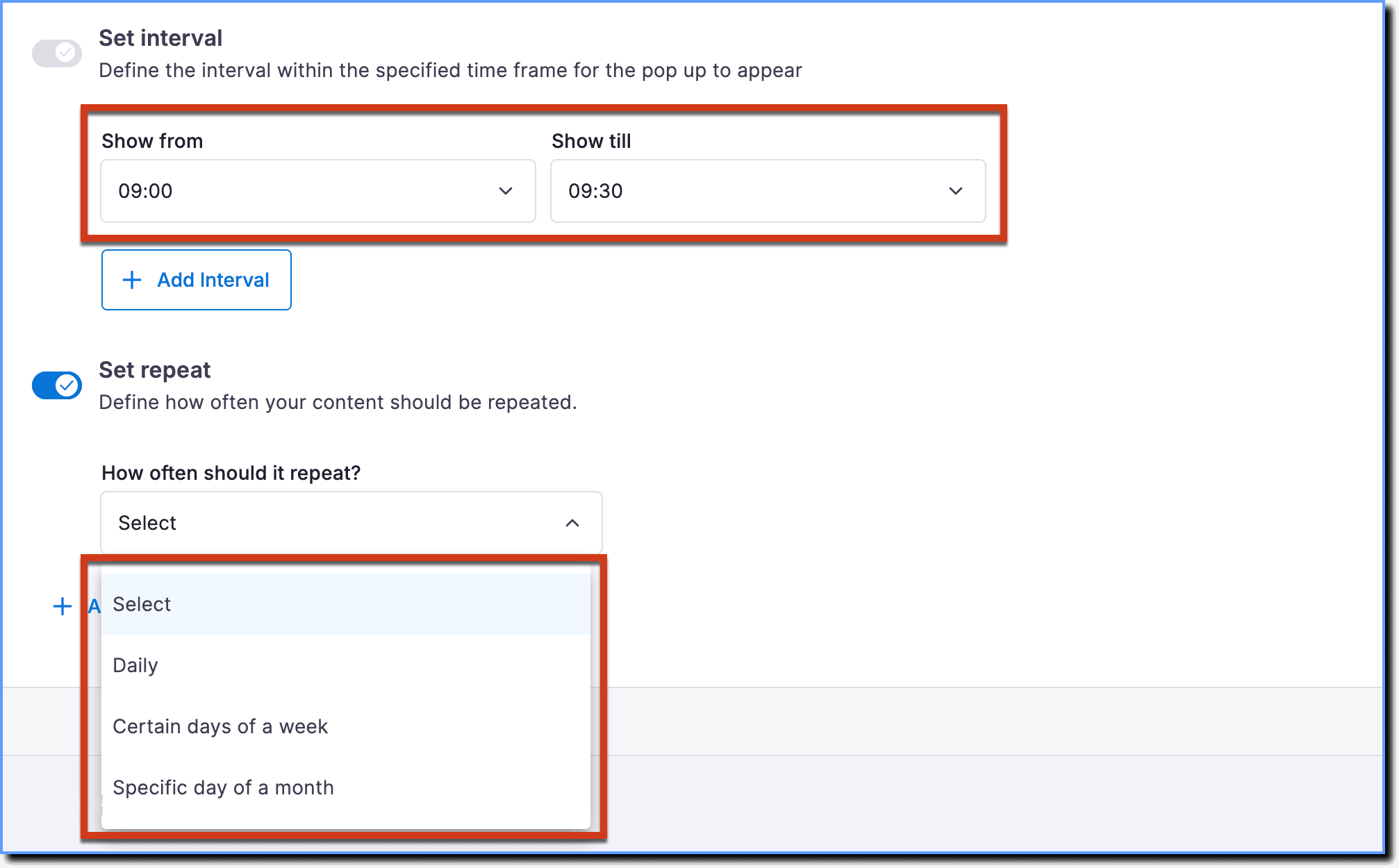
- Daily
- Certain days of a week
- Specific day of a month
Who does the Pop-up appear to?
This condition rule helps you configure a set of end users to whom you want to display the Pop-up. This includes the following user conditions:
Enterprise Attributes: Attribute condition rules that enable you to show Pop-up to particular users based on roles, departments, geography, accounts, and more. Once the attributes are integrated with Whatfix, you can see them in the visibility rules of Pop-ups for segmentation.
User Attributes: Attribute condition rules that enable you to show Pop-up to set of end users based on their characteristics such as New Users. This segmentation is based on end-user information fetched from your application.
Roles: This condition enables you to show and segment Pop-up to different users with the use of Role tags. 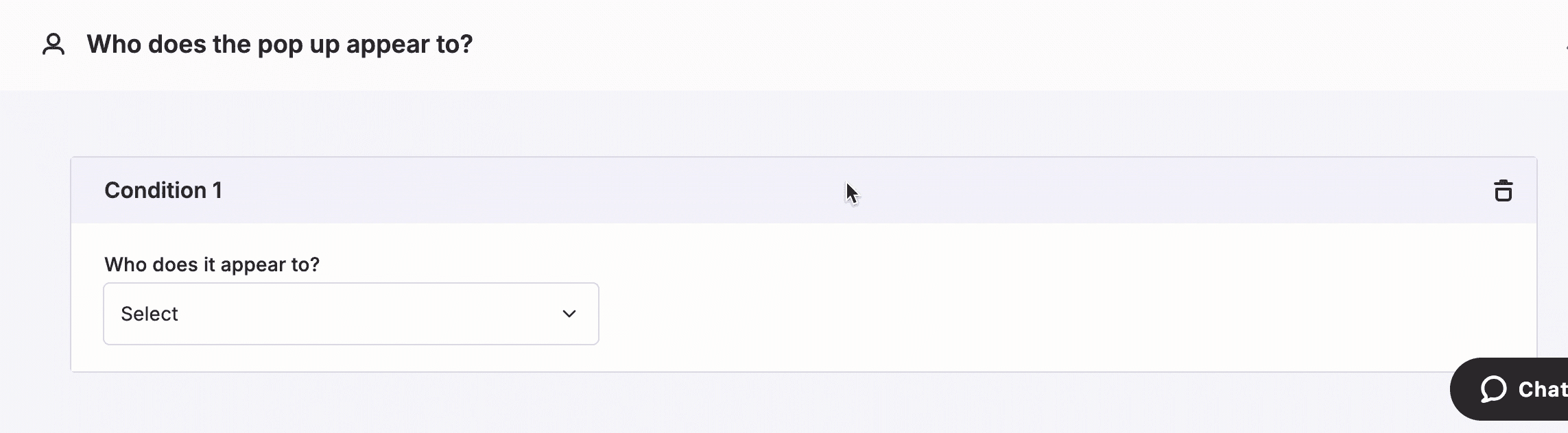
User Attributes provide information about the characteristics of your users, like who they are, what their role is, which department they belong to, etc.