Advanced Visibility Rules
Understand Advanced Visibility Rules
New Visibility Rules are currently available only to selected customers. For more information, contact support@whatfix.com.
Overview
Advanced Visibility Rules determine where, when, and to whom you display various Whatfix widgets, such as Self Help, Task List, and Pop-ups. These rules help you target specific user groups or contexts for showing relevant content. For example, configure Visibility Rules based on URL properties, other elements on the page, window variables, or attribute conditions.
Advanced Visibility Rules provides better control over the display of your Whatfix widgets. Compared to the old experience, it provides a more intuitive interface, expanded triggering options, and better support for advanced use cases. This enables you to create highly targeted and dynamic widget experiences.
To know more about New Visibility Rules, contact support@whatfix.com.
List of Advanced Visibility Rule conditions
The following table lists all the conditions used while configuring the New Visibility Rules to segment widgets. These conditions determine when, where, and to whom Whatfix widgets are to be displayed on your application. Click each Advanced Visibility Rule condition for more information.
| Advanced Visibility Rule Condition | Corresponding Previous Visibility Rule Condition | Description |
|---|---|---|
Specific date range 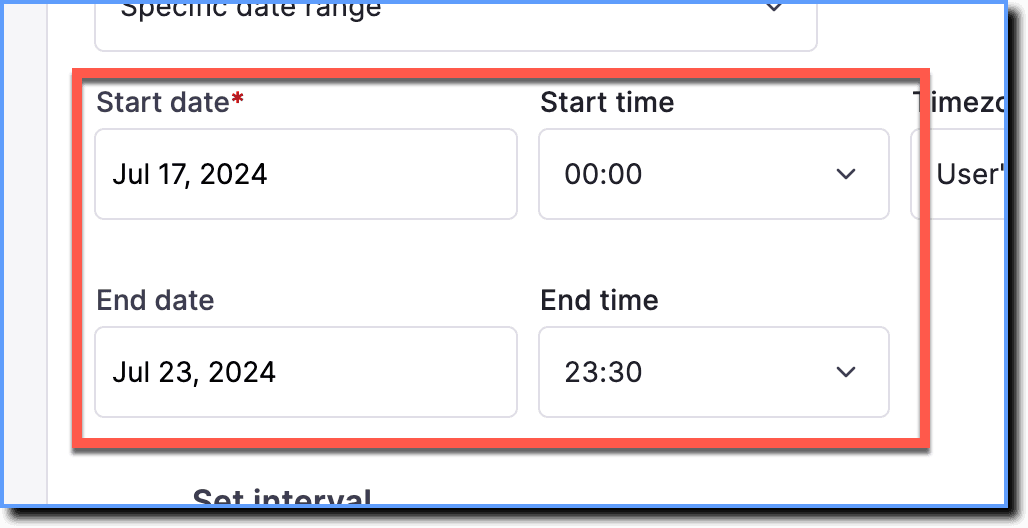 | Part of the When condition (available only for Popup, Survey, Task List) 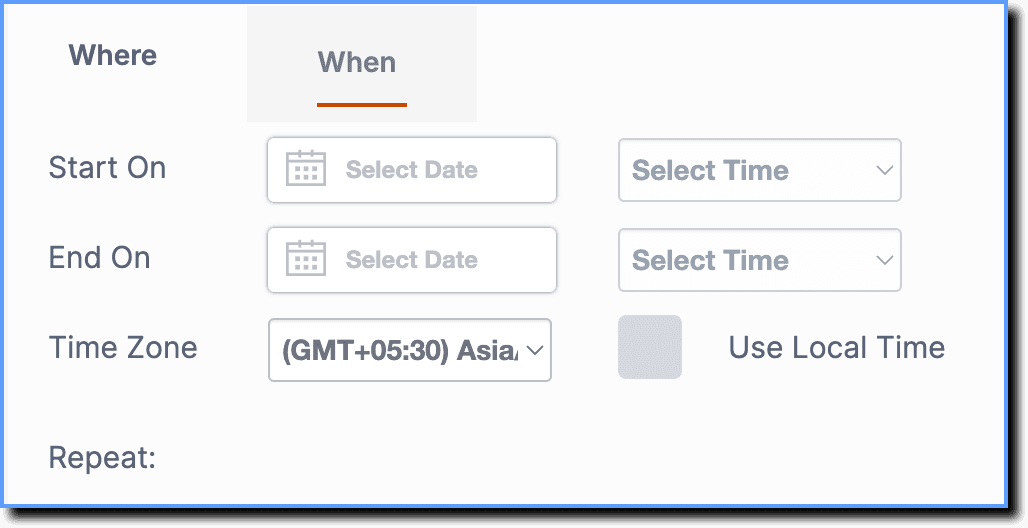 | Show widget from a specific date and time. |
Something on the application 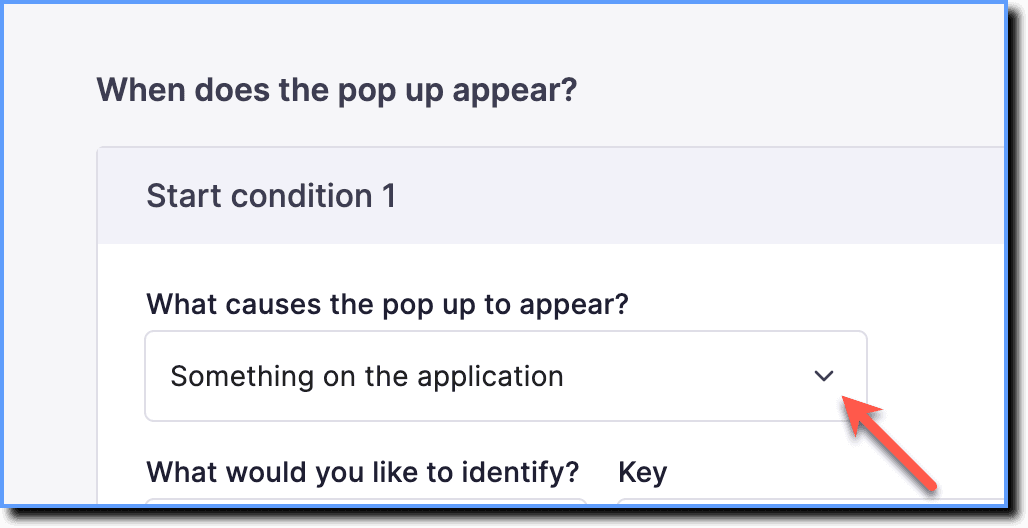 | Other Element Is 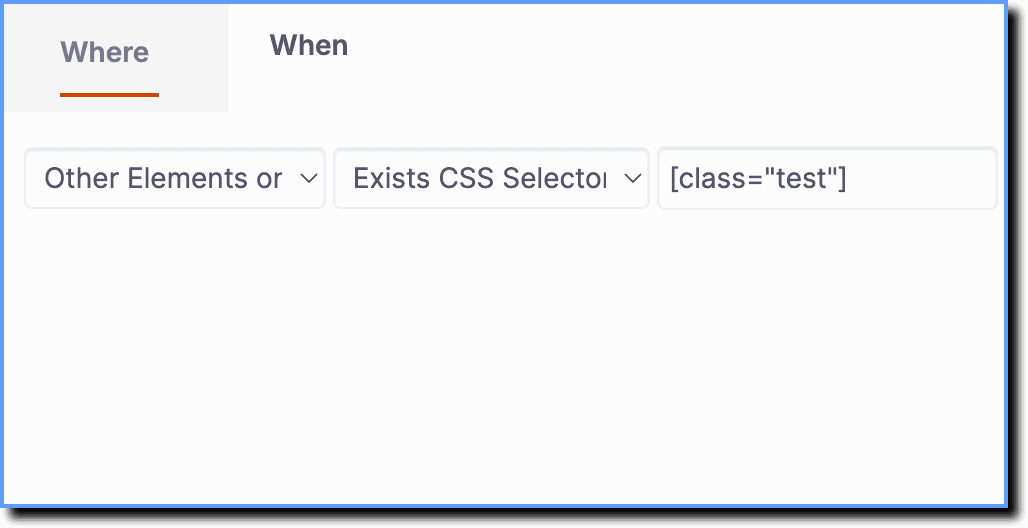 | Show widget based on the presence of a specific element on the page. |
Users performing an action 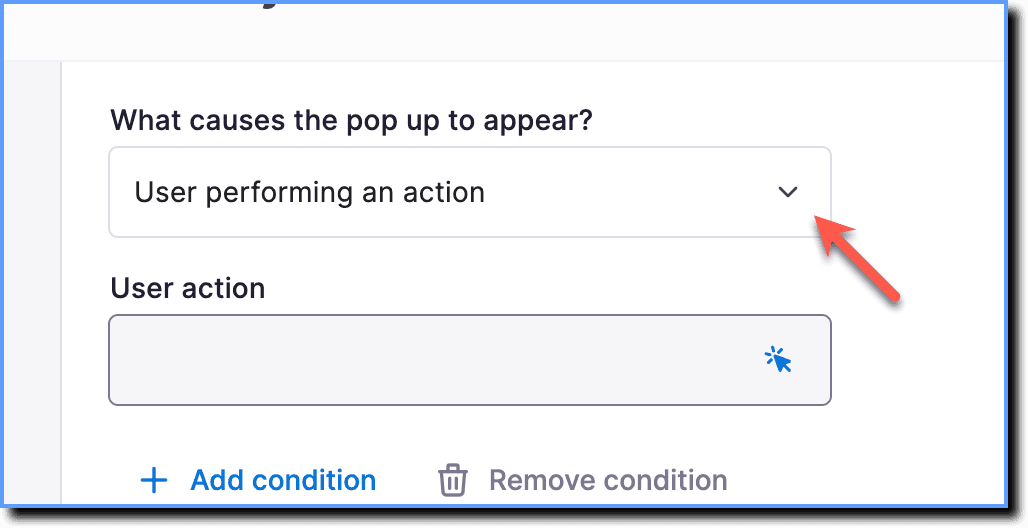 | User Action 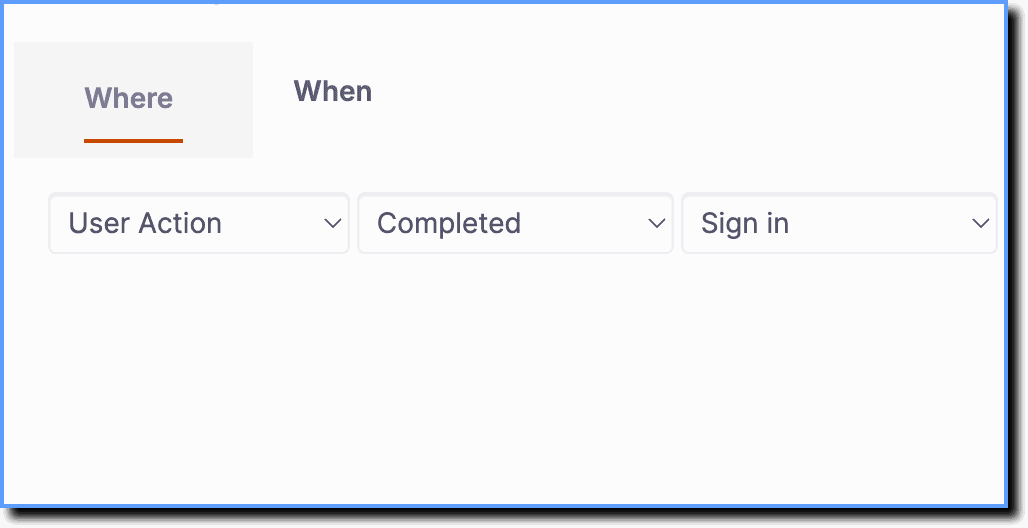 | Show widget based on the completion of a user action. |
URL 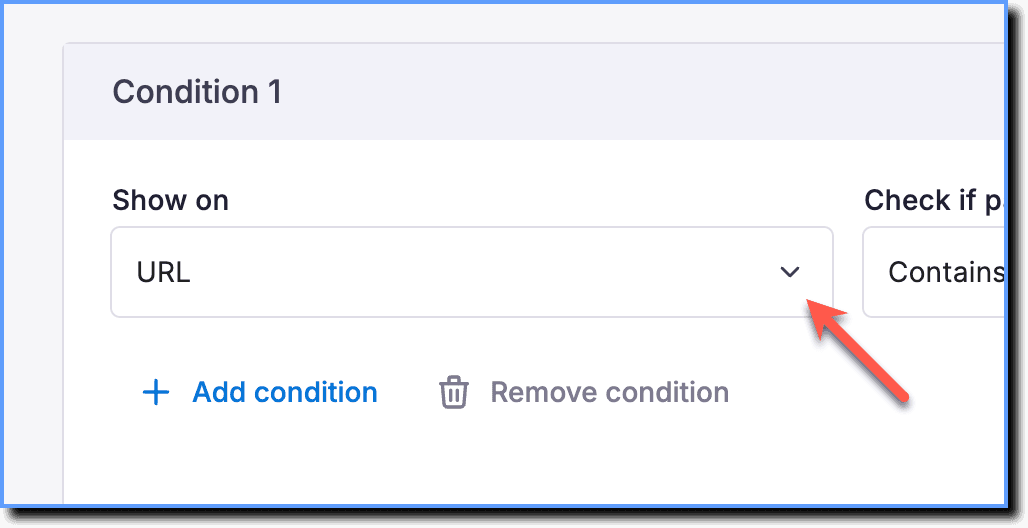 | URL 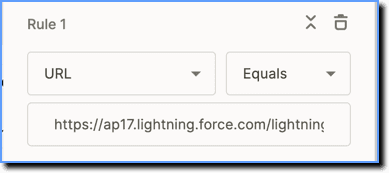 | Show widget on the entire specified URL. |
Domain 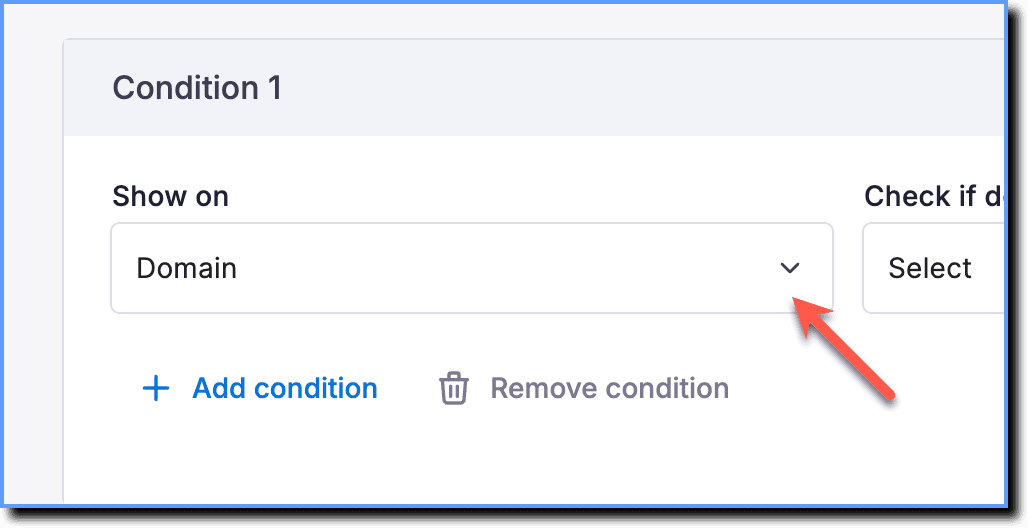 | URL Hostname 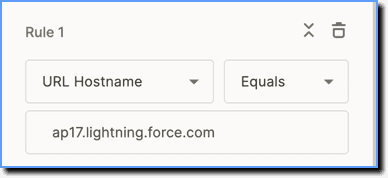 | Show widget on a specific domain. |
URL path 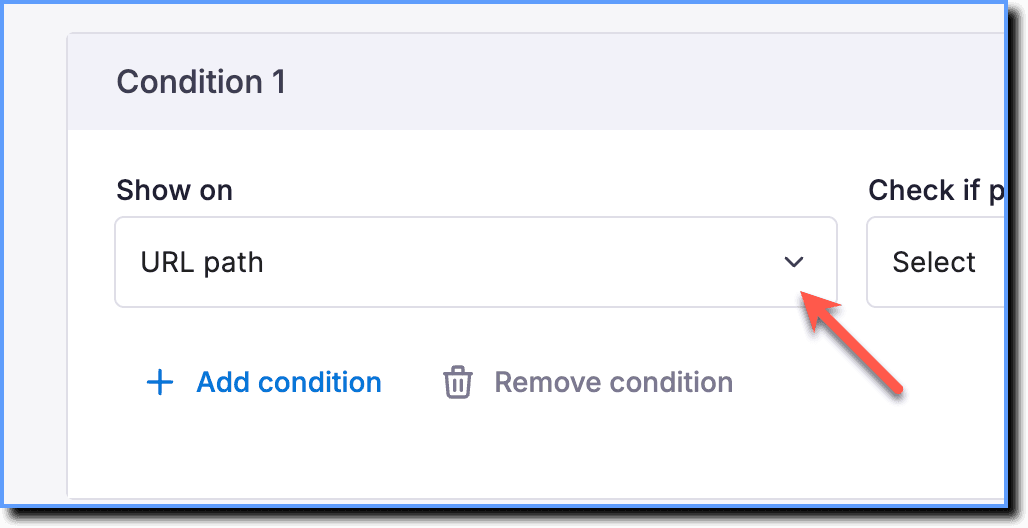 | URL Path 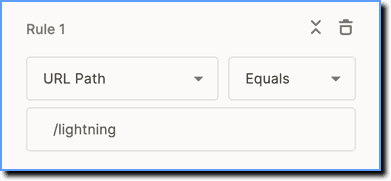 | Show widget on a specific section of a URL. |
URL parameter 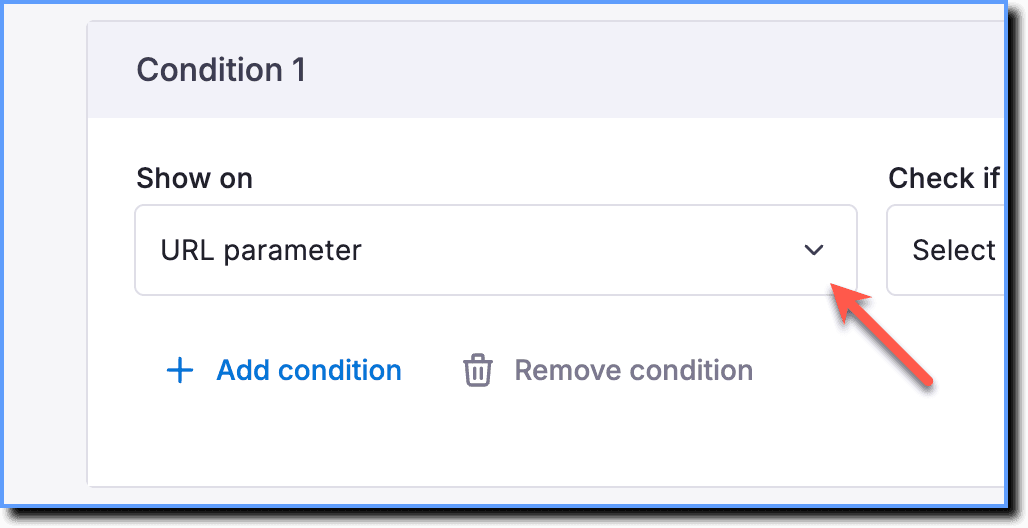 | URL Parameter 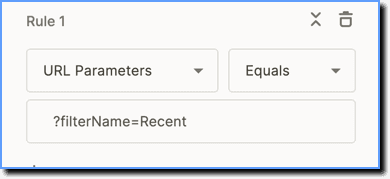 | Show widget based on parameters in the URL. |
URL hash value 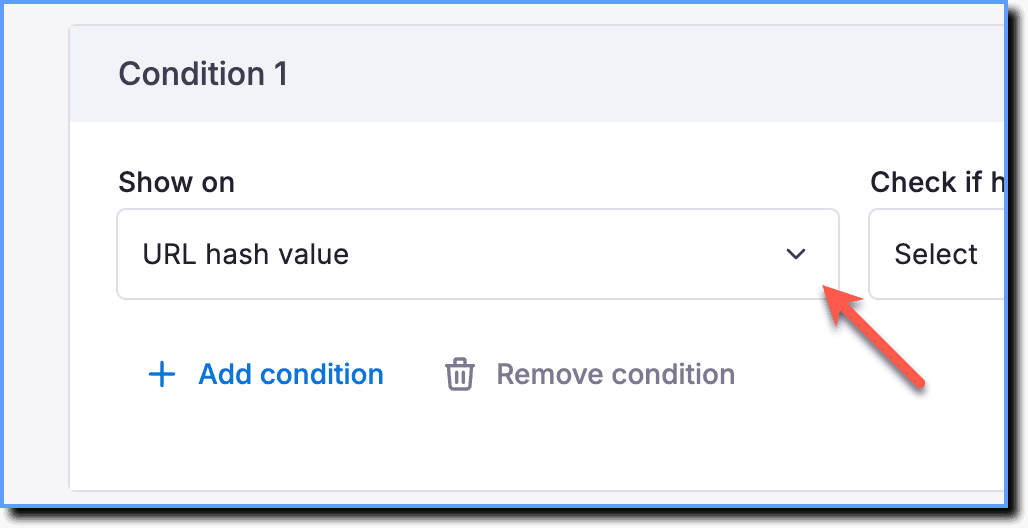 | URL Hash 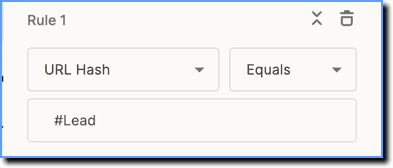 | Show widget based on the hash value of the URL. |
Page tags 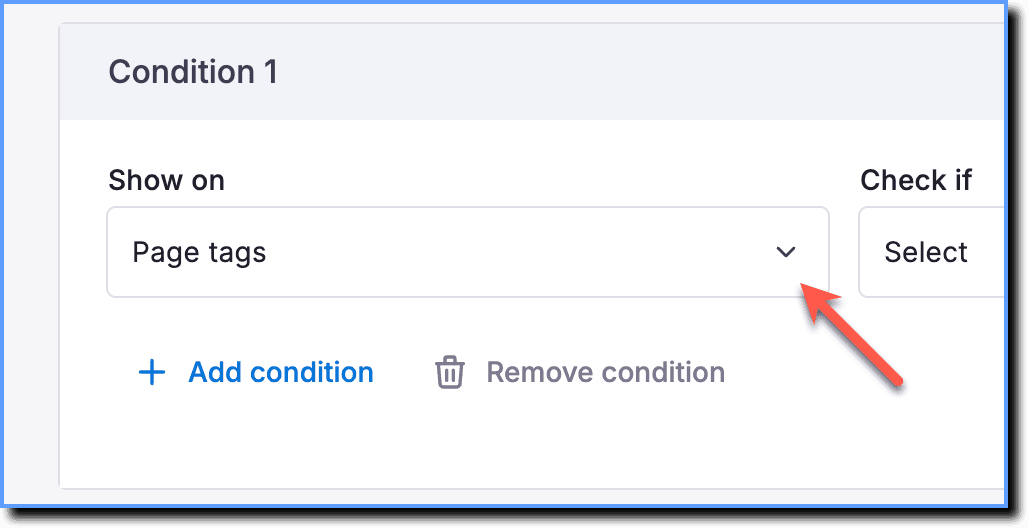 | Page Tag 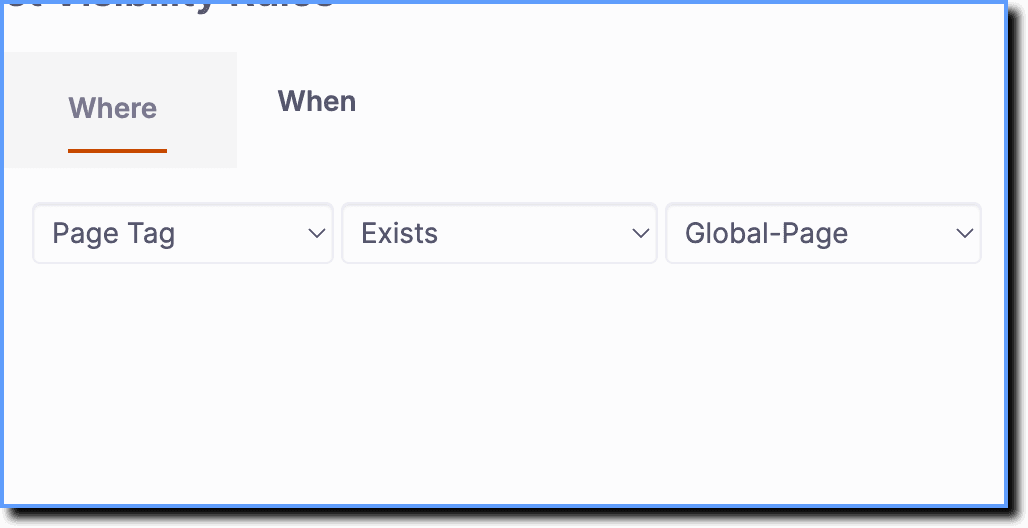 | Show widget based on page tags assigned to the page. |
Enterprise Attributes 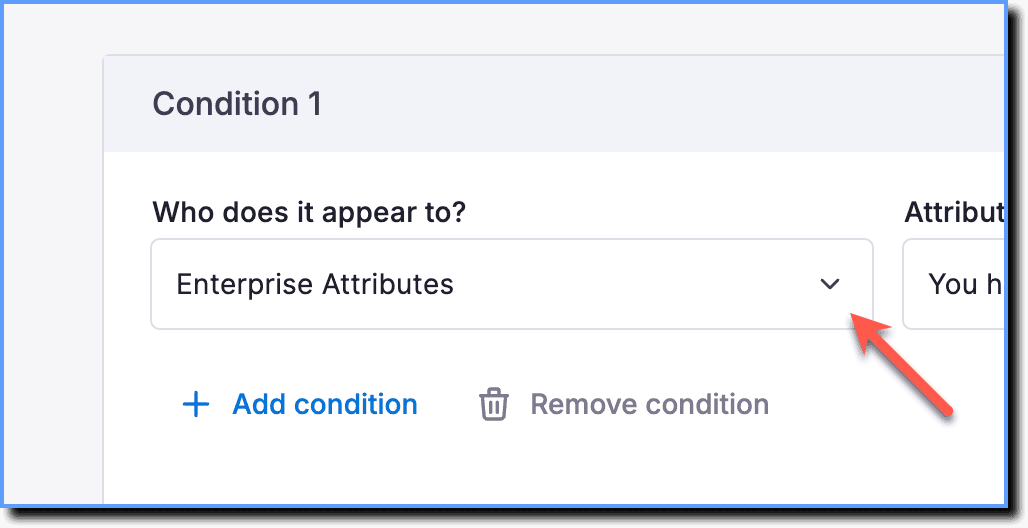 | Enterprise Attributes 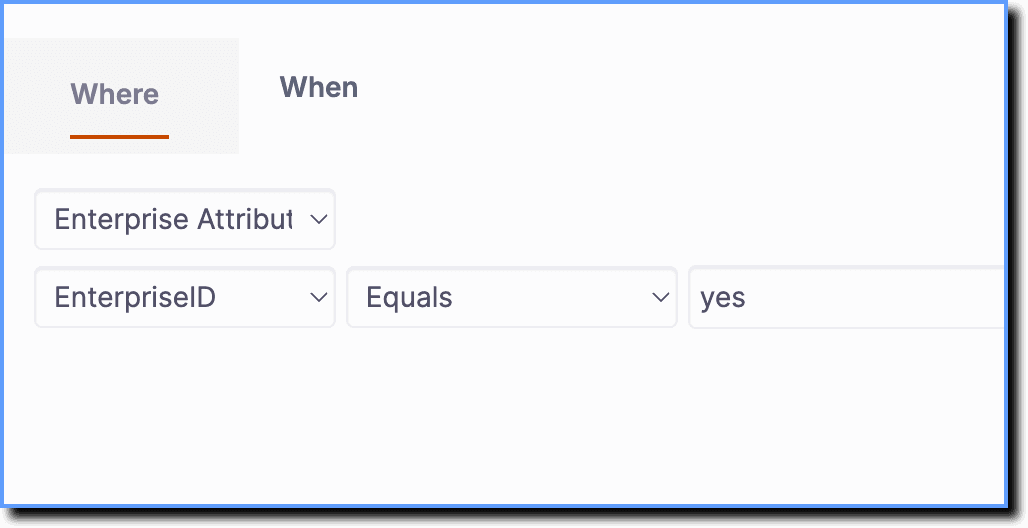 | Segment content based on user roles, departments, geography, accounts, and more. |
User Attributes 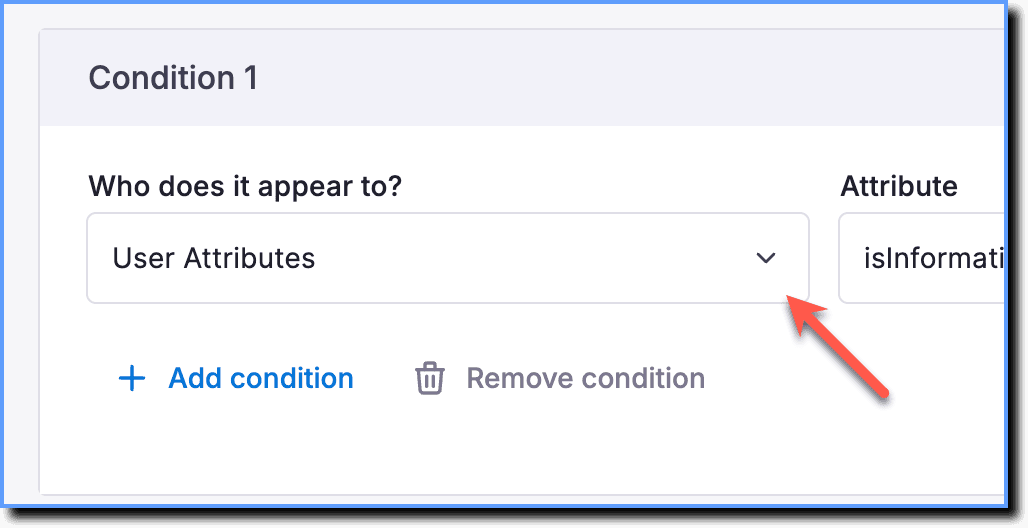 | User Attribute 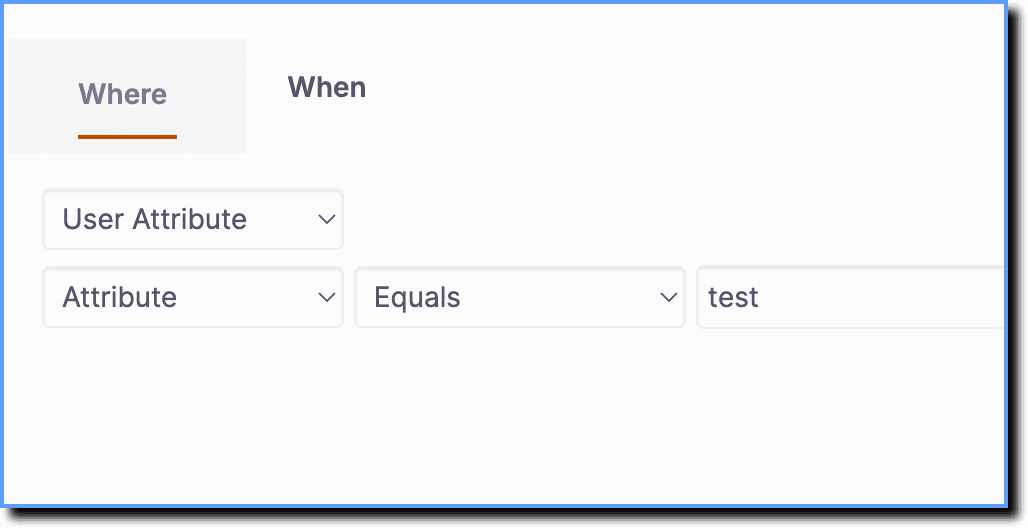 | Segment content based on end-user information from your application. |
Roles 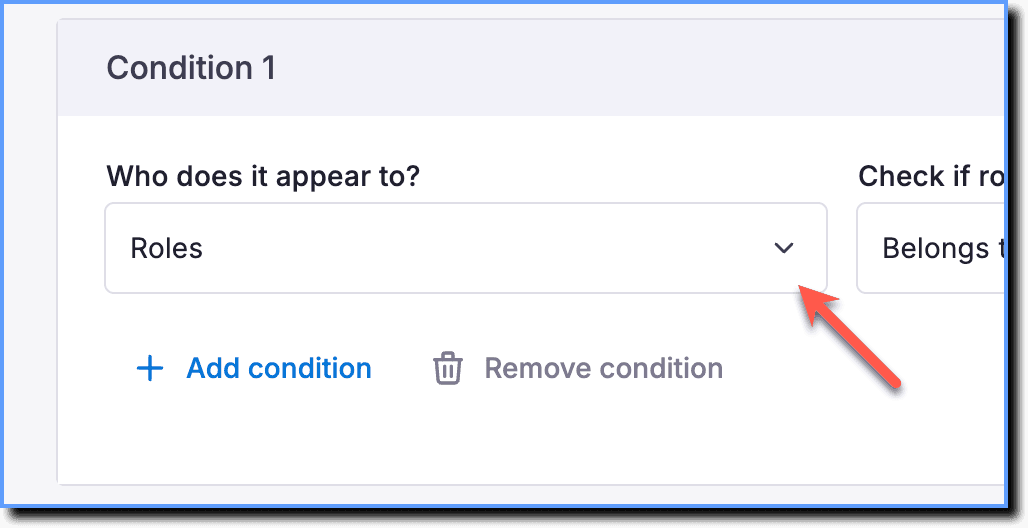 | Role Tag 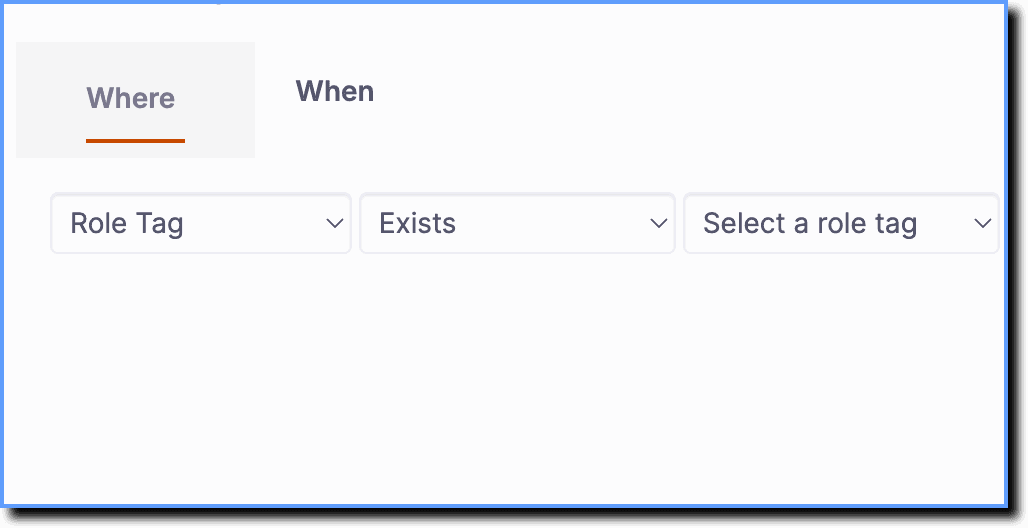 | Show different content to users with different roles. |
Cohorts 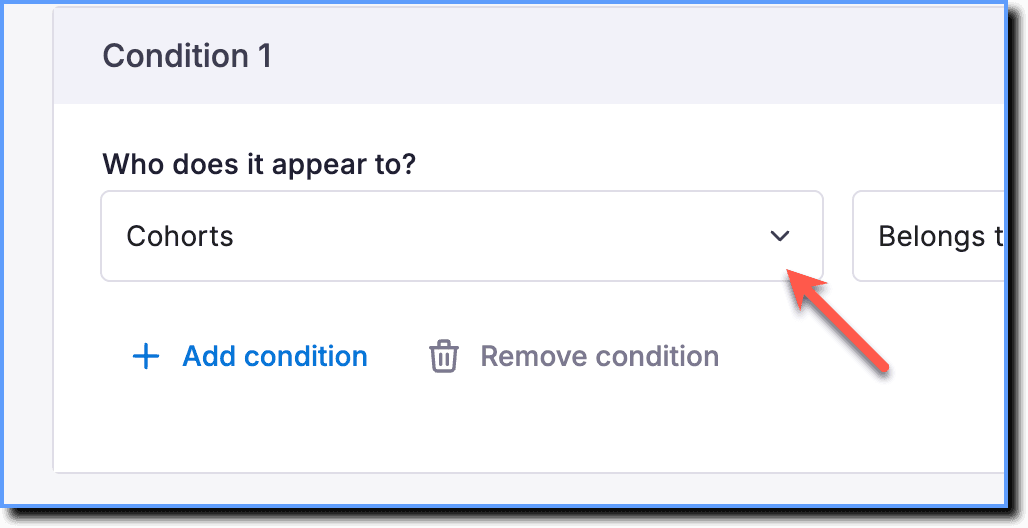 | Users 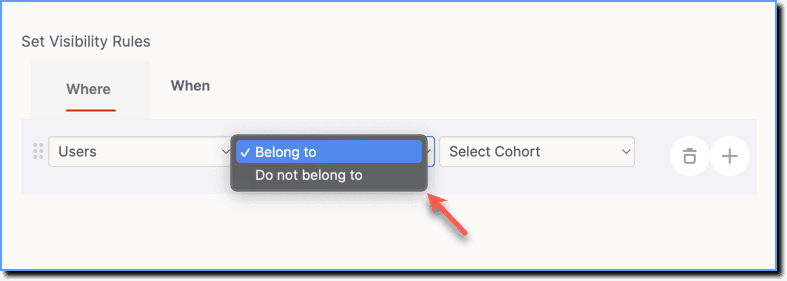 | Show content to specific user groups based on certain use cases. |
Configure a New Widget using New Visibility Rules
Use the following steps to access New Visibility Rules for any widget:
The following steps show how to configure New Visibility Rules for a Pop-up. This process is similar for all other widgets.
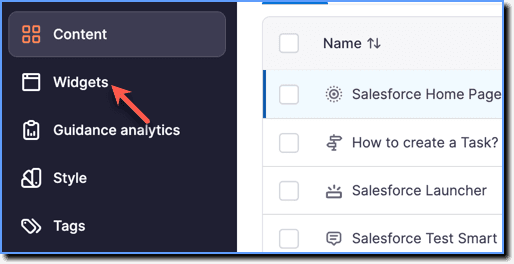
- On the Whatfix Guidance dashboard, click Widgets.
- Click Pop-ups.
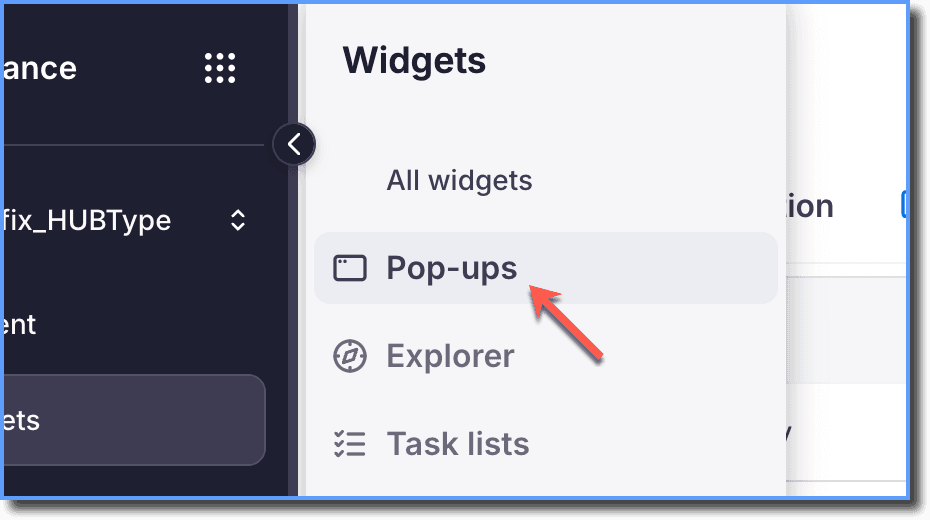
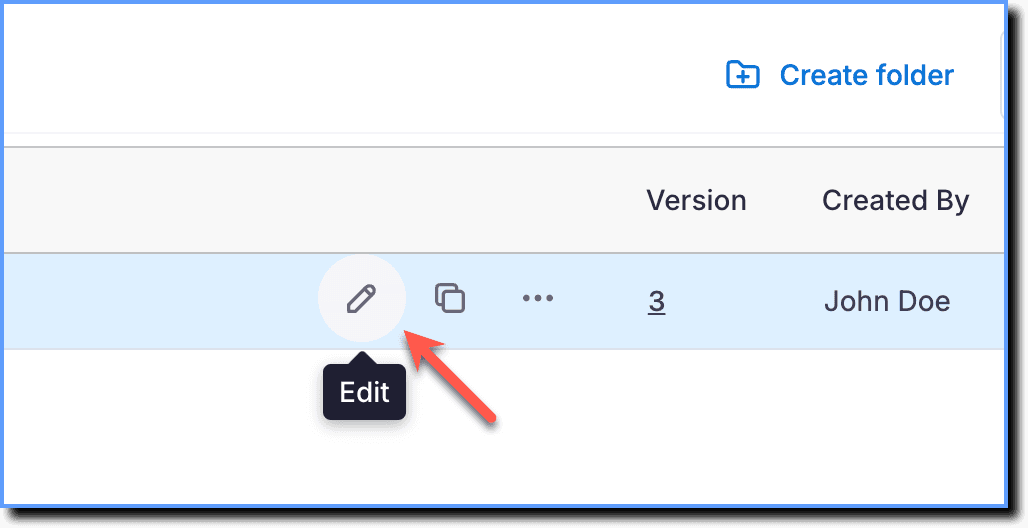
- Hover your cursor over the Pop-up segment you want to configure, and then click the Edit icon.
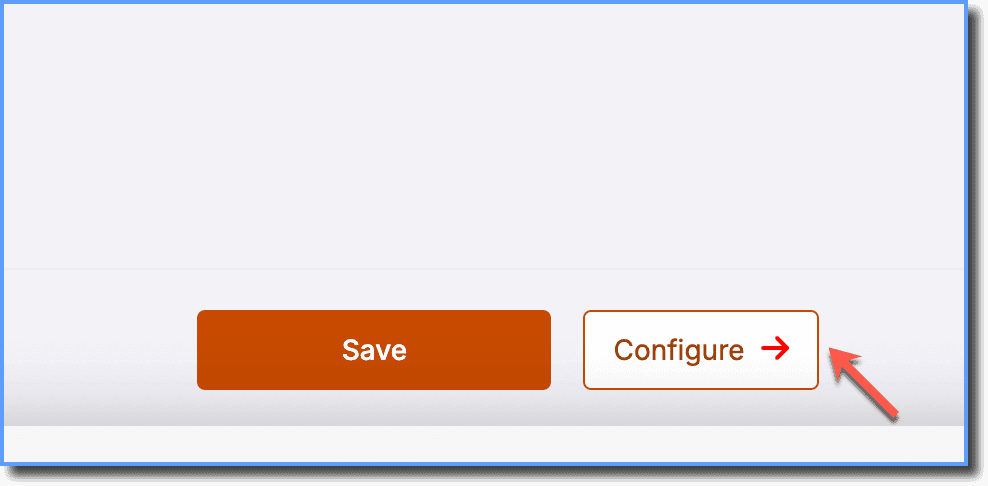
- Click Configure.
- Click Set Visibility Rules.
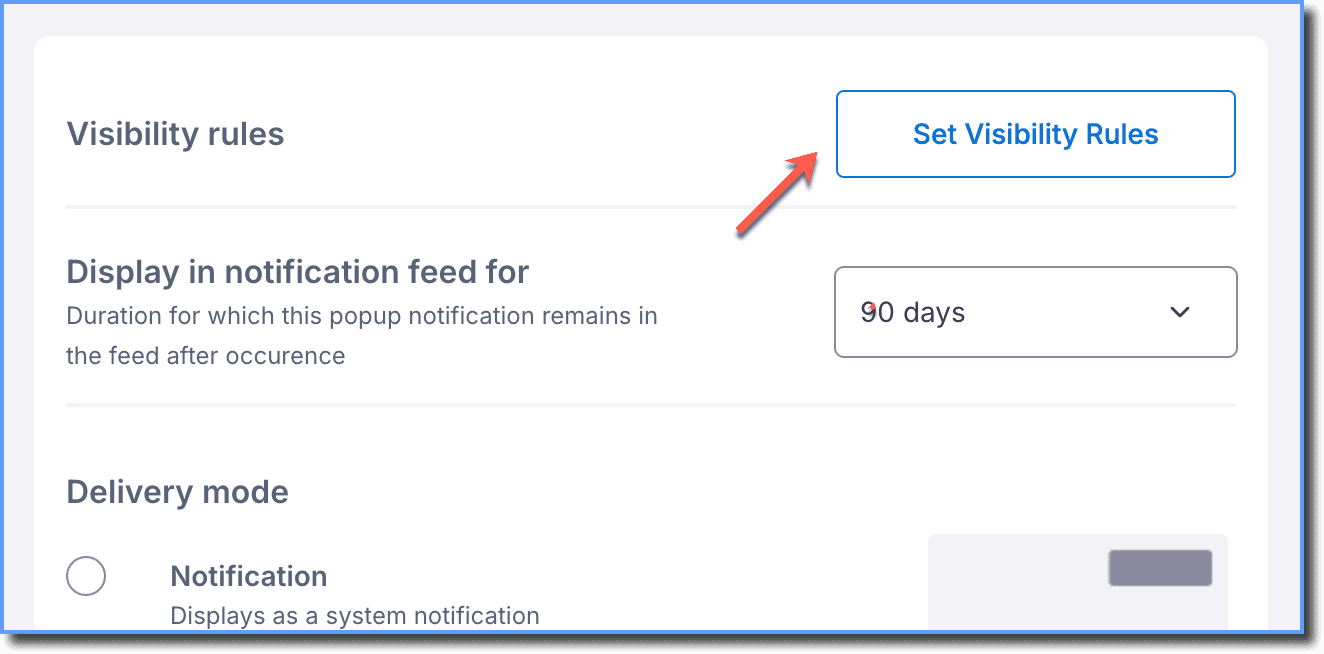
- On the Visibility rules page, set the following conditions:
- When does the pop up start and stop appearing?
- Who does the pop up appear to?
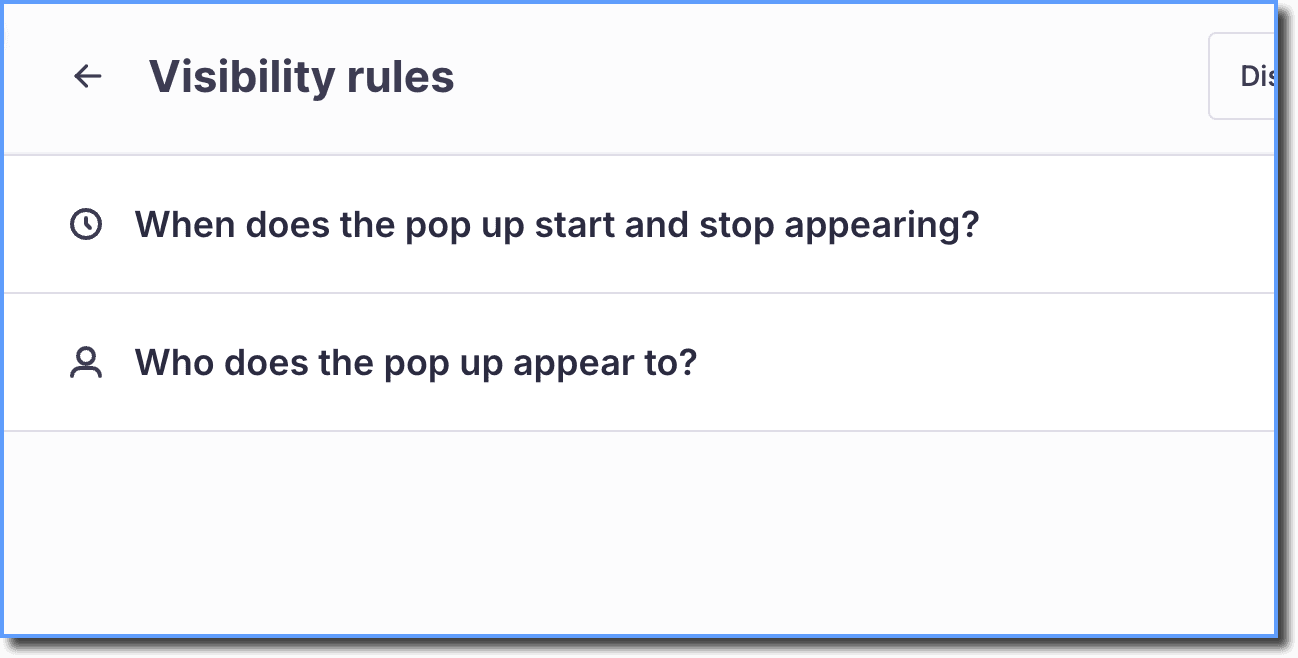
- Once you have added all required Visibility Rules, click Save.
 8. Finish creating the widget and then click Save.