End User
Notifications
Introduction
Notifications is a component of the DAP on OS that displays all notified communications. Access any important or missed notifications from this section. 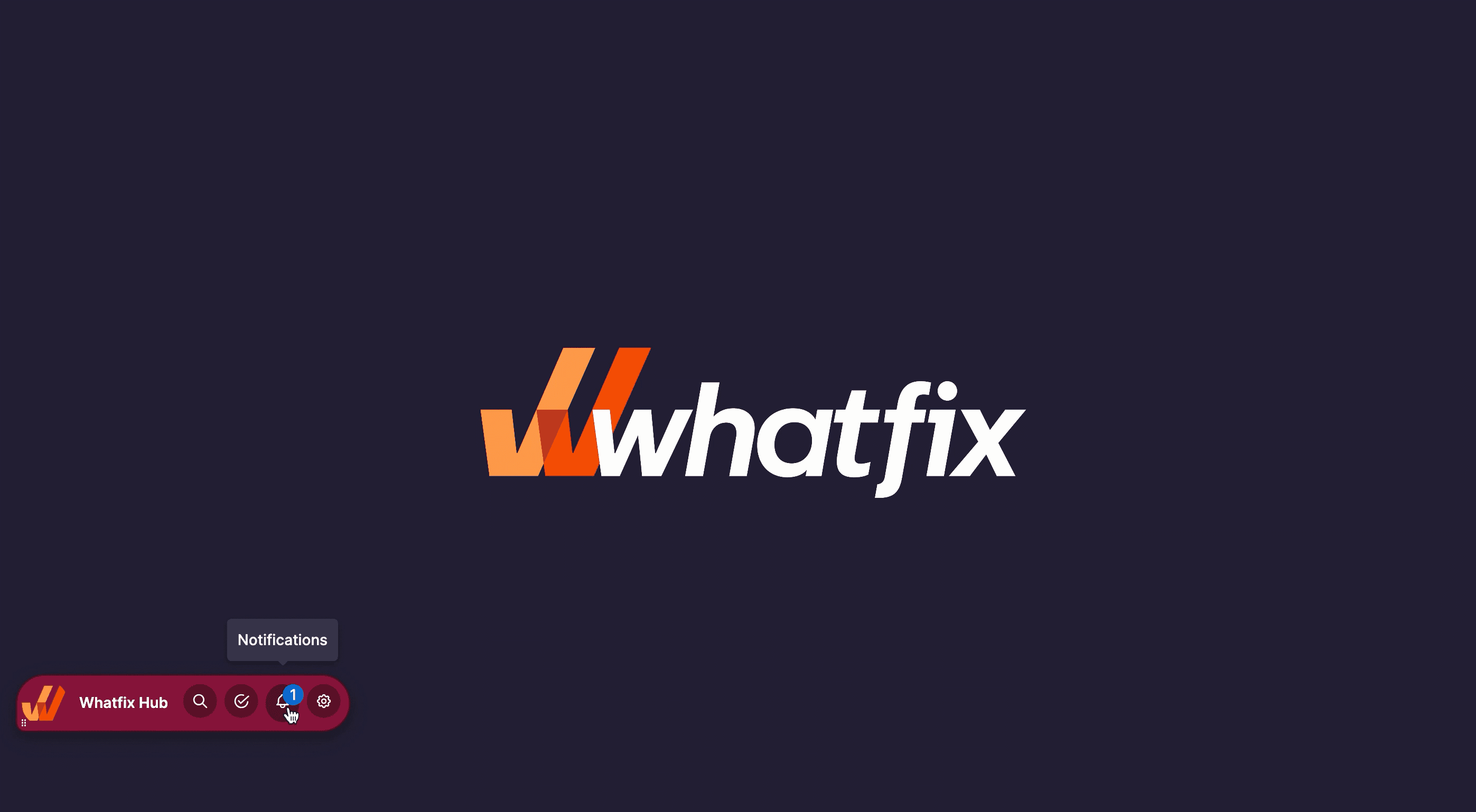
Notifications - Unread Scenarios
The following scenarios indicate when the Pop-up notification is Unread and New:
- End users click the X icon on the system notification.
- End users click the Skip button on the Pop-up.
- End users log out of the system and communications are sent.
- Pop-up displays as a system notification or as usual Pop-up, and the end user snoozes notifications from the FAB and Hub Panel.
New Notifications are indicated through badge numbers on the Notifications icon or a non-numbered badges on DAP on OS application.
| Numbered Badge on different DAP on OS State | Image |
|---|---|
| Closed state of Pin | 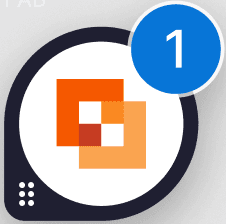 |
| Open state of Pin | 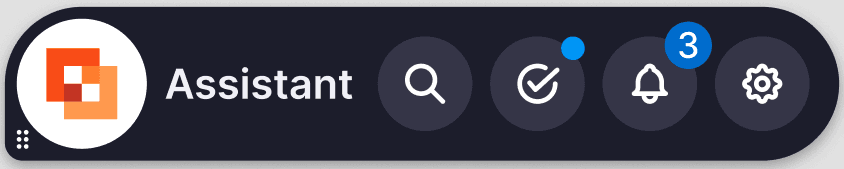 |
| Notification tab on the top nav bar of Hub |  |
| System tray of DAP on OS app. This applies to both Windows and macOS. | 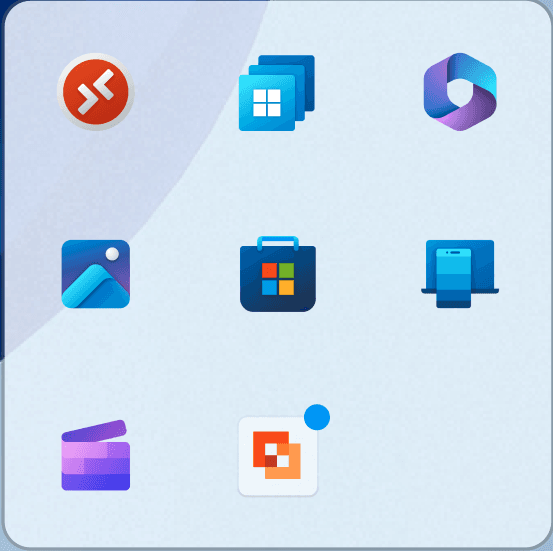 |
Notifications - Read Scenarios
The following scenarios indicate when the Pop-up notification is Read and Old:
- End users click CTA button on the Pop-up.
- End users click the X icon on the Pop-up.
- End users click the system notification.
- End users click the Notification bar, and the Pop-up opens.
When end users click the Don’t show me again checkbox, occurrences reduce to zero and the Pop-up is considered read and old.
Snooze
While focusing on priority tasks, use Snooze option to silence any communications from the DAP on OS app for a short duration. The mute duration includes the following options:
- For 30 minutes
- For 1 hour
- For 2 hours
- Until tomorrow
Access Snooze from the Settings section on the Pin as well. 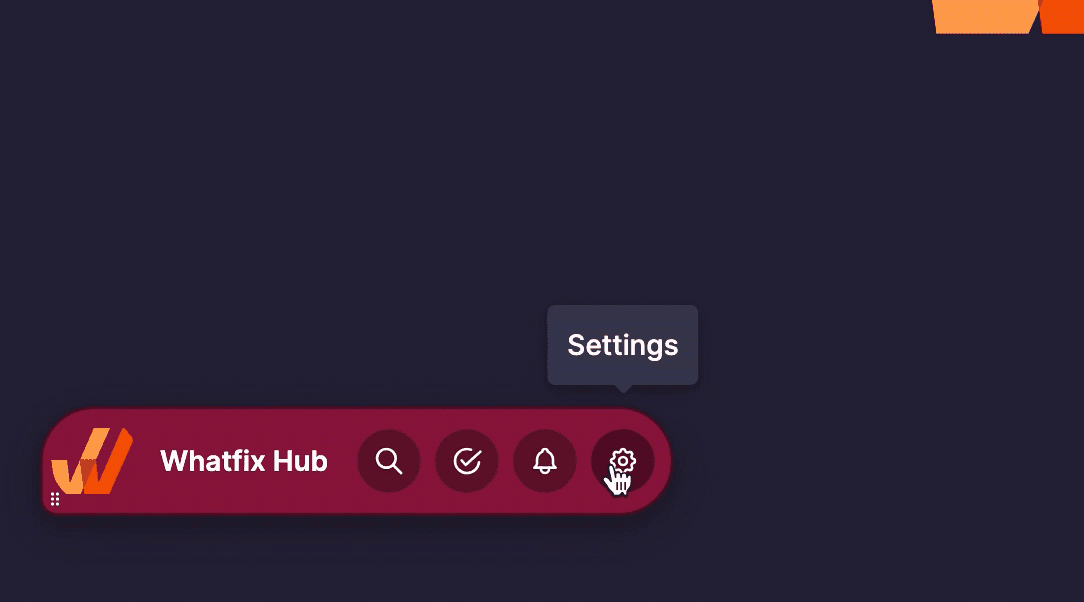
Pause communication from the Hub application for a short duration.
Pin is the interactive icon from where you can expand the new Self Help widget and access its different components: Explorer, and Feedback.