Salesforce Integration
Integrate Salesforce Repository
Integrate Salesforce with DAP on OS to fetch and display articles from your Salesforce repository as contextual links in the Pin.
- Integrate articles from the Knowledge and Files sections of the Salesforce application.
- To enable Whatfix to crawl content from the Files section, contact support@whatfix.com.
Use the following steps to integrate a Salesforce repository:
- On the Guidance dashboard, click Settings.
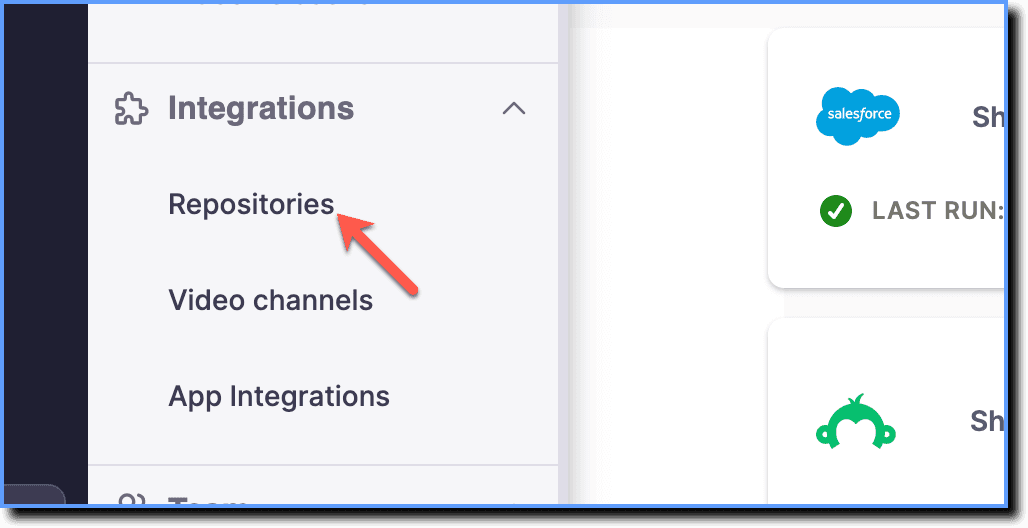
 2. Click Repositories.
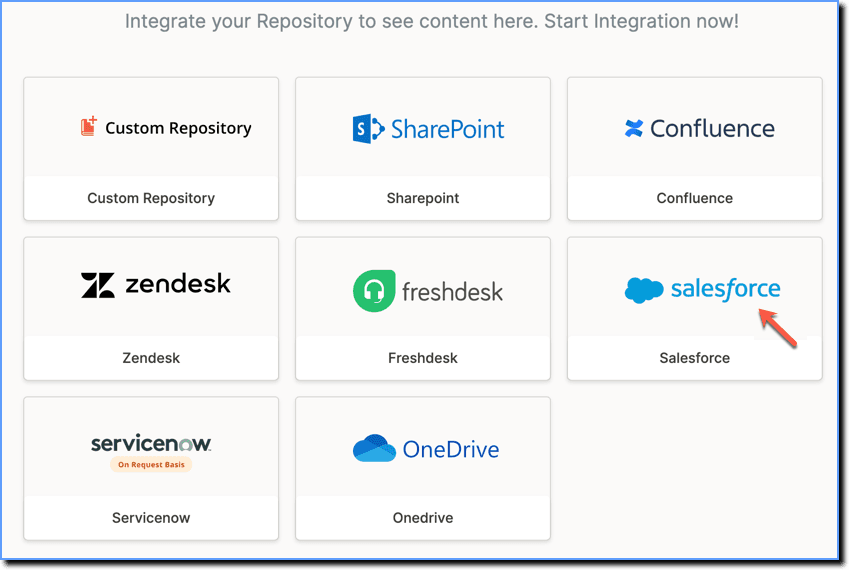
- Click the Salesforce tile.
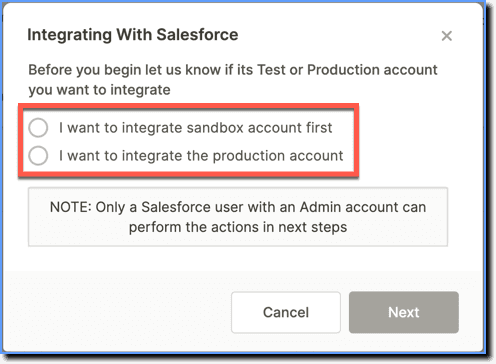
- Choose whether you want to integrate a sandbox account or a production account, and then click Next.
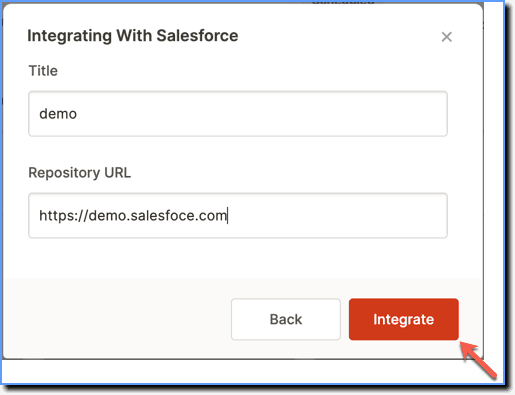
- Enter a title and the URL of your Salesforce repository.
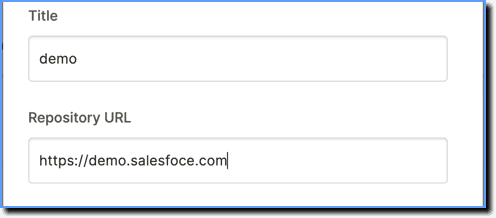
The title you provide here is used as the tag name for the default tag attached to all the content fetched.
- Click Integrate.
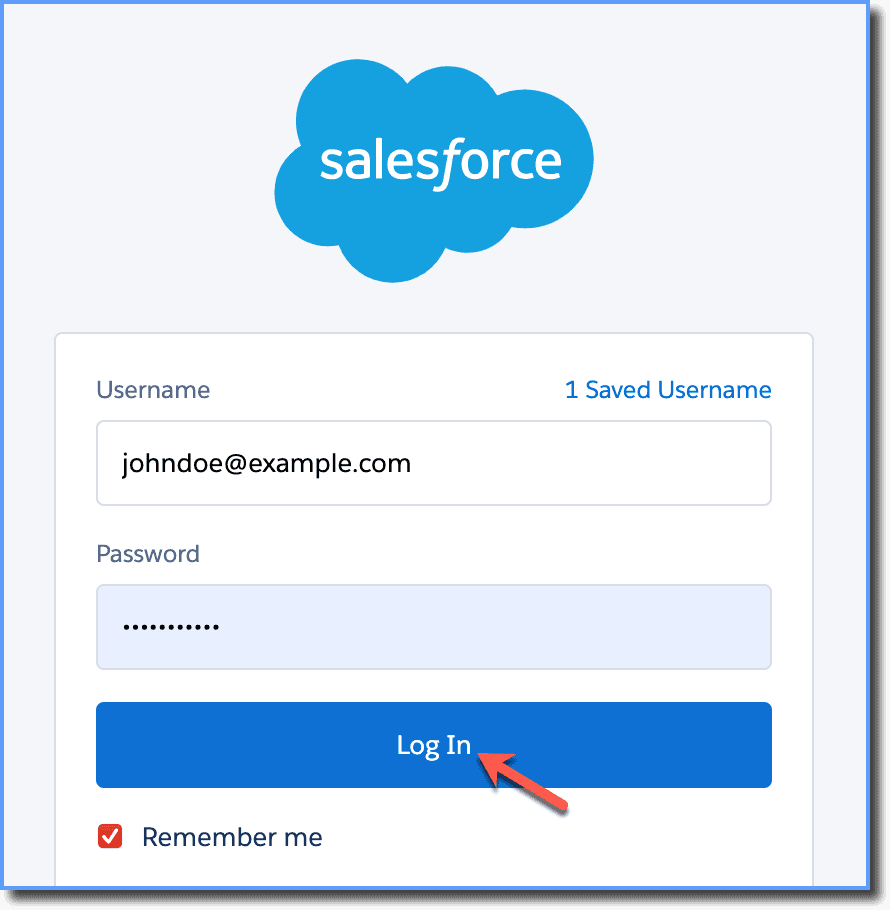
- Once the login page loads, enter your Salesforce credentials, and then click Log In.
After you have created an Integration request, your repository is listed under Integrated Applications in the processing state. 
- Depending on how big your repository is, the content sync might take between 24 - 78 hours to complete.
- Once all the content is indexed, access them on the DAP on OS dashboard.

- The content fetched can be added to self help and task list widgets in the same way as you would add any other Whatfix content.
- If you have smart context enabled, you must add the global-page tag for the content to reflect in the self help widget on your application. For more information, see Add tags to Repository Content.
- If you click Cancel or close the integration pop-up, the integration request is Saved as a draft in the Integrated Repositories section.