Trend Insights
Copy Trend Insights
Copying a Trend Insight enables you to create a copy of an existing Trend Insight to add any new events associated filters, breakdowns, and to change user filters, user breakdowns, chart type, or date. This process minimizes time and effort by avoiding the need to create an entirely new Trend Insight to visualize updated parameters.
Whatfix enables you to copy Trend Insights in the following three ways:
- Copy Trend Insight from the list view
- Copy Trend Insight from within an existing Trend Insight
- Save changes made to an existing Trend Insight as a new Trend Insight
Copy Trend Insight from the list view
Use the following steps to copy a Trend Insight from the list view:
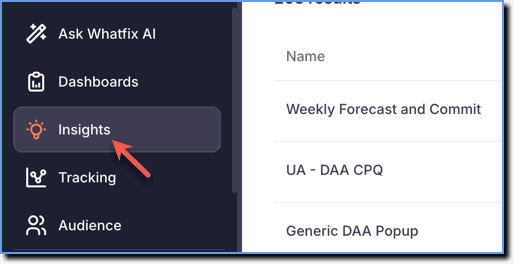
- On the Whatfix Analytics dashboard, click Insights.
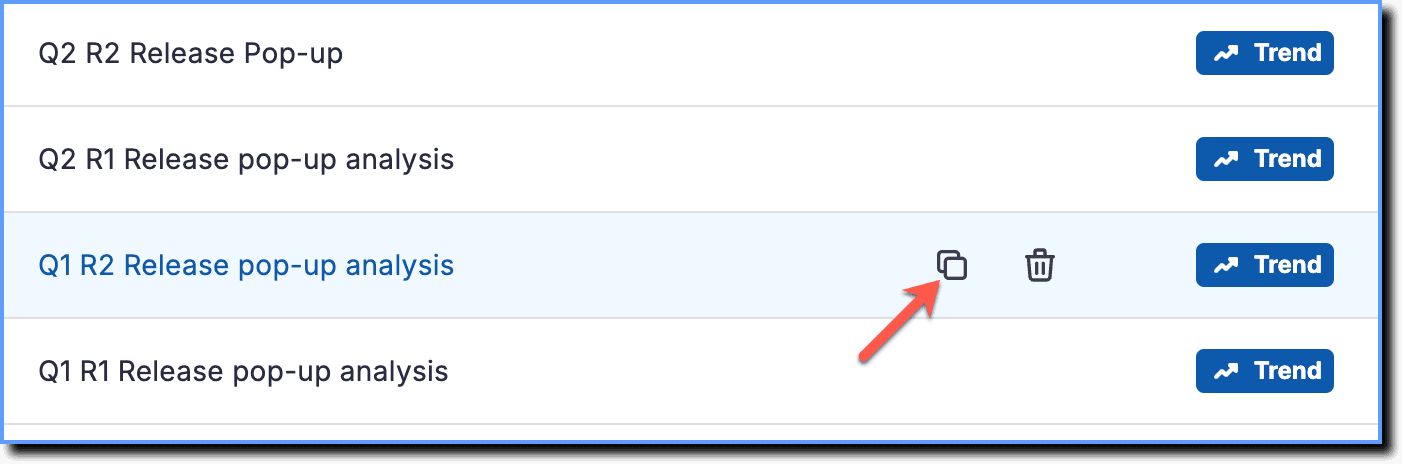
- Hover your cursor over the Trend Insight you want to copy, and then click the Copy icon.
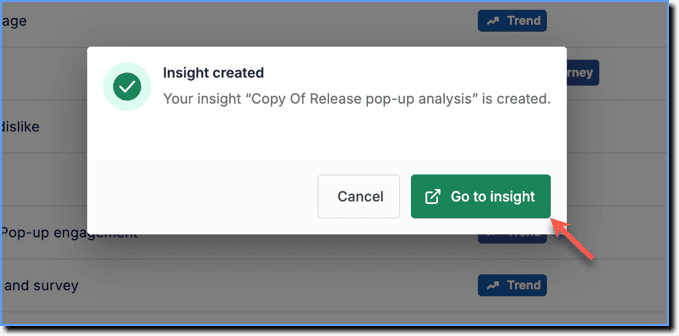
Whatfix creates a copy of the Trend Insight as Copy Of [Trend Insight name].
- In the dialog box, click Go to insight to modify the new Insight.
The following modifications are possible:
- Enter a new name or description for the Insight.
- Add new events or filters.
- Change the metric, chart type, and timeframe.
- Click Save on the modified Insight.
Copy Trend Insight from within an existing Trend Insight
Use the following steps to copy a Trend Insight from within an existing Trend Insight:
- On the Whatfix Analytics dashboard, click Insights.
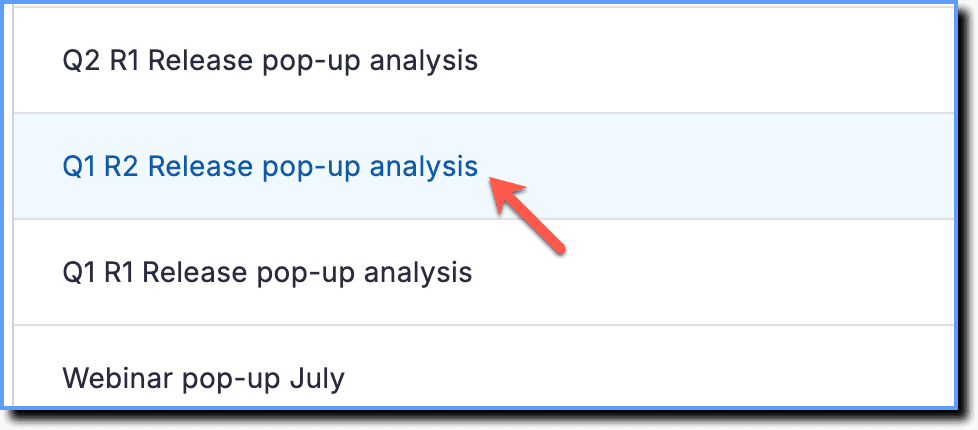
- Click the Trend Insight that you want to copy.
- At the top, click the Copy icon.
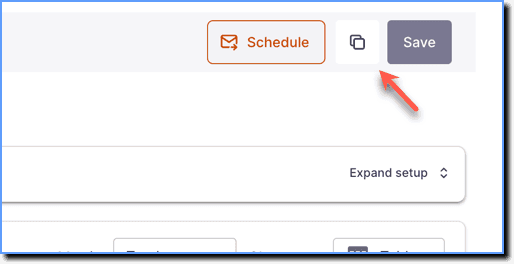
The Copy icon appears only if you've not made any changes to the existing Trend Insight.
- On the Give your insight a name. dialog box, enter the name of the new Trend Insight.
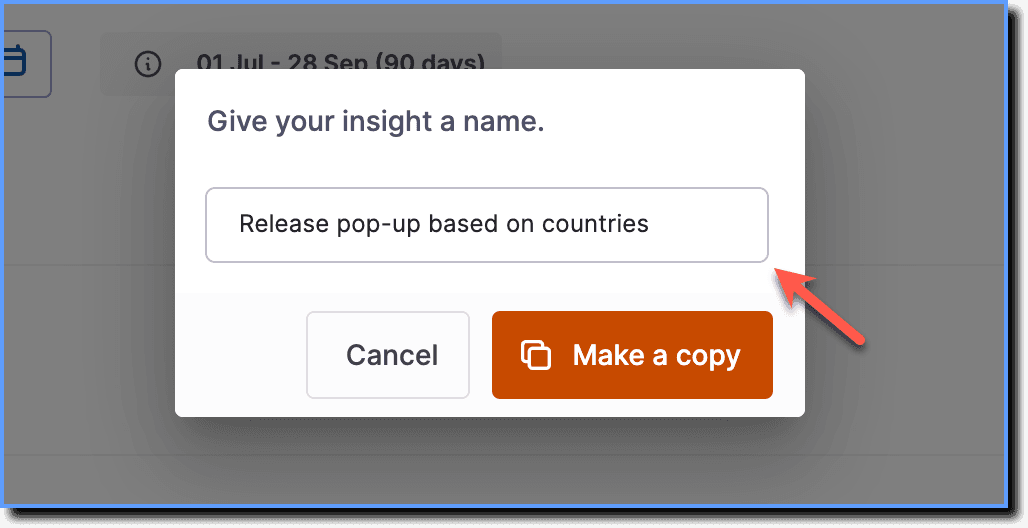
- Click Make a copy.
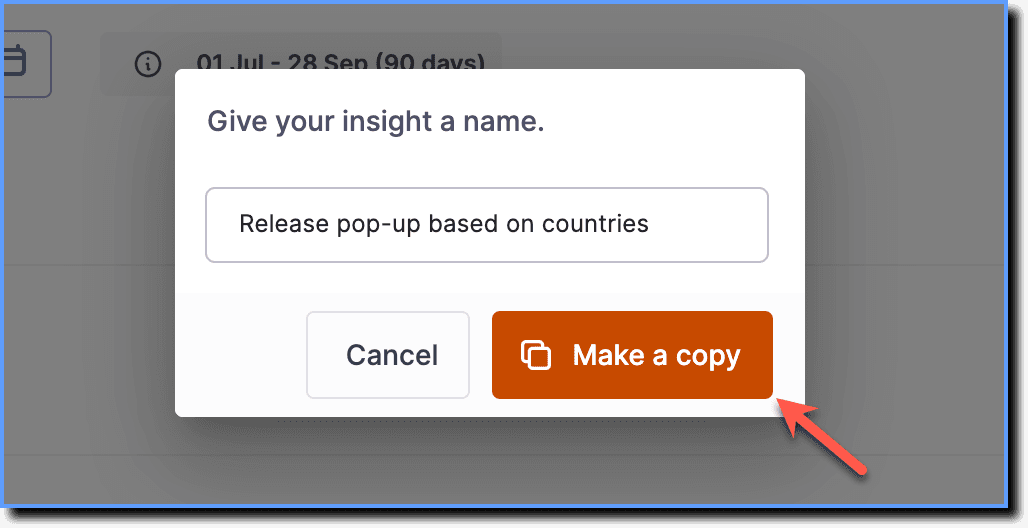
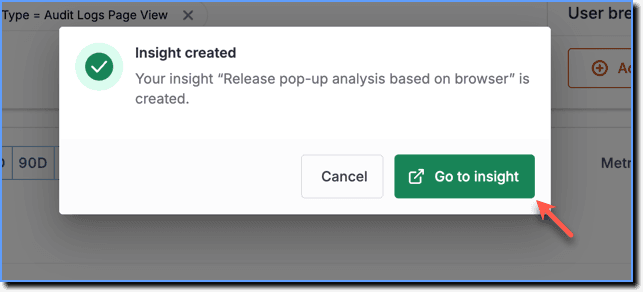
Once the new Trend Insight is created from the existing Trend Insight, on the Insight created dialog box, click Go to insight to view and edit your new Trend Insight. 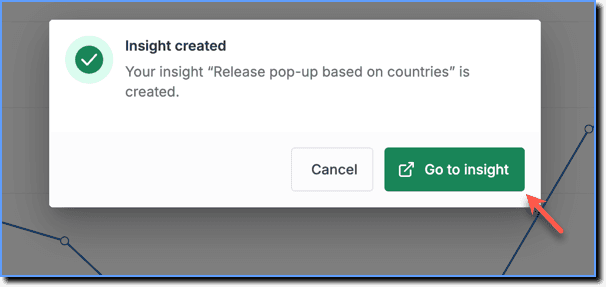
Save changes made to an existing Trend Insight as a new Trend Insight
While editing an existing Trend Insight, Whatfix enables you to save the changes to a new Trend Insight or save them in the existing Trend Insight.
Use the following steps to save the changes to a new Trend Insight from an existing Trend Insight:
- On the Whatfix Analytics dashboard, click Insights.
- Click the Trend Insight that you want to edit.
For more information on editing a Trend Insight, see Edit Trend Insights.
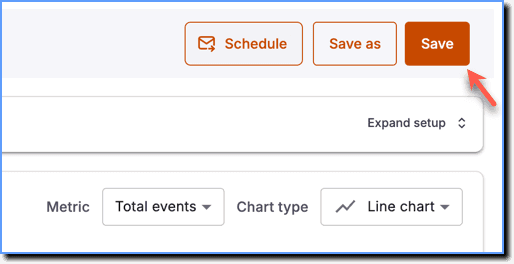
- Make the required changes, and then click Save as.
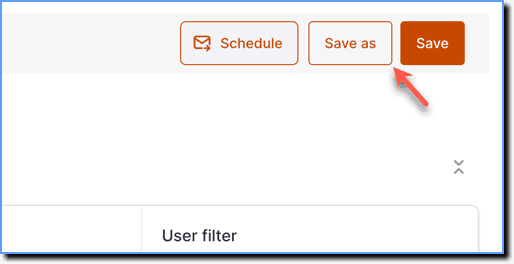
- The Save as button is enabled only if you make any changes to the Trend Insight.
- If you don't make any changes to the Trend Insight, only the Copy icon is visible.
- On the Give your insight a name. dialog box, enter the name of the new Trend Insight.
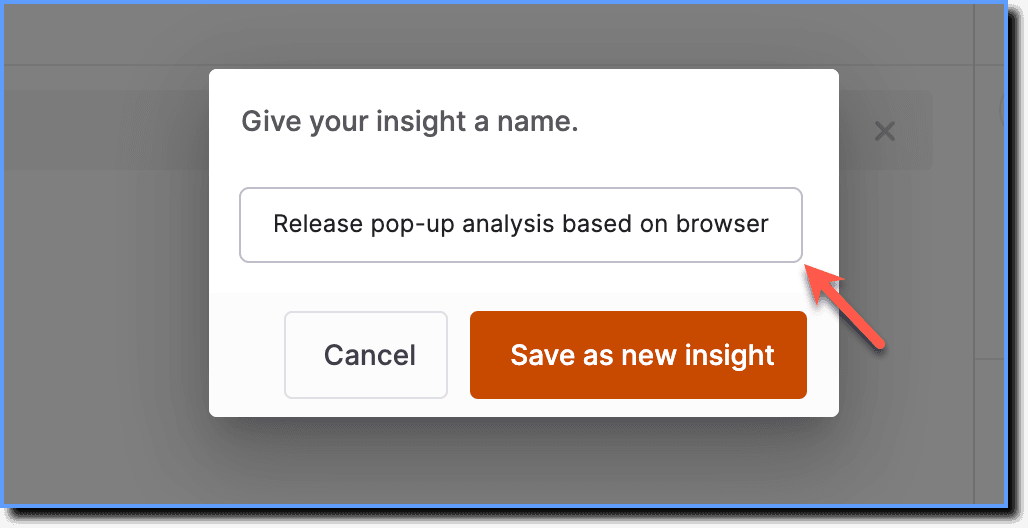
- Click Save as new insight.
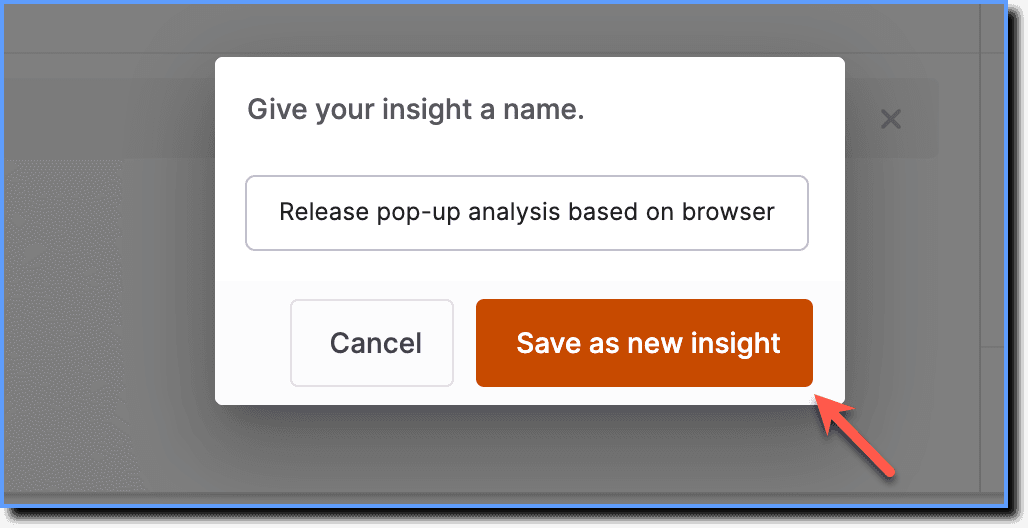
- A new Trend Insight is created exactly like the existing Trend Insight.
- On the Insight created dialog box, click Go to insight to view and edit your new Trend Insight.
Note
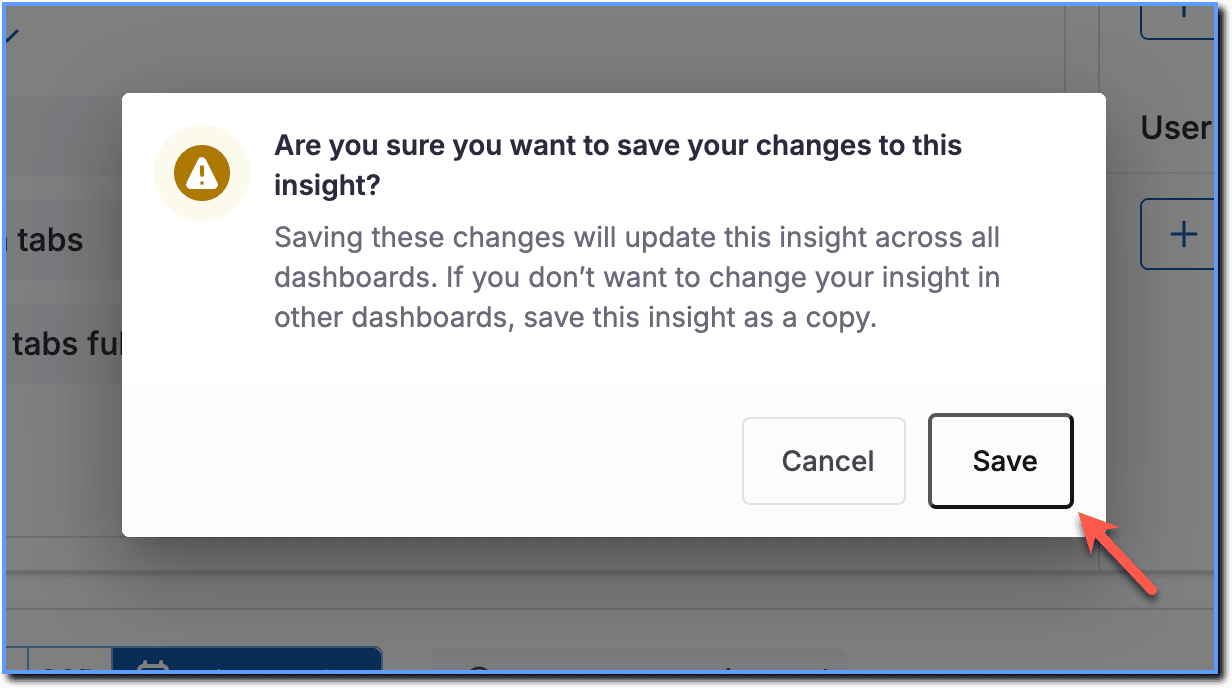
Any changes made to an Insight that is part of Dashboards reflect in the Dashboards as well. If you don't want the changes made to the Insight to reflect in all the Dashboards it is part of, save the Insight as a copy without the changes. Use the copied Insight in other Dashboards, and changes made to this Insight do not impact the original Insight in the other Dashboards.