Trend Insights
Static content events not working for Improved Self Help
Issue
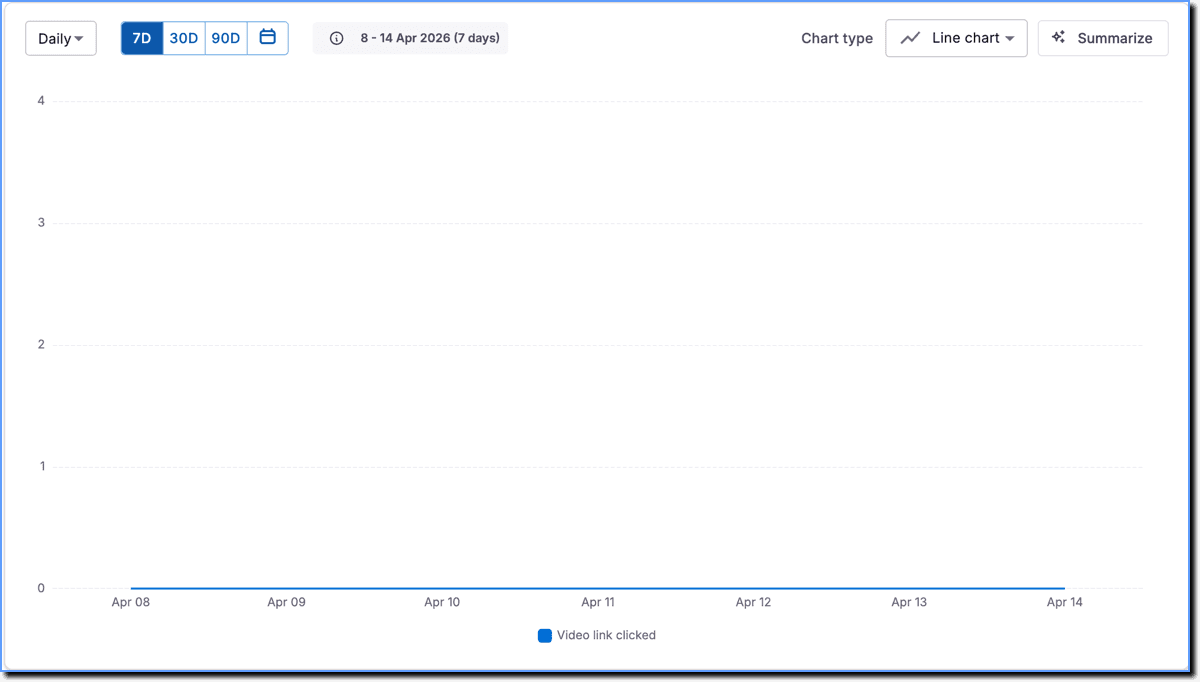
Events related to Static content, such as Link opened in new format and Video link clicked, are not capturing data for the Improved Self Help.
Probable Cause
Engagement events related to Static content are not supported for the Improved Self Help.
The following events used to measure Static content engagement are not supported for the Improved Self Help:
- Article closed
- Article viewed
- Link opened
- Link opened in new format
- Video link clicked
- Pdf Viewed
- Image start
Suggested Solution
The Clicks on content within Explorer event enables you to analyze the end-user engagement with content in the Improved Self Help.
Use the following steps to analyze the end-user engagement with Static content in Improved Self Help:
-
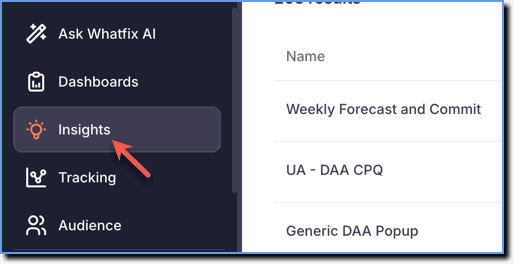
On the Whatfix Analytics dashboard, click Insights.
-
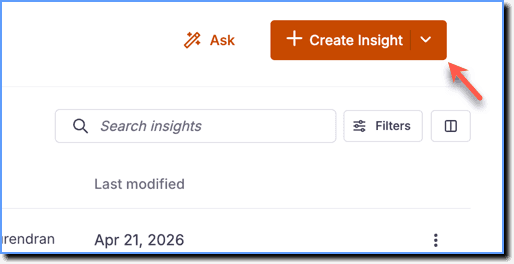
Click Create Insight.
-
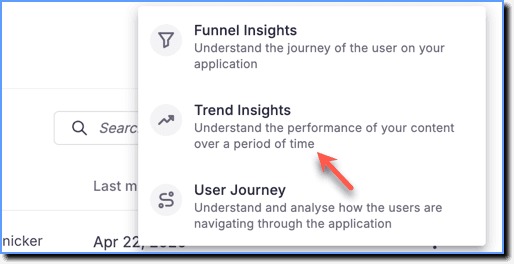
Click Trend Insights.
-
Click the Give your insight a name textbox and enter a name for your Insight.
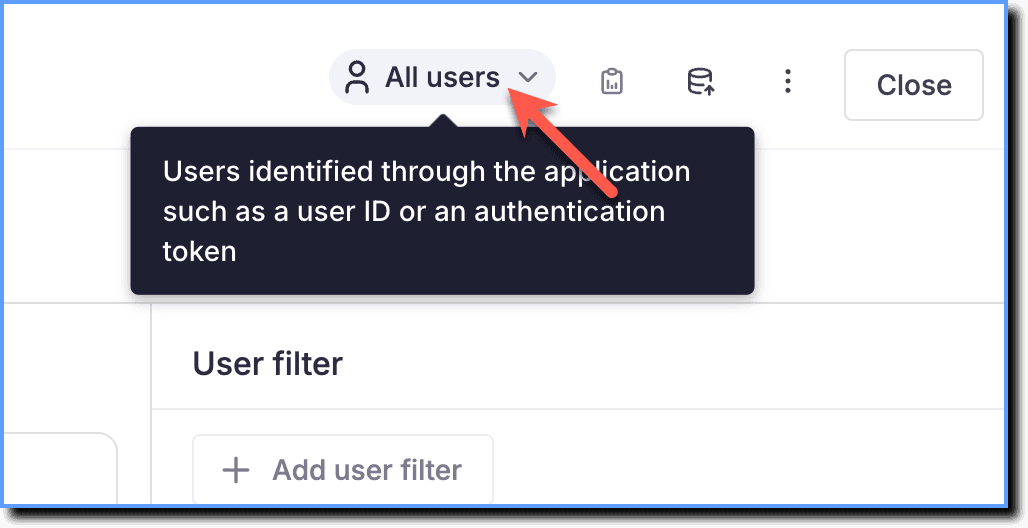
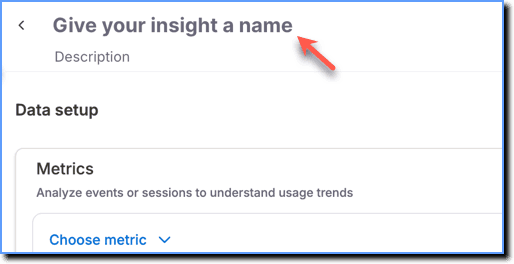 2. From the Select user type dropdown, choose whether to analyze data for All users, Identified users, or Anonymous users.
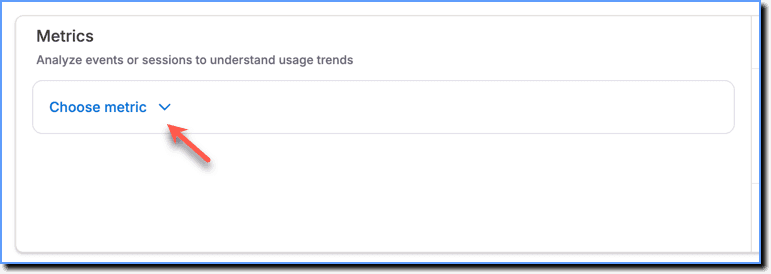
 3. Click Choose metric.
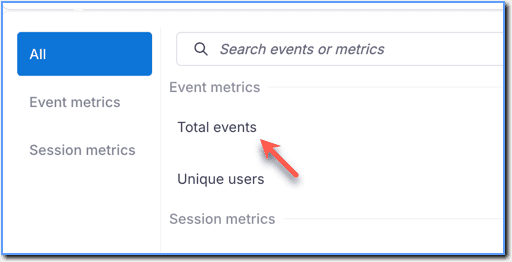
 4. Under Event metrics, select Total events or Unique users as required.
 5. Click Add event.
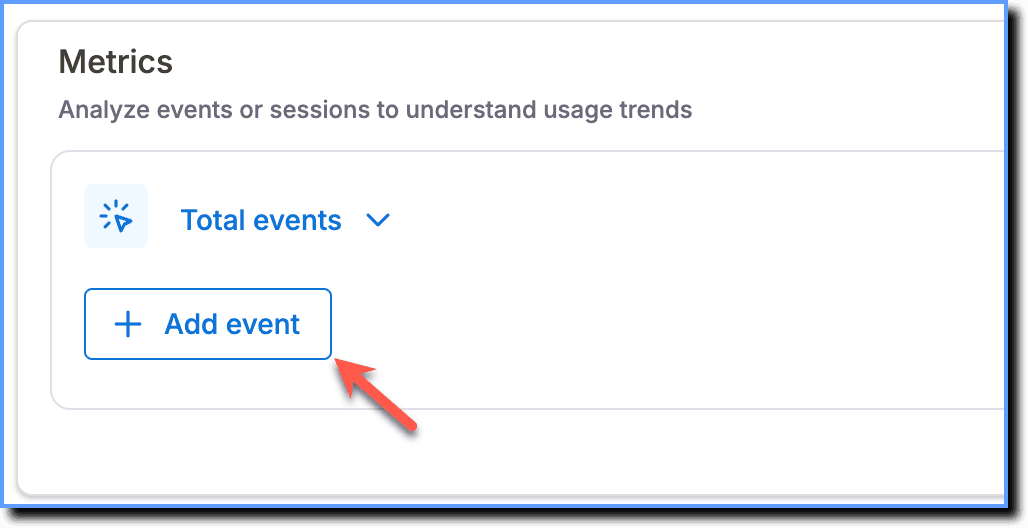 6. Click Guidance events, select Clicks on content within Explorer, and then click Apply.
 7. Click Filter.
 8. Search for Content type and then select it.
 9. Select the required filter value - link, video, pdf, text, or image, and then click Apply.
 10. Click Breakdown.
 11. Select Content title shown and Content type, and then click Apply.
 12. Add the required User filter and User breakdown. For more information, see Filter Insights data using User Filters and User Breakdown.
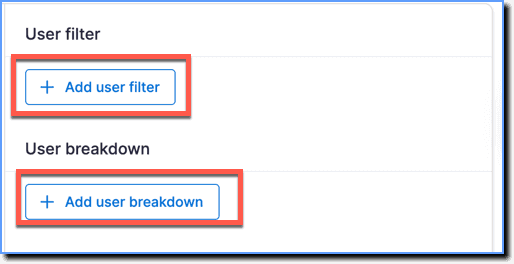
Here’s the data setup.
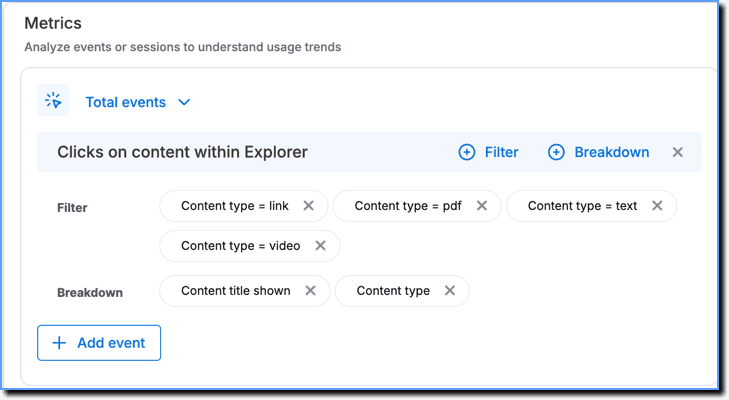
- Scroll down to view the generated data chart.
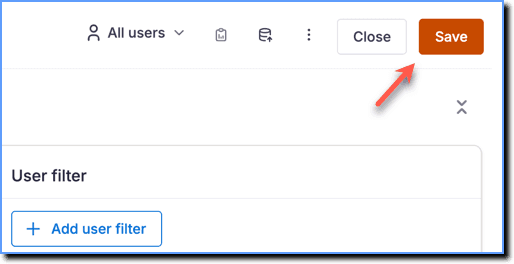
 14. Click Save.
Shows overall behavior and engagement for both identified and anonymous (unidentified) users.
Users that Whatfix can detect and identify using a unique User ID.
Users that Whatfix cannot identify. These users are denoted by the Anonymized Whatfix IDs rather than an actual User ID.
The total number of times the event occurred.
The number of unique users who triggered the event.