User lists (Static Cohorts)
Create a Cohort based on the User List
Whatfix enables you to upload a CSV file with a list of User IDs and create a User list.
Use the User List in the following ways:
- Add the User List as a Visibility Rule to target Whatfix widgets.
- Add the User List as a filter in Insights and Dashboards to drill down on user behavior.
- Create a Cohort using the User List to group users in the User List based on their actions and behavior. For example, identify Sales team members who engaged with a new feature.
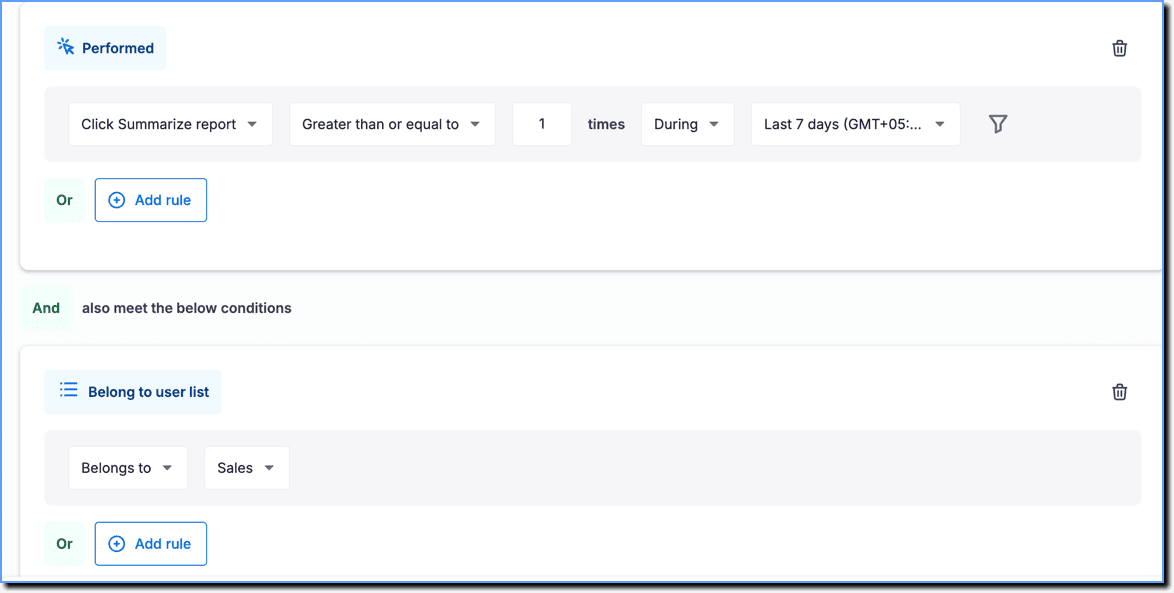
Whatfix enables you to add the Cohorts you create with a User List and other rules as Visibility Rules or User filters.
Use cases
- Find out how many new users completed an onboarding Task List.
- Identify the number of premium users who engaged with a new reporting feature.
Use the following steps to create a Cohort based on the User list:
-
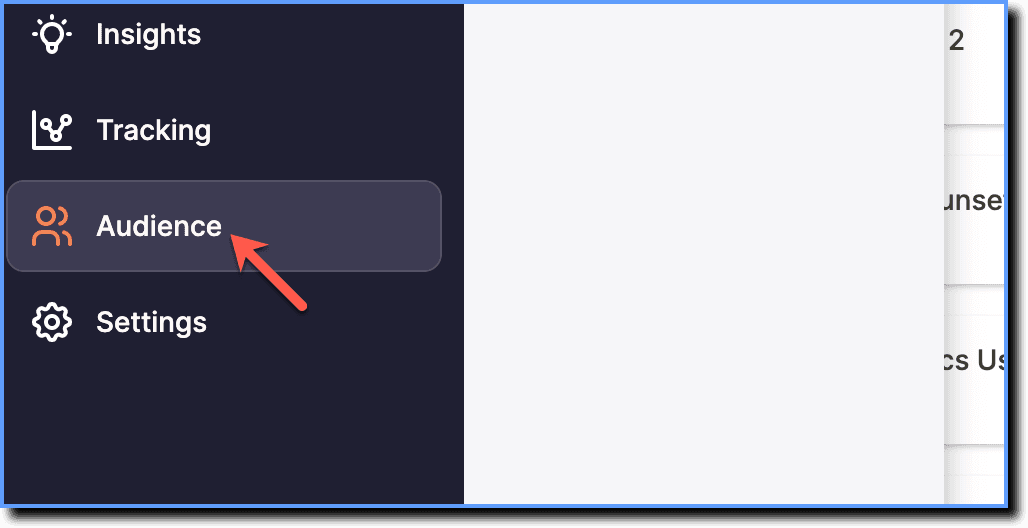
On the Whatfix Analytics dashboard, click Audience.
-
Click Cohorts.

-
Click Create cohort.
 2. Click the Give your cohort a name textbox and enter a name for your Cohort.
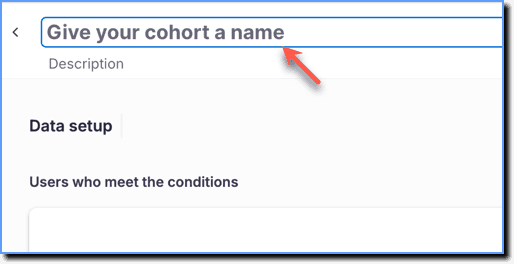
Provide a description that explains the purpose of the Cohort.
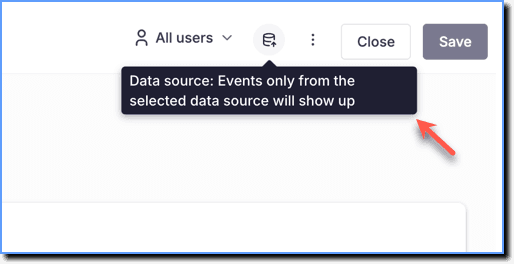
- Click the Data source icon and select the stage from which you want to get the data. For more information, see Get Analytics Data across CLM Stages.
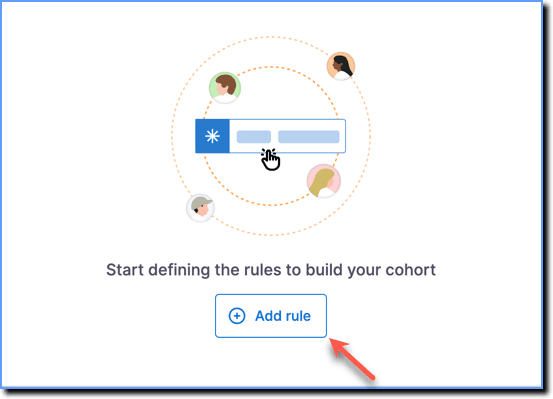
 4. To define the Cohort conditions, click Add rule.
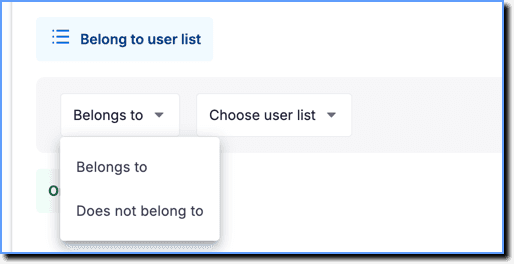
 5. Click Belong to user list.
 6. Select Belongs to or Does not belong to, depending on your use case.
| Condition | Description |
|---|---|
| Belongs to | Users who are part of the User list. |
| Does not belong to | Users who are not part of the User list. |
You might want to use the Does not belong to condition to analyze users who engaged with Whatfix content but are not in the Sales team.
- Select the User list.
 8. Add additional conditions. For more information, see Create a Cohort.
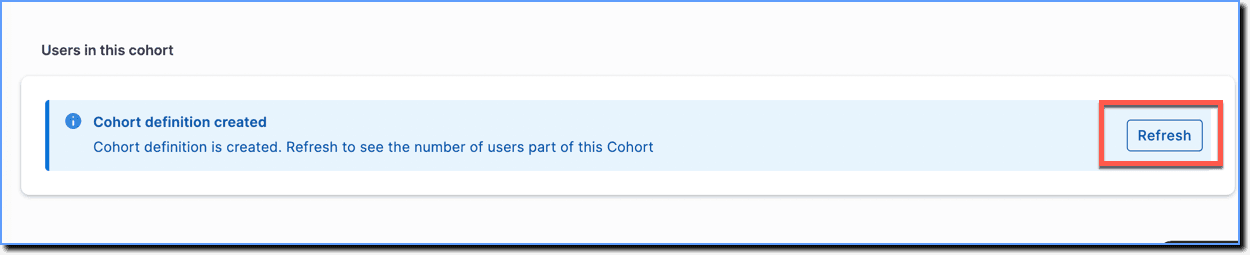
9. Scroll down to the Users in this cohort section, and then click Refresh to view the user count.
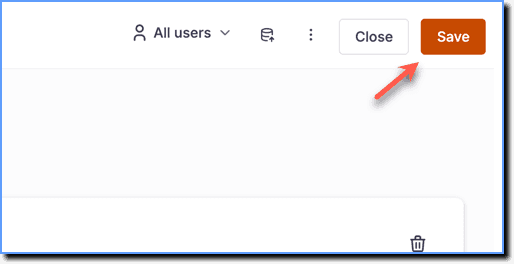
 10. Click Save.
This Cohort can be used as a filter in Insights or as a Visibility Rule.